
An employee cybersecurity checklist turns risky habits into simple daily actions that everyone on your team can follow. A single careless click, however, can expose customer records, email accounts and company money. Small businesses are common targets because they often have fewer security controls and limited IT support. Hypothetical example: an accounts assistant receives an email from a “supplier” asking to change bank details. As a result, she pays the next invoice to the new account without calling anyone. The real supplier stays unpaid, and the money is gone. Finally, this guide gives you 20 practical rules, each with one action you can take today.
Table of Contents
- What Is an Employee Cybersecurity Checklist?
- Why Your Employee Cybersecurity Checklist Matters Now
- The 20 Rules in Your Employee Cybersecurity Checklist
- Daily Employee Cybersecurity Habits
- What to Do After a Security Mistake
- Frequently Asked Questions
- Make Your Employee Cybersecurity Checklist a Habit
What Is an Employee Cybersecurity Checklist?
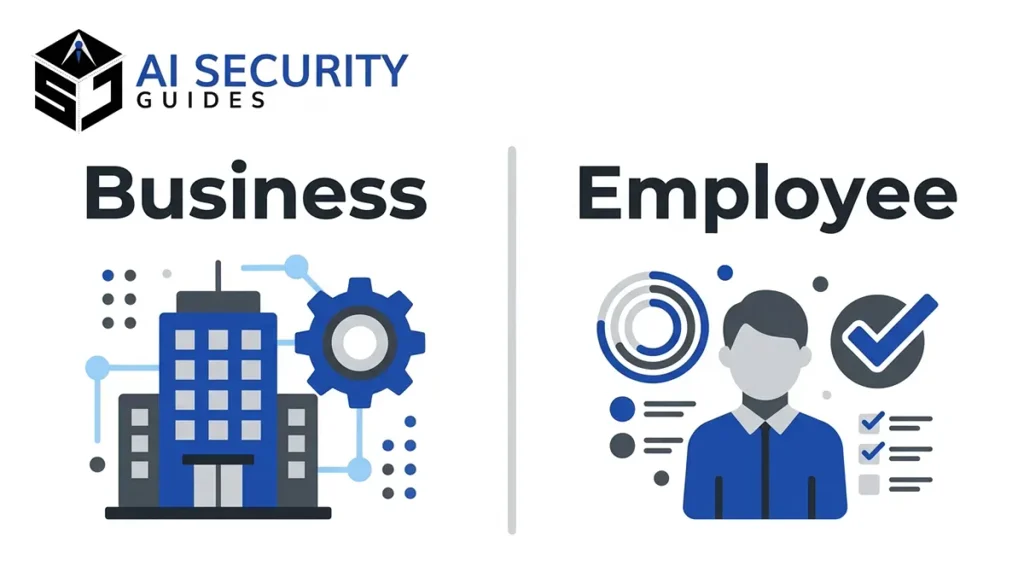
An employee cybersecurity checklist is a short list of security habits that every team member follows. For example, it turns general advice into specific actions, such as calling a known number before paying a changed invoice. Unlike a business checklist, it focuses on individual behavior rather than company decisions. By contrast, a business checklist covers backups, vendor management and policies. The employee version covers what you click, share, approve and report. For the company-wide view, read the Cybersecurity Checklist for Beginners. In addition, this list suits office staff, remote workers, managers and freelancers who handle company data.
Why Your Employee Cybersecurity Checklist Matters Now
Attackers rarely break through strong technical defenses. Instead, they usually persuade a person to reveal a password, approve a login or send money. Phishing, a fraudulent message designed to look trustworthy, remains one of the most common methods. CISA’s guidance on recognizing and reporting phishing explains the warning signs. Therefore, your employee cybersecurity checklist closes these gaps with habits that take seconds to follow.
The 20 Rules in Your Employee Cybersecurity Checklist
Each rule in this employee cybersecurity checklist includes one action you can take. To begin, start with the first four this week, and then add the rest over the month.
Accounts and Login Security
- Use strong, unique passwords for every account. For example, reusing one password lets a single leak unlock your work email. Instead, store passwords in an approved password manager. Passkeys are another strong option, as explained in Passkeys vs Password Managers.
- Turn on multi-factor authentication (MFA) everywhere. MFA asks for a second proof of identity, such as a code from an app. Prefer an authenticator app or security key over text messages. Also, NIST’s digital identity guidelines recommend offering multi-factor options, so use them wherever they appear.
- Never approve a login you did not start. First, reject the prompt, change your password and report it. Attackers sometimes repeat prompts until someone taps approve, so stay alert.
- Lock your screen every time you step away. Press Windows key + L on Windows, or Control + Command + Q on a Mac. Then turn on automatic locking for your phone.
Email, Payments and Scams
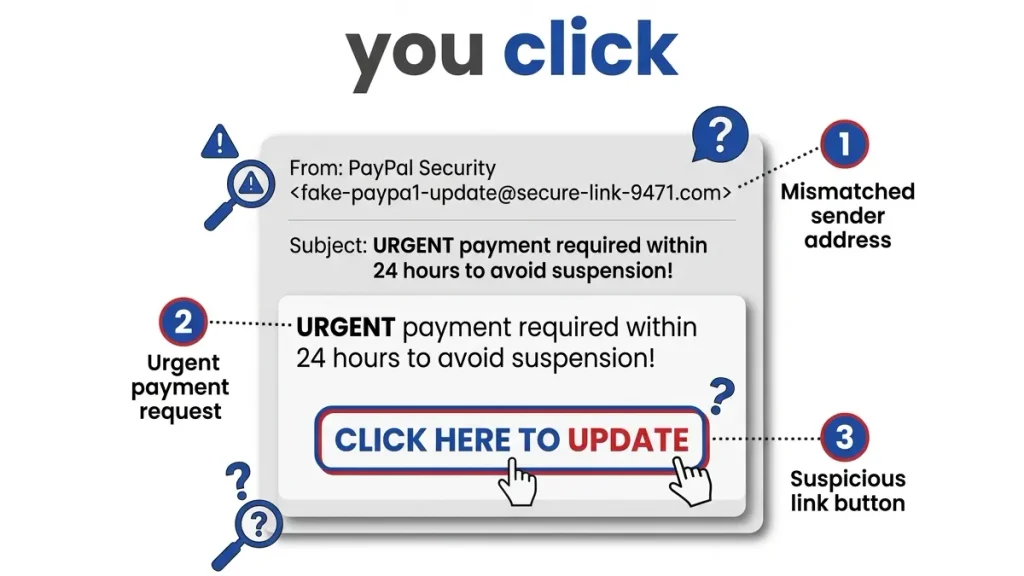
- First, check the sender address before you click. Look at the full email address, not only the display name. Instead, type the official website address yourself rather than following a link.
- Verify bank detail changes by phone. Call a number you already have on file, never one listed in the email. Even when a senior person asks for urgency, follow your payment approval steps.
- Treat urgent voice and video requests with caution. AI can copy a person’s voice. For money or access requests, however, agree on a verification code or call back on a known number.
- Check QR codes before you scan them. Then look at the web address after scanning. Never enter work login details on a site you reached through an unexpected code.
Devices, Data and AI Tools
- Install updates and restart when asked. Updates close security holes that attackers actively use. Also, do not ignore browser or antivirus warnings.
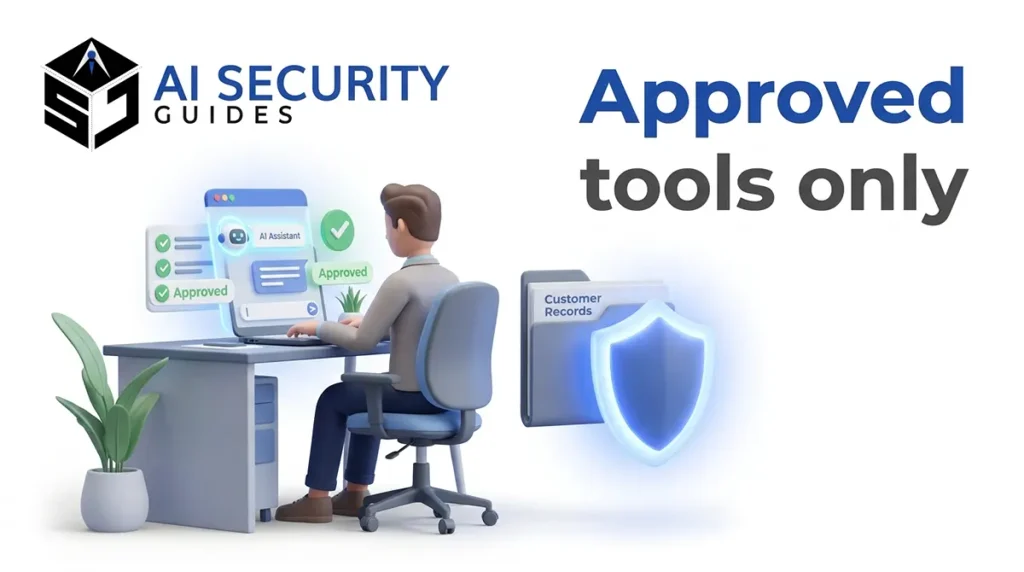
- Use only approved software and browser extensions. Unapproved tools, for instance, can collect data or hide malware. Remove any extension you do not recognize.
- Protect devices that leave the office. Enable screen locks and encryption on phones and laptops. If a device is lost or stolen, report it immediately, and avoid unknown USB drives.
- Never paste confidential data into unapproved AI tools. Customer records, financial files and passwords stay out of public chatbots. Before you use any tool, check your company’s AI policy, and review AI Workplace Data Privacy for safer habits.
Remote Work, Access and Reporting
- Share files only through approved tools. Avoid “anyone with the link” settings for sensitive files. Next, review who has access, using a method like the one in Cloud Access Review.
- Protect customer and employee information. Share personal data only with people who need it for their job. Never send confidential files to a personal email account. Otherwise, ask before you send any file.
- Secure your home network and avoid risky connections. Change the default router password. Also, for quick checks before you connect, read Is Public WiFi Safe?
- Clear your desk of confidential papers. Lock printed documents away and shred what you no longer need. Similarly, verify visitors before giving them access.
- Know where important files are stored and backed up. Store work in approved systems that back up automatically. Ransomware can lock files until someone pays, so ask IT how restoration works.
- Report suspicious activity immediately. Report phishing emails, unexpected login prompts and unusual account activity. Fast reports limit damage, so never wait to see if a problem goes away.
- Never share login credentials. Do not give your password to a colleague, even in an urgent situation. Instead, ask IT to grant the access you need.
- Use only the access your role requires. When your role changes or your employment ends, return devices and remove access. Then follow the steps in the Employee Offboarding Security Checklist.
Daily Employee Cybersecurity Habits
Your employee cybersecurity checklist works best as a daily routine. Use this table as a quick reminder at the start of each workday.
| Daily task | What to check |
|---|---|
| Check senders and links before you click | |
| Passwords and MFA | Never share credentials and reject unexpected prompts |
| Devices | Lock your screen and install pending updates |
| Files and AI tools | Use approved sharing tools and avoid unapproved AI uploads |
| Incidents | Report anything suspicious right away |
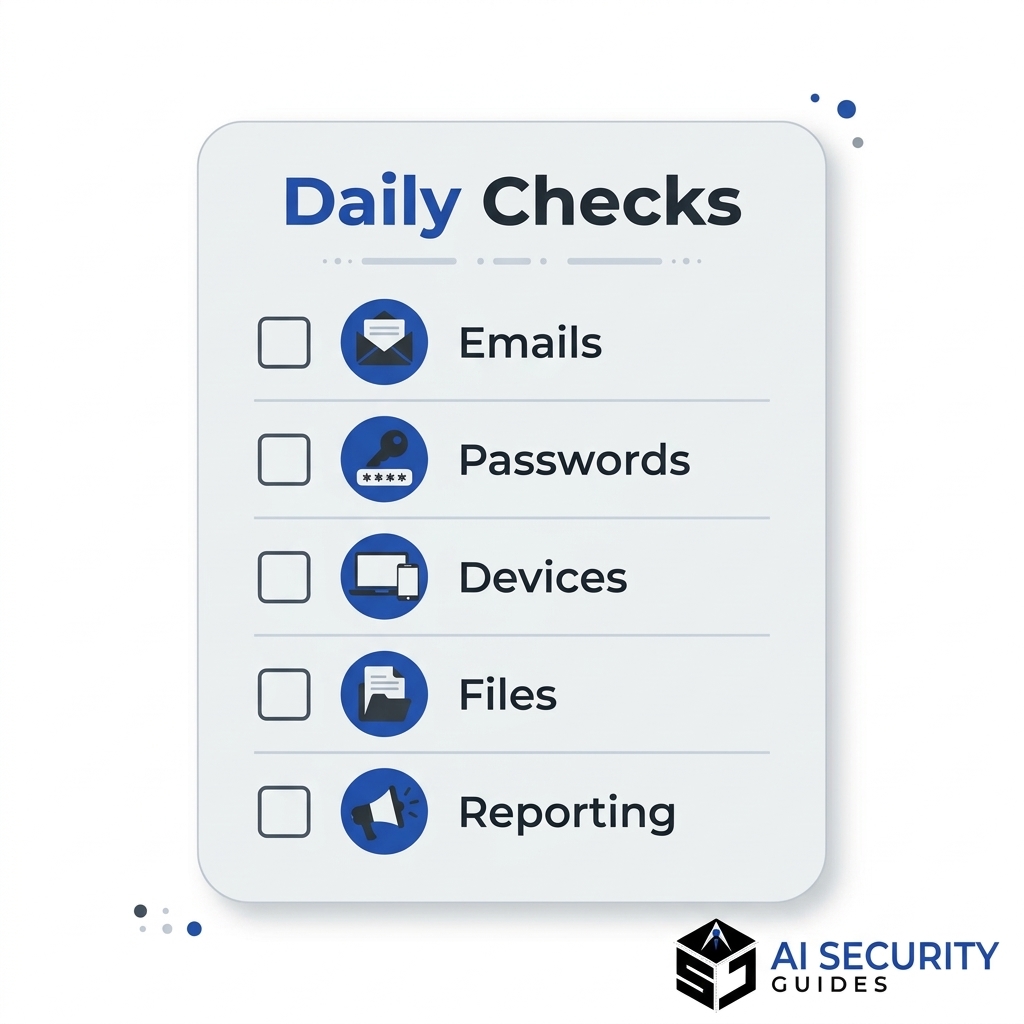
In addition, each week, review your sign-in alerts, remove file access you no longer need and report unusual device behavior.
What to Do After a Security Mistake
Everyone makes mistakes. However, your response in the first few minutes matters most.
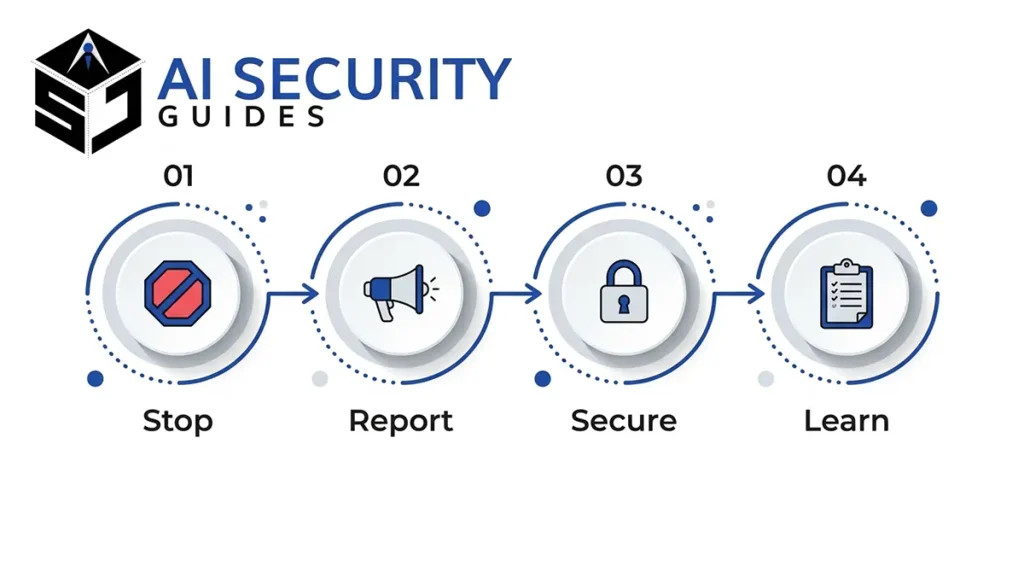
- Stop first. Do not enter information on the suspicious page or reply to the message.
- Then report now. Tell IT or your manager what happened and when.
- Next, secure your accounts. Change the affected password and follow IT instructions to lock accounts or disconnect a device.
- Finally, stay open. Hiding a mistake gives attackers more time to use your access.
Report within minutes, not days. Quick action limits damage far more than a perfect explanation later.
Frequently Asked Questions
What is an employee cybersecurity checklist?
It is a short list of daily security habits for everyone in a business. For example, it covers passwords, MFA, phishing checks, data handling and reporting.
Which employee cybersecurity rules matter most?
Start with MFA, unique passwords, payment verification and fast reporting. These rules, therefore, block the most common attacks on small businesses.
How often should employees get security training?
Train new staff when they join. Then run a detailed session in the first month, and refresh the material every three months. Also, CISA offers tip sheets and videos for training employees to avoid phishing.
Can employees use AI tools at work?
Only when your company approves the tool for that purpose. Otherwise, never enter confidential data into a tool that lacks approval.
Make Your Employee Cybersecurity Checklist a Habit
Security works best when it becomes routine. Start this week with three rules from your employee cybersecurity checklist: turn on MFA, verify payment changes by phone and report suspicious messages right away. Next, share the list with your team and ask managers to review it at the next meeting. Ultimately, small habits, repeated daily, protect your business far more than a single training session.