

AI Workplace Data Privacy: How to Use AI Without Exposing Confidential Work Documents
Hypothetical example: Maya, a project coordinator, pastes a 12-page vendor contract into a free AI chatbot and gets a tidy risk summary in under a minute. Then she notices the contract names a client, lists pricing, and carries a confidentiality clause. That moment is where AI workplace data privacy begins, and it can happen to anyone who handles documents for a living.
AI tools save real time, so avoiding them completely rarely works. Instead, you need a repeatable habit. That habit should let you enjoy the speed while protecting what your employer, clients, and coworkers expect you to keep private.
This guide shows you how to use AI with confidential information in a safer way. You will learn what counts as confidential, how to sort documents before you paste them, and how to redact text. You will also see how Grok, Claude, Duck.ai, Lumo, Confer, and Venice approach privacy differently. Finally, you will get a printable checklist and a plan for the day you share something you should not have.
Good AI workplace data privacy does not require technical skills. It requires a few clear rules and the discipline to follow them every time. For a quick companion read, see our list of 10 things you should never share with an AI chatbot.
Table of Contents
- What AI Workplace Data Privacy Means in Plain English
- Workplace AI Privacy Risks: What Can Go Wrong When You Paste Documents
- Check Your Company Rules First: The Foundation of AI Workplace Data Privacy
- Sort Documents With a Red-Yellow-Green System for AI Workplace Data Privacy
- How to Use AI With Confidential Information: 9 Safe Steps
- AI Workplace Data Privacy Technique: Redact and Anonymize Before You Paste
- Confidential AI Tools Compared: Grok, Claude, Duck.ai, Lumo, Confer, and Venice
- AI Workplace Data Privacy Settings to Check Before Your First Prompt
- Better Options for AI Workplace Data Privacy: Business Plans and Local Models
- AI Detection, Disclosure, and Cleaning AI Traces From Documents
- Everyday Habits That Protect AI Workplace Data Privacy
- Real-World Examples of AI Workplace Data Privacy in Daily Tasks
- Common Myths About AI Workplace Data Privacy
- A Simple Weekly Routine for AI Workplace Data Privacy
- AI Workplace Data Privacy Checklist You Can Print
- What to Do If You Already Pasted Confidential Data Into AI
- Frequently Asked Questions About AI Workplace Data Privacy
- Conclusion: Make AI Workplace Data Privacy a Habit
What AI Workplace Data Privacy Means in Plain English
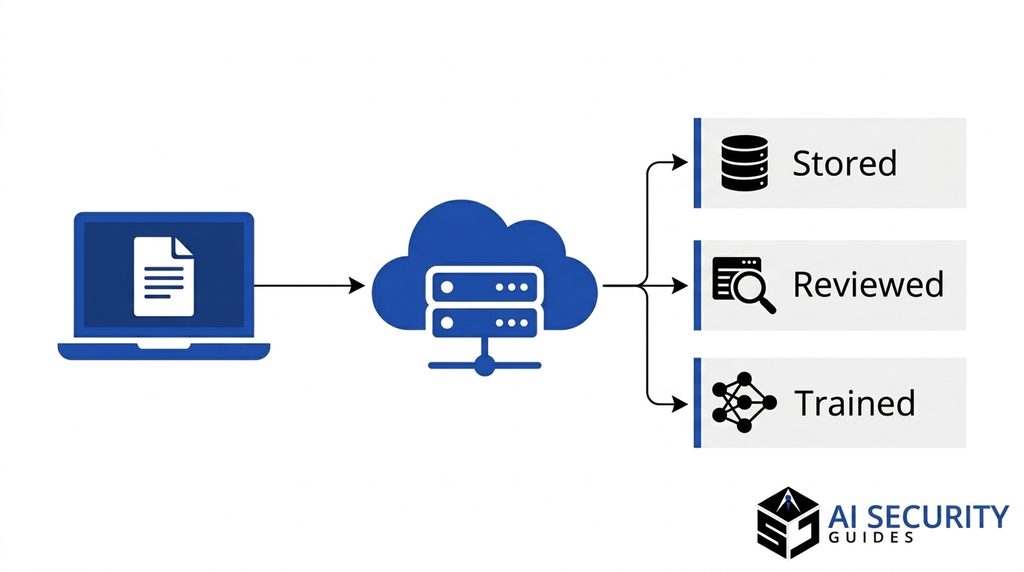
AI workplace data privacy means controlling what work information you give an AI tool, who can see it, how long the provider keeps it, and what the provider does with it later. It covers every prompt, uploaded file, screenshot, and voice note you send. It also covers whatever the tool stores in your chat history and account.
Think of an AI chatbot as a very helpful stranger in a shared office. You can ask it questions all day. However, you would not hand it a folder labeled “client contracts” without first checking who employs it and where that folder goes next.
What Counts as Confidential Information in AI Workplace Data Privacy
Confidential information is anything your employer, client, or the law requires you to protect. Some of it is obvious, such as passwords, financial results, and customer lists. Other items are easy to miss, such as meeting notes, draft strategies, internal chat threads, and unreleased product names.
Here are the main categories to watch:
- Customer and employee data: names, emails, phone numbers, health details, and payroll records
- Financial information: budgets, forecasts, pricing, invoices, and bank details
- Legal documents: contracts, settlement terms, NDAs, and case notes
- Technical secrets: source code, network diagrams, API keys, and security reports
- Strategy and plans: product roadmaps, merger talks, hiring plans, and board materials
Regulated data adds another layer. Health records may fall under HIPAA, and payment card data falls under PCI DSS rules, for example. When in doubt, treat the document as confidential until someone with authority says otherwise.
Where Your Data Goes After You Press Enter
When you submit a prompt, your text travels to the provider’s servers. The provider processes it, generates a reply, and often stores the conversation. Many providers keep chats for a set period for safety checks, abuse prevention, or product improvement.
Depending on the tool and plan, the provider may also use your conversations to train future models. Consumer plans and business plans often follow different rules. That difference matters more than most beginners realize, and this guide covers it in detail below. This journey from your keyboard to a remote server sits at the heart of AI workplace data privacy.
Government agencies treat this seriously. CISA, the National Security Agency, the FBI, and international partners published joint guidance on AI data security. The guidance highlights the role of data security across every phase of the AI lifecycle, from development to daily operation.
Workplace AI Privacy Risks: What Can Go Wrong When You Paste Documents
Most privacy problems at work do not come from hackers. They come from ordinary people who paste the wrong thing into the wrong box at the wrong time. Understanding the main risks helps you spot them before they happen. Each risk below connects directly to your daily AI workplace data privacy habits.
Training, Retention, and Review: Core AI Workplace Data Privacy Risks
Three ideas explain most of the exposure. First, training means the provider uses your conversations to improve its models. Second, retention means the provider stores your conversations for some period. Third, human review means employees or contractors may read some chats, often to check for abuse or to improve safety.
Each idea creates a different kind of risk. Training can blend your text into a model you cannot inspect. Retention keeps your document sitting on a server after you forget about it. Human review means a real person might read what you assumed only a machine would see.
You rarely control all three at once. That is why your first step is to learn which of them apply to the tool you plan to use. Knowing the answer is the foundation of AI workplace data privacy.
Accidental Sharing and Account Mix-Ups in Workplace AI Privacy
Many AI tools let you share a conversation through a link. If you create that link to show a coworker, anyone who gets it may read your entire chat. In addition, a forgotten link can stay active for months.
Account mix-ups cause another common leak. You might sign in with a personal account on your work laptop, or the reverse. As a result, work documents land in a personal history that your employer cannot manage or delete. That outcome undermines workplace AI privacy even when you meant well.
Browser extensions and connectors add a third path. A helpful extension that reads your screen can also read your confidential documents. Similarly, a connector that links an AI tool to your email or cloud drive can expose far more than the single file you meant to share.
Legal and Compliance Consequences for AI Workplace Data Privacy
Your employment agreement and client contracts probably include confidentiality terms. Pasting protected material into an outside service may break those terms, even if nothing bad happens afterward. Your employer might then discipline you, or a client might end the relationship.
Regulated industries face stricter rules. Healthcare, finance, education, and government work often come with specific duties about where data may go. Because laws differ by state and industry, ask your legal or compliance team when a document falls in a gray area. This guide offers general education, not legal advice. Still, every legal duty you carry makes AI workplace data privacy more than a personal preference.
Check Your Company Rules First: The Foundation of AI Workplace Data Privacy
Before you compare tools or tweak settings, find out what your employer already allows. A company rule beats any privacy feature, because the rule decides whether you may use the tool at all. Skipping this step is the most common beginner mistake. No setting can rescue AI workplace data privacy if your company does not allow the tool.
Read Your AI Policy: Step One of AI Workplace Data Privacy
Start with the documents you have already signed. Look for an AI or acceptable-use policy, an employee handbook section on confidential information, and any nondisclosure agreement. Then check client contracts for clauses about subcontractors, third-party tools, or data handling.
Some companies ban public AI tools entirely. Others approve one tool and forbid the rest. Still others allow AI for public information only. Whatever your employer chose, follow it, even when another tool looks more private.
If your company has no policy, you can help fix that. Our guide on creating a simple AI use policy for your small business gives you a practical starting template to bring to your manager.
Ask IT Three Questions About Workplace AI Privacy
Written rules sometimes lag behind new tools. When the policy feels unclear, send a short message with these three questions:
- Which AI tools has the company approved, and on which account type?
- Which kinds of documents may I use with them, and which are off limits?
- Whom should I contact if I accidentally share something sensitive?
Keep the reply. A written answer protects you if someone questions your choices later. It also shows your employer that you take AI workplace data privacy seriously.
Sort Documents With a Red-Yellow-Green System for AI Workplace Data Privacy

You cannot judge every document from scratch. A simple three-color system turns a stressful decision into a ten-second habit. Use it before every prompt until it becomes automatic. This quick sort is the fastest way to improve AI workplace data privacy without learning any new technology.
| Color | What it means | Examples | What you may do |
|---|---|---|---|
| Green | Public or harmless | Published blog posts, public product pages, generic templates, your own non-work questions | Use any approved AI tool |
| Yellow | Internal but low risk after cleanup | Meeting agendas, draft emails, process notes with names removed | Redact first, then use an approved tool with training turned off |
| Red | Confidential or regulated | Contracts, customer records, health data, source code, financial forecasts, credentials | Do not paste. Use only an employer-approved secure tool, or skip AI |
Classify a Document for AI Workplace Data Privacy in 30 Seconds
Ask yourself four quick questions. Would I feel uncomfortable if a competitor read this? Does it contain names, numbers, or account details about real people? Did a client or regulator give me this under special conditions? Would my manager be surprised to see this in an outside tool?
One “yes” moves the document out of green. Two or more “yes” answers usually mean red. When you land between colors, choose the stricter one.
Why Yellow Documents Matter Most for AI Workplace Data Privacy
Most daily work falls into yellow. You rarely need to share the real document. Instead, you can share the shape of the document with the sensitive details swapped out.
For example, you can ask AI to improve the structure of a status report without naming the client. You can ask for a clearer email to a vendor using “Vendor A” and “Project X.” This approach keeps most of the benefit and removes most of the risk. Smart AI workplace data privacy often means sharing the structure instead of the substance.
How to Use AI With Confidential Information: 9 Safe Steps

Here is a complete workflow you can follow for almost any task. The steps fall into three groups: preparing, choosing and configuring a tool, and finishing the job. Each step takes a minute or two once you practice. Together, the steps form a complete AI workplace data privacy routine.
Steps 1–3: Prepare Before You Open the Tool
Step 1: Define the task narrowly. Decide exactly what you want, such as “summarize this memo in five bullet points” or “make this paragraph friendlier.” A narrow task needs less data, which reduces risk.
Step 2: Choose the minimum data. Share only the paragraph or section you need, not the whole file. If you want help with one clause, paste one clause. Think of it as the privacy version of packing light.
Step 3: Replace sensitive details. Swap names, numbers, addresses, and project codes for neutral placeholders. The next section explains how to do this well.
Steps 4–6: Choose and Configure the Right Tool
Step 4: Use an approved tool and account. Sign in with your work account only if your employer approved the tool. Never use a personal account for work material unless your policy clearly allows it.
Step 5: Check the privacy settings. Confirm whether the tool trains on your chats, how long it keeps them, and whether history is on. The settings section below lists the exact switches to look for.
Step 6: Prefer private or business modes. Use a temporary chat, a business plan, or a privacy-first tool when your policy allows it. These options reduce exposure, although they never eliminate it.
Steps 7–9: Prompt, Review, and Clean Up
Step 7: Write a safe prompt. State the task, give the redacted text, and ask for the format you want. Here is a model:
“Act as an editor. Below is a redacted vendor agreement clause. Summarize the obligations of [Company A] in plain English, in five bullet points. Do not guess missing details.”
Step 8: Review the answer carefully. AI can sound confident and still be wrong. Check every fact, number, and legal claim against the original document. Our guide on how to check an AI answer before trusting it walks you through seven practical checks.
Step 9: Delete and record. Delete the conversation when you finish, unless your employer wants it kept. Then write a one-line note about what you used the AI for, in case a manager or auditor asks later.
AI Workplace Data Privacy Technique: Redact and Anonymize Before You Paste
Redaction means removing sensitive details from a document. Anonymization means replacing them so nobody can trace the text back to a real person or company. Together, they turn a risky document into a safer one. Practicing AI workplace data privacy mostly means practicing good redaction.
Replace Names, Numbers, and Details With Placeholders
Create a small “key” in a separate note on your own device. For instance, write that “Client A” means your real client, “Person 1” means the real contact, and “$X” means the actual price. After the AI responds, swap the real details back in yourself.
Look beyond obvious names. Dates, locations, job titles, product code names, and unusual figures can identify a company just as well. Even a unique project nickname may give the game away.
Also remove structural clues. A header that includes your company logo, an email signature, or a footer with an address can reveal more than the body text. Copy the plain text instead of the formatted page when you can.
Redact PDF Files the Right Way for AI Workplace Data Privacy
PDF files cause special trouble. Drawing a black rectangle over text does not remove the words underneath. Anyone can often select, copy, or search the hidden text, and an AI tool will read it too.
Follow these steps for a safer PDF workflow:
- Use a true redaction feature in a PDF editor, not a highlighter or shape tool.
- Apply the redactions so the editor permanently deletes the covered text.
- Open the new file, press Ctrl+A (or Cmd+A) to select all text, and look for anything that should be gone.
- Search for a few redacted words to confirm they no longer appear.
- Remove metadata, such as the author name, comments, and document properties.
- Even better, copy only the passage you need into a plain text file instead of uploading the PDF.
If your tool offers a text-only extraction, use it. Uploading a whole PDF often sends far more than you intended, including hidden layers and images of signatures.
Hypothetical Example: Before and After
Hypothetical example: Jordan, an HR specialist, wants help rewriting a difficult performance review. The original text names the employee, quotes a salary, and mentions a medical leave. That text belongs in the red category, so Jordan does not paste it.
Instead, Jordan writes a generic version: “Employee 1 has missed two deadlines this quarter and needs clearer goals. Draft a supportive but firm review.” The AI produces a helpful structure. Jordan then adds the real details by hand, away from the tool.
Notice what changed. The AI still delivered a useful outline, and the confidential facts never left Jordan’s control. That is AI workplace data privacy working in practice.
Confidential AI Tools Compared: Grok, Claude, Duck.ai, Lumo, Confer, and Venice

Many readers ask which AI tool is safest for confidential work. The honest answer is that privacy depends on the plan, the settings, and your employer’s rules. Policies also change often, so treat the table below as a starting point and confirm details on each provider’s current privacy page.
| Tool | How the provider describes its privacy approach | Best fit | Watch out for |
|---|---|---|---|
| Grok (xAI, via X) | Interactions may be used for training unless you opt out in X privacy settings | General questions with public information | Feedback you submit can still be used for training |
| Claude (Anthropic) | Consumer plans include a “Help improve Claude” setting; business plans fall under commercial terms | Drafting and analysis on approved business plans | Consumer plans differ from business plans, so check which you have |
| Duck.ai (DuckDuckGo) | Chats are anonymized, not stored by DuckDuckGo, and not used for training | Low-risk questions where you want less tracking | Your prompt still reaches a third-party model provider |
| Lumo (Proton) | No-logs policy, zero-access encrypted history, no training on chats | Sensitive personal or small-team tasks, if your employer allows it | Not an automatic approval for company data |
| Confer | End-to-end encrypted chats using passkeys and a trusted execution environment | Privacy-focused users who accept smaller models | Newer service with a limited free tier |
| Venice | Chat history stays in your browser; the company says it does not store prompts on its servers | Users who want local history and fewer accounts | Prompts still pass through remote infrastructure |
Consumer Chatbots Versus Business Plans for Workplace AI Privacy
The same brand can follow different rules on different plans. For example, X’s help page says X may share Grok interactions with xAI for training and fine-tuning, and it points to a privacy setting that lets you opt out. The same page notes that feedback you submit can still be used. You can read the details on X’s Grok help page.
Claude shows the plan difference clearly. Public reports on Anthropic’s policy describe a “Help improve Claude” toggle on the Free, Pro, and Max consumer plans. Reports also say that business offerings such as Team, Enterprise, and API access fall under commercial terms instead. Therefore, your plan matters as much as the brand name.
Consider this rule: for work documents, a business plan with a signed data agreement beats a consumer plan with a privacy toggle. A toggle depends on you remembering it. A contract binds the provider.
Privacy-First Tools and AI Workplace Data Privacy: What They Solve
Privacy-first tools try to reduce what the provider can see or keep. DuckDuckGo explains that Duck.ai removes metadata such as your IP address before it forwards your prompt. Its help page also says model providers must delete received information within 30 days, with limited exceptions for safety and legal compliance. You can read the details on the Duck.ai privacy page.
Lumo, from Proton, takes a different path. Proton describes a no-logs policy, zero-access encryption for saved chat history, and a promise not to train on your chats. Confer uses end-to-end encryption and a hardware-protected environment so that even the operator cannot read your conversations. Venice stores conversation history in your browser rather than on company servers, according to the company.
These designs help, and they deserve credit. Still, none of them replaces your employer’s approval. A tool can be private and still be forbidden by your company contract.
What No Tool Can Promise
No tool can undo a mistake after you paste something. No tool can guarantee that every employee at a third-party provider behaves perfectly. In addition, a privacy-first tool cannot protect you if you share a conversation link or leave your laptop unlocked.
Therefore, treat privacy features as extra layers, not as permission. Your first layer is always the choice of what to share. The strongest AI workplace data privacy strategy starts with that choice.
AI Workplace Data Privacy Settings to Check Before Your First Prompt
Spend five minutes in the settings menu before you trust any AI tool with work. The labels vary, but the same ideas appear almost everywhere. Look for these switches and decide deliberately. Each switch affects AI workplace data privacy in a different way.
Training and Memory Switches for AI Workplace Data Privacy
Find the setting that controls whether the provider may use your chats to improve its models. It might read “Help improve the model,” “Improve the model for everyone,” or something similar. Turn it off for any work-related use unless your employer says otherwise.
Next, look for “memory” or “personalization” features. These let the tool remember facts about you across chats. For work, memory can store client names or project details that you never intended to keep. Disable it, or review and delete saved memories often.
Temporary and Private Chat Modes: Do They Protect Workplace AI Privacy?
Many tools offer a temporary, incognito, or private chat. These modes usually keep the conversation out of your history and out of training. However, they may still allow short-term storage for safety checks, so they do not equal zero retention.
Use temporary chat as a bonus layer. Do not use it as a reason to paste red documents.
History, Sharing Links, and Connectors
Turn off chat history when you do not need it. If you must keep history, delete old conversations on a schedule, such as every Friday. Then open your sharing settings and revoke any public links you no longer need.
Finally, review connectors, plug-ins, and browser extensions. Remove any that can read your email, files, or screen unless your employer approved them. Fewer connections mean fewer ways for data to escape.
Better Options for AI Workplace Data Privacy: Business Plans and Local Models
If your job regularly involves confidential material, public chatbots may never be the right tool. Safer options exist, and your employer may already offer one. Ask before you assume. Choosing the right platform is a major part of AI workplace data privacy.
Business and Enterprise Plans for AI Workplace Data Privacy
Business plans typically add administrative controls, signed data processing terms, and stronger default privacy. Many providers state that commercial customers’ data is not used for training by default. Administrators can also manage who has access, set retention rules, and review usage logs.
These features matter because they shift responsibility. With a proper agreement, your employer and the provider share accountability for your data. Without one, you carry that risk alone.
Frameworks can guide your employer’s decision. The National Institute of Standards and Technology (NIST) publishes a voluntary AI Risk Management Framework and a Generative AI Profile. The profile helps organizations identify risks that are unique to generative AI and suggests actions to manage them. You do not need to read it cover to cover, but you can share it with your IT team.
Running AI Locally for Stronger Workplace AI Privacy
A local model runs on your own computer, so your prompts never leave the machine. That design can remove the third-party exposure entirely. It also gives you control over storage and deletion.
However, local AI has trade-offs. You need a reasonably powerful computer, some setup time, and patience with models that may be less capable than the largest cloud tools. In addition, your employer may still restrict which software you can install. Ask IT before you download anything.
AI Detection, Disclosure, and Cleaning AI Traces From Documents
Some readers search for ways to remove AI detection from a document or to avoid detection of AI-generated content. This guide does not teach evasion, and the reasons are practical. Detectors make mistakes, and tricking them does not solve the privacy or honesty issues behind the question.
Why You Should Not Try to Beat AI Detectors
AI detection tools give probabilities, not proof. They can flag human writing and miss machine writing. Chasing a “clean” score often leads you to rewrite good text into worse text.
A better path is to follow your employer’s disclosure rules. Many workplaces allow AI help if you tell them and if you check the output. If your policy requires disclosure, disclose. If it does not address AI, ask. Honest use protects your reputation far better than hidden use.
Also remember that you own the final document. Rewrite AI drafts in your own voice, add your own knowledge, and verify every claim. That process improves quality, and it makes the work genuinely yours. It also supports AI workplace data privacy, because careful review catches leaked details.
How to Remove AI Traces From a Document Responsibly
Sometimes “remove AI from documents” simply means cleaning up. AI drafts can carry leftovers that look unprofessional or leak information. Clean them out before you share a file.
Check these items:
- Leftover prompts and phrases: delete lines such as “Here is your draft” or “As an AI model.”
- Placeholders: replace “[Company A]” and “Person 1” with the real details, and confirm nothing was missed.
- Comments and tracked changes: resolve or delete them, since they may reveal how you worked.
- Hidden text and metadata: use your editor’s document inspector to remove author names, revision history, and hidden content.
- Unverified facts: confirm every statistic, quote, and citation against a real source.
Cleaning is not concealing. Good document hygiene supports AI workplace data privacy and your professional credibility. These steps make a document accurate and safe, and they do not replace honest disclosure.
Everyday Habits That Protect AI Workplace Data Privacy
Rules work best when habits support them. Small routines keep you safe on busy days when you feel rushed. Build these into your normal workflow. Consistent routines keep AI workplace data privacy strong when deadlines pile up.
Separate Work and Personal Accounts to Protect AI Workplace Data Privacy
Keep work and personal AI accounts apart. Use different browsers or profiles so you never confuse them. Protect each account with a unique password and multi-factor authentication. If you need help, our password manager beginner’s guide shows you how to set one up.
Use AI for Tone and Format, Not for Secrets
Some of the best AI uses need no confidential data at all. For example, you can ask how social norms differ between texting a friend and writing a formal email, and whether an AI should adapt its tone for each. A strong answer explains that texts can be brief, casual, and emoji-friendly, while formal email needs a clear subject line, a polite greeting, and complete sentences.
Then you apply that advice to your own message with placeholders. Ask the AI to rewrite “Hey, can you send the numbers?” as a formal request to “[Recipient].” You get better wording, and the real names and figures stay on your device.
Watch for Fake AI Tools and AI-Polished Phishing
Attackers know people are searching for AI tools. Fake “AI assistant” sites and extensions can steal logins or read what you type. Download tools only from official sources, and check web addresses carefully.
In addition, attackers now use AI to write convincing messages. Our article on AI phishing emails and how to verify a convincing message explains what to look for before you click.
Train Your Team and Review Often
If you manage others, hold a short session on these rules. Walk through the red-yellow-green system with real examples from your industry. Then review your tool list every quarter, because privacy terms and features change. Our small business cybersecurity checklist offers more steps to strengthen the rest of your defenses.
Real-World Examples of AI Workplace Data Privacy in Daily Tasks
Rules feel abstract until you apply them. The hypothetical examples below show AI workplace data privacy at work in five common tasks. Each one follows the same logic: share less, replace details, and verify the result.
Summarizing Meeting Notes
Hypothetical example: Priya leads a weekly product meeting and wants a quick summary. Her raw notes mention a customer by name, an unreleased feature, and a pricing discussion. She classifies the notes as yellow, so she cleans them first.
Priya swaps the customer name for “Customer A” and the feature for “Feature X.” Then she asks the AI to turn the notes into action items. Afterward, she adds the real names back by hand. She saves twenty minutes, and AI workplace data privacy stays intact.
Reviewing a Contract Clause With AI Workplace Data Privacy in Mind
Hypothetical example: Carlos works in procurement and receives a long supplier agreement. The full contract is red, so he does not upload it. Instead, he copies one liability clause, replaces the company names, and asks for a plain-English explanation.
Carlos also remembers that AI is not a lawyer. He treats the answer as a starting point and sends the real clause to his legal team for the final review. That balance protects both the contract and his decisions.
Writing or Debugging Code
Hypothetical example: Dana, a developer, hits a confusing error message. Her source code, passwords, and API keys are red. She shares only a minimal snippet, removes every key and internal web address, and renames her variables.
Dana never pastes a secret key into a chatbot. If she ever did, she would rotate that key immediately, because a leaked credential stays dangerous even after she deletes the chat. Our list of things you should never share with an AI chatbot covers credentials in more detail.
Answering Customer Emails
Hypothetical example: Lee works in customer support and wants a politer reply to an angry message. The original email includes a name, an order number, and a home address. Lee shares none of that.
Instead, Lee types, “A customer is upset about a late delivery. Write an apologetic reply with placeholders for the name and order number.” The AI drafts a warm reply, and Lee fills in the real details. Customer data never leaves the support system.
Cleaning Up a Spreadsheet
Hypothetical example: Sam in finance needs help with a complicated formula. The real workbook contains salaries, so Sam does not upload it. Sam builds a tiny dummy sheet with the same columns and invented numbers.
The AI explains the formula using the dummy sheet. Sam then applies it to the real file. This “dummy data” pattern works for almost any spreadsheet task, and it fits AI workplace data privacy very well.
Common Myths About AI Workplace Data Privacy
Some beliefs sound reasonable but lead people to take risks. Here are four myths worth dropping today.
Myth: A Paid Plan Makes Everything Private
A subscription does not automatically change how a provider handles your data. Some consumer plans still include training settings you must turn off yourself. Business plans usually offer stronger terms, but you should confirm that in writing, since AI workplace data privacy depends on the contract and not on the price.
Myth: Nobody Reads My Chats, So Workplace AI Privacy Is Safe
Most chats never reach a human reader. However, providers may allow staff or contractors to review some conversations for safety or quality. Data breaches can also expose stored chats. Therefore, write every prompt as if a stranger might see it one day.
Myth: Deleting a Chat Erases It Forever
Deleting a chat removes it from your history and usually begins the provider’s deletion process. Copies may remain in backups for some time, and legal or safety rules can extend retention. Deletion helps, but prevention works far better.
Myth: A Privacy-First Tool Is Automatically Approved at Work
Tools like Lumo, Confer, and Duck.ai add real protection. Yet your employer still decides which tools you may use with company data. Even excellent workplace AI privacy features do not replace approval, so ask first.
A Simple Weekly Routine for AI Workplace Data Privacy
Good habits stick when they fit into your calendar. A short weekly routine keeps AI workplace data privacy from slipping when work gets busy. It takes about ten minutes and requires no special software.
Monday: Review Your Tool List
Open every AI tool, extension, and connector you use. Remove anything you no longer need or no longer trust. Then confirm that each tool still uses the correct account and the training setting you chose.
Midweek: Check New Features That Affect Workplace AI Privacy
AI products change quickly. A new feature, such as memory or file search, can alter what the tool stores. Skim the provider’s latest announcements, and ask IT before you turn on anything new. This small step protects workplace AI privacy against surprises.
Friday: Clean Up Chats, Files, and Links
Delete finished conversations and uploaded files. Revoke old share links, and empty any “recent files” list inside the tool. Next, glance at your downloads folder for AI-generated drafts that still contain placeholders or sensitive notes.
Monthly: Revisit Your Company Policy
Check whether your employer updated its AI rules. Ask your manager if the approved tool list changed. If you lead a team, remind everyone of the red-yellow-green system. Consistent reminders make AI workplace data privacy part of your team culture instead of a one-time lecture.
Over time, this routine builds confidence. You will spend less energy worrying about leaks and more energy using AI well. In short, steady habits beat occasional panic.
AI Workplace Data Privacy Checklist You Can Print

Use this checklist before, during, and after every AI session that touches work. It turns AI workplace data privacy into a routine you can repeat. Print it or pin it near your desk. For a broader list that covers everyday use, see our AI safety checklist.
Before you start
- I read my employer’s AI policy, or I asked IT or my manager.
- I classified the document as green, yellow, or red.
- I chose the smallest amount of text that solves the task.
- I replaced names, numbers, and identifying details with placeholders.
- I removed hidden text and metadata from any PDF or file.
While you work
- I am using an approved tool and the correct account.
- Training and memory settings are off, or my plan excludes them.
- I am not uploading red documents.
- I have not created any public share links.
After you finish
- I checked the AI answer against the original facts.
- I restored real details myself, outside the AI tool.
- I deleted the conversation, or I kept it only if required.
- I noted what I used the AI for.
- I followed my disclosure rule.
What to Do If You Already Pasted Confidential Data Into AI
Mistakes happen, and the worst response is silence. Acting quickly limits the damage and protects your standing. Stay calm and follow a clear sequence. A fast response is part of good AI workplace data privacy, not a sign of failure.
The First Hour: Steps to Take Right Away
- Stop using the conversation. Do not paste more material while you figure out what happened.
- Note what you shared. Write down the tool, the account, the time, and a brief description of the content.
- Delete the chat and any uploaded files. Use the tool’s delete options, and clear shared links if you created any.
- Check the training setting. Turn off training and memory so future chats stay out of the pool.
- Tell your manager or IT. Report it promptly, using the contact you identified earlier.
Reporting feels uncomfortable, but it helps. Security teams can often reduce harm if they hear early. Hiding the mistake usually makes everything worse.
What Deleting a Chat Can and Cannot Do
Deleting a conversation removes it from your view, and it usually starts the provider’s deletion process. However, copies may remain in backups for a while. Providers may also keep data longer when safety or legal rules require it.
If the data was personal, you can often submit a privacy request to the provider. Our guide on how to remove your personal data from AI tools explains the process. Your security team may handle that step for company data.
Frequently Asked Questions About AI Workplace Data Privacy
Is it safe to upload a work PDF to an AI tool?
It depends on the PDF and the tool. A public document on an approved tool is usually fine. A confidential PDF on a consumer chatbot is not, because the file may hold hidden text, metadata, and images you cannot see. When in doubt, redact properly and copy only the passage you need.
Can I use AI at work if my employer has no AI workplace data privacy policy?
You can ask for guidance, and you should. Without a policy, stick to green documents and public information. Then request a clear answer in writing, so you and your employer share the same expectations about AI workplace data privacy.
Do incognito chats guarantee AI workplace data privacy?
No. These modes usually keep chats out of your history and out of training, which helps. However, providers may still hold short-term data for safety reasons, and the prompt still leaves your device. Treat temporary chat as an extra layer, not as permission to share confidential material.
Which AI tool is best for confidential documents?
The best tool is the one your employer approved, ideally on a business plan with a signed data agreement. Privacy-first options such as Lumo, Confer, Duck.ai, and Venice offer useful protections, but each has limits. Confirm that your company allows the tool before you use it for work.
Should I tell my employer when I use AI on a document?
Follow your company’s policy, and ask if the policy is silent. Many employers welcome AI help when you disclose it and verify the results. Transparency protects your reputation and supports strong AI workplace data privacy across your team.
Conclusion: Make AI Workplace Data Privacy a Habit
You do not have to choose between using AI and protecting your work. You only need a short routine: check the rules, classify the document, redact the details, pick the right tool, and review the result. Repeat it until it feels natural.
Strong AI workplace data privacy comes from small, consistent choices. Start today by reading your company policy and printing the checklist above. Then pick one real task, run it through the nine steps, and notice how little it slows you down. Your future self, your coworkers, and your clients will thank you.