


Cloud Access Review: How to Review App Access in a Small Team
A cloud access review is a regular check of who can open, edit, or manage each online app your team uses. Hypothetical example: A five-person design studio hires a freelance copywriter for a three-week project. The project ends, and everyone moves on. Six months later, the freelancer’s account still works in the shared drive, the project board, and the invoicing app.
Nobody chose to leave that door open. Instead, nobody remembered to close it. That small gap is how many access problems begin, and it grows quietly as your team adds people and tools. A cloud access review is the habit that closes those gaps.
The good news is that you do not need a security department to fix it. You need a list of your apps, a list of your people, and a calm hour on the calendar. In this guide, you will learn how to run a cloud access review step by step with a spreadsheet and a few admin screens. You will also see how Microsoft’s built-in access reviews work, which licenses they need, and how to handle guests and connected apps.
To protect your accounts even further, read our guides on authenticator apps and how to use a password manager. Both pair well with the habits below.
Table of Contents
- What Is a Cloud Access Review and Why Does It Matter?
- Build an App Inventory Before Your Cloud Access Review
- Who Should Run a Cloud Access Review in a Small Team?
- Step-by-Step User Access Review for Cloud Apps
- Access Reviews for Guest Users and Contractors
- Review Connected Apps, Tokens, and API Keys
- Cloud Access Review Examples for Common Small-Team Apps
- Cloud Access Review in Microsoft Entra and Microsoft 365
- How Often to Review Cloud-App Access
- Use a Simple Cloud Access Review Template
- Worked Example: One Afternoon With a Ten-Person Team
- Offboarding and Other Triggers for a Cloud Access Review
- Common Cloud Access Review Mistakes to Avoid
- Talk to Your Team About the Review
- Measure Whether Your Cloud Access Review Works
- Cloud Access Review Checklist for Small Teams
- Cloud Access Review FAQs
- Conclusion: Make Access Reviews a Habit
What Is a Cloud Access Review and Why Does It Matter?
A cloud access review is a scheduled check that compares who has access to your cloud apps with who actually needs it. For each app, you list every account and confirm the person still works with you. Next, you confirm that their permission level still fits their job. Then you remove or reduce anything that no longer makes sense.
The idea is simple, yet it prevents real trouble. When an account stays active after its owner leaves, an attacker who steals that old password inherits everything the account can reach. Likewise, an employee with too many permissions can delete shared files by accident. A regular cloud access review shrinks both risks.
Key Terms in Plain English
Security language can sound heavy, so let’s define the main words once. Keep these five terms in mind, because every later step builds on them.
- Cloud app: software you use through a browser or phone app, such as Google Workspace, Microsoft 365, Slack, Dropbox, or QuickBooks Online.
- Account: the login a person uses inside that app.
- Permission (or role): what that account may do, such as view, edit, or administer.
- Tenant: your organization’s private space inside a cloud service. Microsoft, for example, gives each organization its own tenant.
- Least privilege: giving each person only the access their job needs, and nothing more.
When you read about “cloud tenants” in admin consoles, think of the tenant as your company’s walled garden inside the provider’s larger system. Everything you review lives inside that garden.
Why Small Teams Collect Extra Access
Small teams move fast. Someone signs up for a free trial with a work email, invites two colleagues, and the tool becomes part of daily work. Meanwhile, nobody records it. Because roles blend together in a small company, people also receive admin rights “just in case.”
Over time, three patterns appear. First, former staff and contractors keep working accounts. Second, current staff keep permissions from old projects.
Third, apps pile up that nobody owns. Security professionals call this access creep, and it is completely normal.
Therefore, the fix is a habit rather than a one-time cleanup. A short, repeated review beats a heroic annual purge that you never finish. Small, steady checks also feel less like a burden, so your team keeps doing them.
What CISA Recommends About Access Cleanup
The Cybersecurity and Infrastructure Security Agency (CISA) publishes Cross-Sector Cybersecurity Performance Goals, a baseline list of practices. One goal covers revoking credentials for departing employees. In version 2.0, CISA widened that goal to cover all staff, including contractors and vendors. You can read the full list on the CISA Cross-Sector Cybersecurity Performance Goals page.
CISA aims these goals at critical infrastructure, but small teams can borrow the same logic. In short, a cloud access review is the habit that turns that goal into daily practice. It gives you a reason to look, a method for looking, and a record of what you found.
Build an App Inventory Before Your Cloud Access Review
You cannot review what you cannot see. Therefore, your first job is a simple inventory of every cloud app your team touches. A spreadsheet works well, so skip the fancy software for now.

Find Every App Your Team Uses
Start with the places where apps leave footprints. Check these sources in order:
- Bank and card statements: recurring charges reveal paid tools.
- Your email inbox: search for words like “welcome,” “verify your email,” “invoice,” and “receipt.”
- Your sign-in provider: if people log in with Google or Microsoft, the admin console lists the apps connected to those logins.
- Saved logins: a team password manager often exposes forgotten tools.
- A quick team poll: ask everyone to list the tools they open each week.
Next, include the free tools. Security teams call apps that people adopt without approval “shadow IT,” and free tools count too. A free note-taking app can still hold customer details.
Similarly, AI chat tools and meeting recorders often connect to your documents, so add them to the list. Our guide on AI workplace data privacy explains what to watch for with those tools.
Record the Details That Matter
Once you have the list, add a few columns. Keep them short so you actually fill them in. The table below shows a practical starting point.
| Column | What to write | Example |
|---|---|---|
| App name | The tool’s name | Project board |
| Owner | The person who answers questions about it | Office manager |
| Data it holds | The most sensitive thing inside | Client files |
| Login method | Password, Google sign-in, or Microsoft sign-in | Google sign-in |
| Multi-factor on? | Yes or no | Yes |
| Number of accounts | A simple count | 9 |
| Last reviewed | The date of your last check | October 2026 |
Then rank each app as high, medium, or low risk. Apps that hold money, customer data, or admin controls rank high. As a result, you review the high-risk apps first and most often. Hypothetical example: The design studio ranks its file storage and invoicing app as high risk, and its mood-board tool as low.
Keep the Inventory Alive
An inventory goes stale quickly unless someone owns it. Name one person to update the sheet, and set a simple rule: nobody adds a new app without telling that person first. Moreover, check the company card statement once a month for unfamiliar charges.
This light upkeep keeps your cloud access review accurate. It also stops shadow IT from growing back after you clean it up. When someone proposes a new tool, ask who will own it and who will review its users, and add those answers to the sheet on the spot.
Who Should Run a Cloud Access Review in a Small Team?
In a team of five to twenty people, one person usually handles everything. That works, but it also creates a blind spot. When you review your own access, you rarely question it. Fortunately, you can add light structure without adding bureaucracy.
Split the Roles When You Can
Think of two simple roles. The reviewer knows the people and decides whether each person still needs access. The admin changes settings inside the app. In a small firm, the owner or a manager can review, while an office manager or IT contractor can act as admin.
Security teams call this “separation of duties.” It reduces mistakes and makes fraud harder. If you work solo or with a tiny crew, ask a trusted outsider, such as your accountant or an IT contractor, to glance at your own admin access once a year.
Give Every App a Named Owner
Next, give each app one owner. The owner does not need technical skills. Instead, the owner answers one question: “Does this person still need this?” If nobody can answer, the access goes on the remove list.
Write this rule into a short policy so everyone knows how reviews work. If you already keep a one-page document, add a line about quarterly reviews. Our guide to a simple AI use policy for small businesses shows how short and readable such a policy can be.
Step-by-Step User Access Review for Cloud Apps
A cloud access review follows the same six steps in almost every app. Learn the pattern once, and you can repeat it everywhere. Plan about 15 minutes per high-risk app the first time, and less after that.
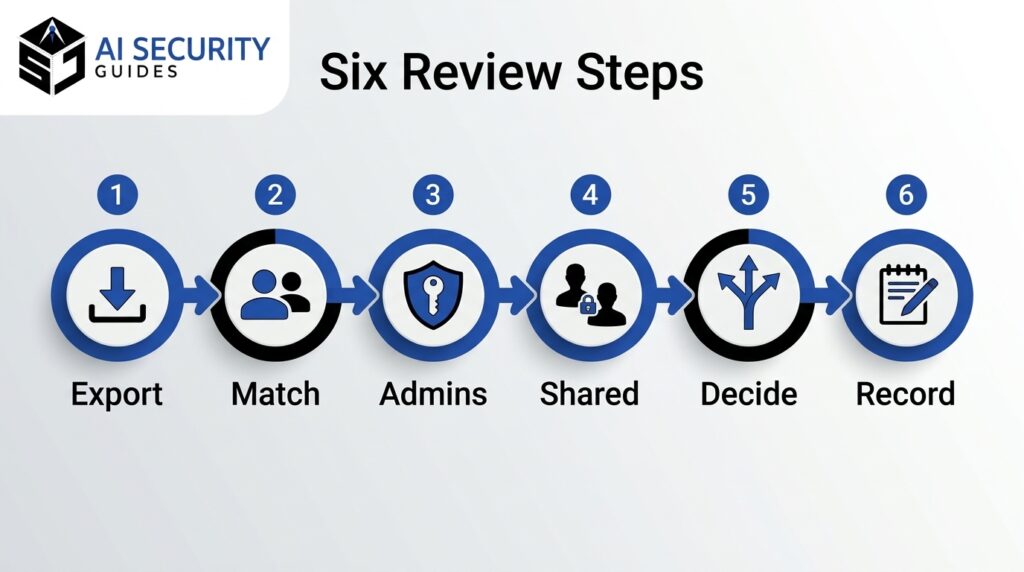
Step 1: Export the User List
Open the app’s admin area and look for a page named Users, Members, People, or Team. Export the list as a CSV file if the app offers it. Otherwise, copy the names into your spreadsheet or take a dated screenshot.
A clean export gives your cloud access review a solid starting point. Include the role, the last sign-in date, and the sign-in method when the app shows them. These details make decisions easier. For example, an account that has not signed in for six months deserves a closer look.
Step 2: Match Every Account to a Real Person
Now compare the export with your current staff and contractor list. Flag anything that does not match. Watch for these red flags:
- Names nobody recognizes.
- Personal email addresses on work accounts.
- Former employees and finished contractors.
- Duplicate accounts for the same person.
- Accounts that exist only for automation, often called service accounts.
This matching step is the heart of any cloud access review. Ask the app owner about each flag. In most cases, the answer is quick. However, if nobody knows why an account exists, treat it as unsafe until someone explains it.
Step 3: Check Admin and Owner Roles
Admin accounts can change settings, invite people, and delete data. As a result, a stolen admin login does far more damage than a stolen regular login. So count your admins in every app during each cloud access review.
Keep at least two admins, so a vacation or lost phone never locks you out. Beyond that, keep the number as small as possible. Hypothetical example: A ten-person agency discovers that seven people hold admin rights in its file storage. After the review, it keeps two admins and downgrades the rest to editors.
Also, use the admin login only for admin work. Daily email and browsing should happen on a regular account.
Step 4: Find Shared and Orphaned Accounts
Shared logins, such as one “marketing” account for the whole team, hide who did what. Moreover, nobody feels responsible for them. An orphaned account is one with no owner, often left behind by a project.
Replace shared logins with individual accounts wherever the app allows it. If a shared login is unavoidable, store its password in a team password manager and change the password whenever someone leaves. Our password manager guide walks through the setup. Additionally, turn on multi-factor authentication for every shared account that supports it.
Step 5: Keep, Reduce, or Remove Access
Give every account one of three labels. Keep means the person needs the access as it is. Reduce means they need less, such as editor instead of admin. Remove means they no longer need any access.

Before you delete an account, protect the data. Transfer file ownership to a current teammate, and confirm your backups work. Our guide on how to test a backup restore shows a simple method.
Then suspend the account first, if the app allows it. Wait a week or two, run a quick cloud app test by asking the team whether anything stopped working, and only then delete.
Step 6: Record Your Cloud Access Review
Finally, write down what you did. A short log is enough. Record the date, the reviewer, the apps you checked, the changes you made, and any follow-up tasks with a due date.
This record helps in three ways. First, it proves your cloud access review happened if a client, insurer, or auditor asks. Second, it shows you what changed since last time.
Third, it hands the next reviewer a head start. Keep the log in the same shared folder as your app inventory so you can find both quickly.
Access Reviews for Guest Users and Contractors
Guests deserve special attention in every cloud access review. A guest user is an outsider you invite into your apps, such as a client, freelancer, or partner. Guests usually arrive for a specific project. Unfortunately, they often stay long after it ends.
Run Access Reviews for Guest Users in Microsoft 365
Microsoft supports this directly. According to Microsoft’s documentation, you can review guest access to groups, and you can turn on automatic, recurring reviews of guest users across all Microsoft 365 groups. You can read the details in Microsoft’s guide to managing user and guest access with access reviews.
If you do not use that feature, you can still review guests by hand. First, filter your user list for outside email domains. Next, ask the project owner whether each guest still works on something active.
Then remove the ones who do not. Repeat the check each quarter, because guest lists grow quietly.
Set End Dates for Contractors and Clients
Prevention beats cleanup. When you invite a contractor, set an end date on day one. Put a calendar reminder on the same date, and name who will remove the access. Many apps let you set an expiration on guest access or shared folders, so use that feature when you find it.
Shared links also count as access. Therefore, check for links that anyone on the internet can open. Hypothetical example: A freelancer shares a proposal folder with “anyone with the link” and forgets about it.
A year later, that link still works, and it appears in an old email thread. Review sharing settings during every cloud access review, and switch broad links to named people.
Review Connected Apps, Tokens, and API Keys
Access does not only come from people, so your cloud access review must cover apps too. Apps also connect to other apps, and those connections carry permissions. When you click “Sign in with Google” or approve an add-on, you grant that tool a slice of your data. Those grants often outlast the person who approved them.
Find Connected Apps and Extensions
Open your admin console and look for a section named something like Third-party apps, Integrations, Marketplace apps, or Enterprise applications. List every connected app and the permissions it holds. Then ask a simple question about each one: who approved it, and do we still use it?
Check these categories too:
- Browser extensions that read web pages or email.
- Automation tools that move data between apps.
- AI note-takers and chat plug-ins that read documents or calendars.
- Mobile apps linked to your work accounts.
Remove anything unused. For tools you keep, check whether the permissions match the job. A calendar add-on rarely needs access to every file in your drive.
Rotate Keys and Trim Permissions
Developers and tech-savvy staff often create API keys and personal access tokens. These are long strings that work like passwords for software. Unlike passwords, they rarely expire, and people forget them in code or chat history.
Ask each person who builds or automates anything to list the keys they created. Then delete unused keys and replace old ones. In addition, narrow each key’s permissions to the minimum it needs. If a key ever appeared in a public place, treat it as stolen and replace it immediately.
Cloud Access Review Examples for Common Small-Team Apps
Every app has its own screens, but the questions stay the same. These examples show what to look for in three common categories. Use them as prompts during your own cloud access review.
Email and File Storage Access Reviews
Email and file storage usually hold your most sensitive material, so start here. In your admin console, check the list of users, their roles, and their last sign-in dates. Then look for accounts that belong to former staff, even if you thought you removed them months ago.
Next, review sharing. Check which folders you share with outsiders and which links anyone can open. Hypothetical example: A small law office finds a client folder shared with a former intern’s personal email.
The intern left a year ago, yet the folder still opens from that address. A quick cloud access review catches that gap in minutes.
Also check forwarding rules and delegates. An attacker who reaches a mailbox often sets up silent forwarding. If you spot a rule you did not create, change the password and read our email account hacked guide for recovery steps.
Chat and Project Tools
Chat and project tools collect guests quickly. Clients join channels, freelancers join boards, and nobody removes them afterward. Review members of each workspace, and check for external guests in particular. Ask the project owner whether each guest still works on live tasks.
Moreover, look at integrations. Chat tools often connect to calendars, file storage, and automation services. Each connection carries permissions that can expose messages or files. Remove integrations nobody uses, and ask the owner of each remaining one to confirm the permissions still match the job.
Finance and Invoicing Access Reviews
Finance tools deserve the tightest review, because mistakes there cost money. Count the people who can send invoices, approve payments, or export customer lists. In most small teams, that group should stay very small.
Look at roles carefully. A bookkeeper may need to view bank feeds but not change payment details. Likewise, a salesperson may need to create quotes but not export every customer record.
If someone holds broader rights than their job requires, reduce the role during your cloud access review. Finally, confirm that multi-factor authentication is on for every finance account.
Cloud Access Review in Microsoft Entra and Microsoft 365
Many small teams run on Microsoft 365. If yours does, you may have seen terms like Entra access reviews, access review Azure, or access review Microsoft. They all point to features inside Microsoft Entra ID, the identity service behind Microsoft 365 and Azure. It stores your users, groups, and app sign-ins.

This section explains what those features do, what they need, and how they fit into a cloud access review for a small team. If your team uses other tools, jump ahead to the manual method, which works anywhere.
What Microsoft Entra Access Reviews Do
Microsoft describes access reviews as a way to manage group memberships, access to enterprise applications, and role assignments. You can read the overview on Microsoft Learn. In plain terms, Entra sends the right person a list of users and asks, “Should this person keep access?”
You can set reviews to repeat weekly, monthly, quarterly, or annually. Reviewers get a notice when each review starts. By default, Microsoft also sends a reminder halfway to the end date if reviewers have not responded. In addition, the review screen shows recommendations based on factors such as last sign-in, which helps reviewers decide faster.
Roles matter here. Microsoft notes that you can review Azure resource roles, such as User Access Administrator, through Privileged Identity Management. For group and app reviews, you generally need at least the User Administrator role. Microsoft’s own steps are in its guide to manage user access with access reviews.
Access Reviews License Requirements to Check First
Before you plan around this feature, check the license. Microsoft states that access reviews require Microsoft Entra ID Governance or Microsoft Entra Suite for your users. Some capabilities may also work with a Microsoft Entra ID P2 subscription. Meanwhile, Microsoft’s own steps for creating group and app reviews list P2 or ID Governance as prerequisites.
Licensing changes often, so verify before you buy. Open your Entra admin center, check which licenses you own, and compare them with the current Microsoft documentation. Many small teams run Microsoft 365 Business plans, and those plans may not include access reviews. If you find a gap, you have two choices: pay for the upgrade or use the manual method below.
What the Access Review Agent Adds
Microsoft also offers an AI helper called the Access Review Agent. According to Microsoft’s documentation, it works with Security Copilot and guides reviewers through decisions inside Microsoft Teams. It gathers insights, saves recommendations and justifications, and leaves the final choice to the human reviewer. You can see the agent described on Microsoft’s Entra agents page.
The setup asks for more than most small teams have. Microsoft lists prerequisites such as Security Copilot with available security compute units, plus admin roles like Identity Governance Administrator and Lifecycle Workflows Administrator. When Microsoft first announced the agent, it launched as a public preview, so check its current status before you rely on it. For a team of ten, a spreadsheet and a calendar reminder will usually do the job at no extra cost.
When Paid Tools Make Sense for a Small Team
Paid review tools make sense in specific situations. Consider them when your team grows past about fifty people, when clients or insurers ask for proof of regular reviews, or when most of your apps already sign in through Microsoft Entra ID. Until then, a manual cloud access review costs nothing and gives you the same core benefit: a clear, dated decision about every account.
In addition, manual work teaches you what your environment looks like. That knowledge makes any future tool easier to set up, because you already know which apps, groups, and roles matter.
A Free Manual Cloud Access Review Method
Not every team uses Microsoft, and not every team needs paid tools. Fortunately, a manual cloud access review works in Google Workspace, Slack, Dropbox, accounting software, and nearly every other cloud app. Most admin consoles show users, roles, and last sign-in dates, and that is all you need.
Use the six steps from earlier. Export users, match them to people, check admin roles, find shared accounts, decide keep, reduce, or remove, and record the result. Moreover, add one question when you choose new tools: does the admin console make reviews easy?
When you compare cloud storage options for a small business, put “shows who has access and when they last signed in” on your must-have list. That single feature saves hours every quarter.
How Often to Review Cloud-App Access
How often you review depends on risk. A weekly review would exhaust a small team, while a once-a-decade review would miss real problems. Aim for a cloud access review rhythm that you can actually keep.
Set a Simple Schedule
The table below offers a starting schedule. Adjust it to your size and the sensitivity of your data.
| What you review | How often | Why |
|---|---|---|
| High-risk apps (email, file storage, finance, admin roles) | Every quarter | These hold your most sensitive data |
| Medium and low-risk apps | Twice a year | Lower impact if misused |
| Guests and contractors | At project end, plus every quarter | Outsiders leave quietly |
| Connected apps and API keys | Twice a year | Grants pile up unnoticed |
| After any departure or incident | Right away | Delays create exposure |
Put the dates on a shared calendar today. Block 60 to 90 minutes, and name a backup person in case the reviewer is out. If you use Microsoft Entra reviews, you can mirror this rhythm in the recurrence setting. Otherwise, the calendar invite does the same job.
Beware of Fake “Review Access” Emails
Real cloud access review tools send email, and so do attackers who imitate them. A message that says you must review group access by a deadline can be genuine. However, it can also be a phishing attempt that steals your password when you click the link.
Take three precautions. First, do not click the link in the email. Instead, open the admin portal by typing its address or using your saved bookmark, and look for the pending task there.
Second, check the sender address and ask a colleague whether they expect the review. Third, report anything odd to your admin. Our guide on what phishing is and how to avoid common scams explains the warning signs in more depth.
Use a Simple Cloud Access Review Template
A template saves time and keeps each cloud access review consistent. You do not need special software. A spreadsheet with two tabs gives you everything you need for a small team.
Spreadsheet Columns to Copy
Use the first tab as your app inventory, as described earlier. Use the second tab as your cloud access review log. For each account you check, record the app name, the person, the role, the last sign-in date, your decision, the reviewer, and the date. Add a notes column for questions.
Color-code the decision column so problems stand out. For example, shade “remove” rows red and “reduce” rows yellow. As a result, you can scan a long list in seconds. You can also filter by decision to build your follow-up task list.
Decision Rules That Keep Reviews Fast
Rules prevent debate over every account. Write a few simple ones and apply them every time. Here are practical examples:
- If the person left the company, remove access today.
- If an account has not signed in for 90 days, ask the owner and remove it if nobody objects.
- If a role gives more power than the job needs, reduce it.
- If a shared login has no named owner, replace it or remove it.
- If you cannot explain why access exists, treat it as unneeded until someone does.
Over time, these rules make every cloud access review faster. Your team learns what to expect, and your reviewer spends less time deliberating. Keep the rules on the log tab so they travel with the data.
Worked Example: One Afternoon With a Ten-Person Team
Theory helps, but a concrete walkthrough makes the process easier to copy. Hypothetical example: A ten-person marketing agency runs on Google Workspace. It also uses a project board, an invoicing tool, a social media scheduler, and a shared password manager. The office manager, Dana, volunteers to run the first cloud access review.
Hour One: Build the Inventory
Dana searches her inbox for receipts and checks the company card statement. She finds eleven apps, three more than she expected. She lists each one in a spreadsheet with an owner and a risk rating.
Email, file storage, and invoicing rank high. The scheduler and two design tools rank medium and low.
Next, Dana asks the team in chat which tools they use weekly. Two people mention a free AI note-taker that connects to their calendars. Nobody approved it, so Dana adds it to the list and marks it for review.
Hour Two: Review the High-Risk Apps
Dana starts her cloud access review with email and file storage. She exports the user list from each admin console and compares it with the current staff roster. Two former freelancers still have working accounts. Meanwhile, four people hold admin rights in file storage, even though only two need them.
Then she moves to invoicing. Here she finds a shared login that three people use. She creates individual accounts, stores the old login in the password manager, and changes the password. In each case, she writes the result in her log.
Hour Three: Clean Up and Record
Finally, Dana suspends the two freelancer accounts and transfers their files to the project lead. She removes the AI note-taker’s access to the company calendar after the team agrees it is not essential. She schedules the next review for three months later and sends the team a short note explaining what changed.
Notice what Dana did not do. She did not buy special software, and she did not panic anyone. Instead, she used a spreadsheet, a clear method, and a little patience. Your first cloud access review can look much the same.
Offboarding and Other Triggers for a Cloud Access Review
A scheduled cloud access review catches slow drift. Some events, however, demand an immediate check. The most common trigger is a person leaving your team. Because speed matters, a simple offboarding routine pays off.
Offboarding Steps That Close Every Door
Create a one-page checklist and use it every time. Start before the last day, so you do not scramble afterward. Here is a practical order:
- Make a list of every app and account the person holds, using your inventory.
- Transfer ownership of files, calendars, and projects to a named teammate.
- Remove or suspend the person’s access in each app, starting with email and admin tools.
- Sign the person out of active sessions and revoke any connected apps or API keys.
- Change passwords on any shared accounts they knew.
- Record the date and the steps in your cloud access review log.
Treat contractors and vendors the same way. CISA’s updated goal covers them, and attackers do not care whether a stale account belongs to an employee or a freelancer. If an account looks unfamiliar after someone leaves, our guide on what to do when an email account is hacked shows how to recover and secure it.
Other Events That Trigger an Access Review
Besides departures, several events justify a quick check. Run a focused cloud access review when someone changes roles, because their old permissions rarely disappear on their own. Do the same after a security incident, such as a stolen laptop or a phishing click. In addition, review access when you add a major new tool or merge with another team.
Seasonal changes matter too. If you hire interns each summer or add temporary staff before busy seasons, schedule a cloud access review for the end of that period. As a result, temporary access stays temporary.
Common Cloud Access Review Mistakes to Avoid
Even careful teams stumble on a few predictable issues. Knowing them in advance saves time and prevents false confidence.
Mistakes in Scope and Timing
The first mistake is reviewing only the obvious apps. Teams check email and file storage, then forget the scheduler, the design tool, and the old trial account. Your inventory fixes this, so keep it current.
The second mistake is waiting for a perfect process. A rough review today beats a flawless plan next year.
A third mistake is skipping admin accounts because they feel “trusted.” Admins hold the most power, so they need the most scrutiny. Finally, many teams ignore non-human access, such as service accounts and API keys. Add them to every review.
Mistakes in Follow-Through
Another common problem is rubber-stamping. Reviewers worry about offending colleagues, so they approve everything. Counter this by changing the question. Ask “Would this person’s job stop without this access?” instead of “Can they keep it?” That framing makes removal feel like routine housekeeping.
Teams also forget to follow up. A cloud access review that ends with a list of changes nobody makes protects nobody. Assign every action to a person with a due date.
Moreover, check that removals worked, because some apps keep access through groups or shared links even after you delete an account. Last, keep the log. Without a record, the next review starts from zero.
Talk to Your Team About the Review
People sometimes hear “access review” and assume someone doubts their honesty. That reaction is natural, yet easy to prevent. A short, friendly explanation turns the review into a routine task instead of an accusation.
Explain Why Access Reviews Matter
Tell your team the truth: the cloud access review protects them as much as the business. If an account sits unused, a thief can use it, and nobody wants to be the person whose forgotten login caused a problem. In addition, tidy access makes everyday work easier, because people see only the tools and files they need.
Say clearly that you review accounts, not people. Every team member gets the same check, including the owner and the admins. When leaders go first, everyone else relaxes.
Use a Short Announcement
You can adapt this simple message: “Each quarter, we check who has access to our cloud apps and remove anything we no longer need. If you lose access to a tool you still use, tell me and I will restore it the same day.” The second sentence matters most. It tells people that mistakes are easy to fix, so they stay calm.
After each cloud access review, send a two-line summary. Share how many accounts you checked and how many you removed. That small habit builds trust and reminds everyone why the review matters.
Measure Whether Your Cloud Access Review Works
A cloud access review only helps if it changes something. Therefore, track a few simple numbers after each round. They show whether your effort pays off, and they help you justify the time to your team or owner.
Track a Few Simple Numbers
Keep the metrics small, because complicated dashboards rarely survive in a small team. These five are enough:
- Accounts removed: how many unneeded accounts each cloud access review found.
- Admins reduced: how many admin roles you downgraded.
- Time to remove: how many days passed between someone leaving and losing access.
- Apps without an owner: how many tools still lack a named owner.
- Completion: whether you finished every planned app on schedule.
Of these, the time to remove access matters most. CISA’s goal about departing staff points the same direction: the faster you cut access, the smaller the window for misuse. In an ideal routine, that number shrinks to zero days, because offboarding happens on the last day.
Improve With Each Round
Look at the numbers after every cloud access review and ask what they say. Hypothetical example: In its first cloud access review, a small agency removes nine accounts. Three months later, it removes only two. That drop shows the offboarding checklist works, because fewer stale accounts now reach the review.
If the numbers do not improve, look for the cause. Perhaps new apps keep appearing without owners, or perhaps departures never reach the admin. Fix the process, not the people.
Then run a small cloud app test of your own: pick one former contractor, confirm that every account is gone, and note any app you missed. Add that app to your inventory, and your next cloud access review gets stronger.
Cloud Access Review Checklist for Small Teams
Print this checklist or paste it into your tracker. It condenses the guide into a repeatable cloud access review routine.
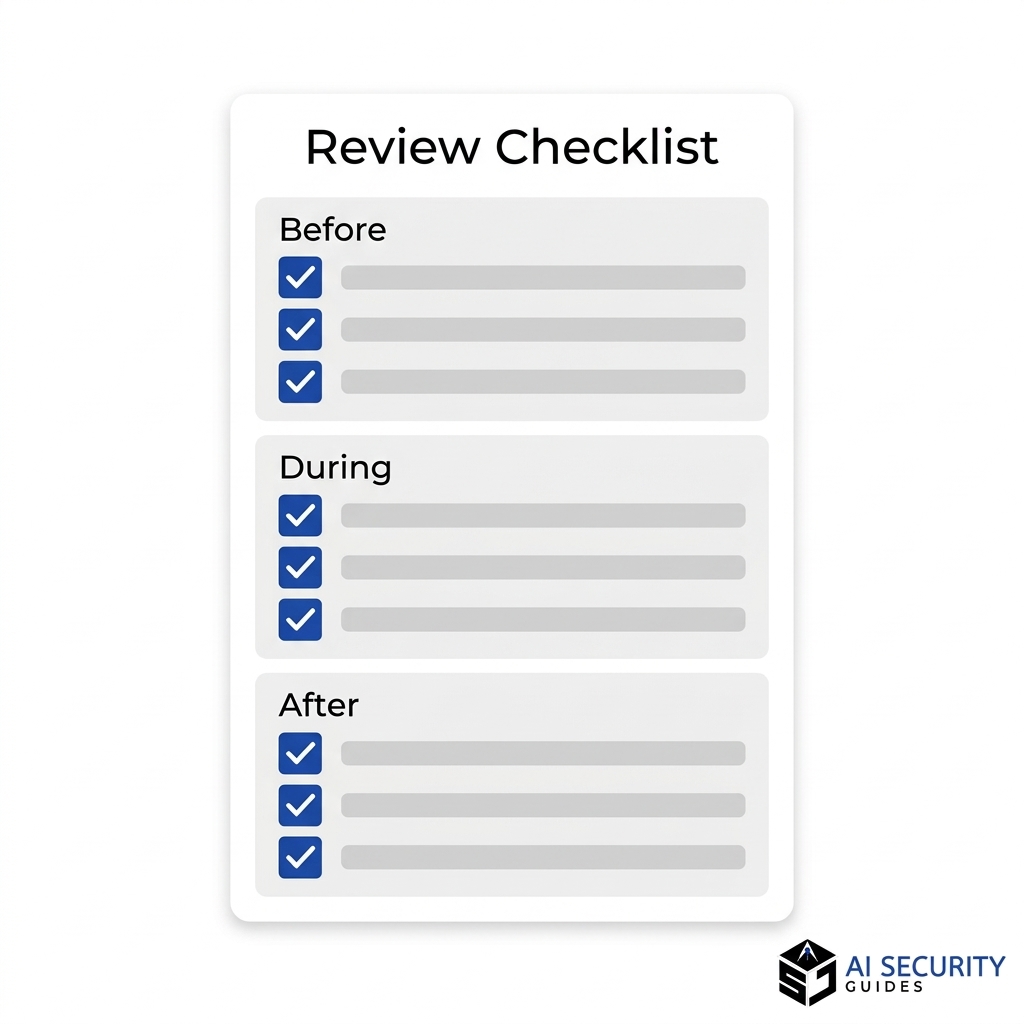
Before the Review
- Update your app inventory and mark each app’s risk level.
- Get a current list of staff, contractors, and guests.
- Name the reviewer, the admin, and a backup.
- Confirm that backups of important data work.
During the Review
- Export the user list from each app, high-risk apps first.
- Match every account to a real, current person.
- Count admins and reduce them to the minimum.
- Replace shared logins with individual accounts, or secure them in a password manager.
- Check guest users, sharing links, connected apps, and API keys.
- Label each account keep, reduce, or remove.
After the Review
- Suspend accounts first, then delete after a short waiting period.
- Ask the team whether anything stopped working.
- Record the date, changes, and follow-up tasks in your log.
- Book the next cloud access review on the shared calendar.
- Share a short summary so everyone knows what changed and why.
Cloud Access Review FAQs
What is a cloud access review?
A cloud access review is a regular check that compares who has access to your online apps with who needs it. You list the accounts, confirm each person still belongs, and fix anything that does not fit. The goal is to keep access limited to the right people at the right level.
How often should a cloud access review happen?
For most small teams, a cloud access review every quarter works for high-risk apps and twice a year for the rest. Run an extra review immediately when someone leaves or after a security incident. The best schedule is the one you will actually follow.
Do I need a paid license for access reviews?
Not necessarily. Microsoft’s built-in access reviews require Entra ID Governance or the Entra Suite, and some features may work with Entra ID P2. However, a spreadsheet and the admin console of each app can cover a small team at no extra cost. Check your license before you plan around Microsoft’s tools.
What is the difference between a user access review and an audit?
A user access review is an internal routine that you run to keep permissions tidy. An audit is a formal examination, often by an outside party, that checks whether you follow rules or standards. Your review log can serve as evidence during an audit, but the two are not the same thing.
Can I do a cloud access review without special software?
Yes. A manual cloud access review needs only a spreadsheet. Export user lists from each app, compare them with your staff list, and record your decisions in a spreadsheet.
Add a calendar reminder for the next cloud access review. This manual approach works in almost every cloud app and suits teams of five to fifty people.
Conclusion: Make Access Reviews a Habit
A cloud access review turns a vague worry into a short, repeatable routine. You list your apps, match accounts to real people, trim extra permissions, and write down what you did. Then you book the next one. That rhythm keeps forgotten accounts, stale guests, and old connections from becoming open doors.
Start small this week. Pick your highest-risk app, export its user list, and compare it with your current team. You will likely find something to fix within the first twenty minutes.
From there, expand to every app on your inventory, add guests and connected apps, and consider Microsoft’s tools if your license supports them. Keep your cloud access review simple, consistent, and recorded, and your small team will stay a harder target than most.