


Authenticator apps explained in one sentence: they are free phone apps that create short, one-time codes to prove you are really you. You type the code after your password, so a stolen password alone no longer opens your account. This guide shows you how those codes work, how to back them up, and how to recover access if your phone disappears.
Hypothetical example: Dana turns on an authenticator app for her email and feels great about it. Two months later, she drops her phone in a lake and buys a new one. Every code is gone, and she now faces days of identity checks and support tickets.
That story is avoidable. Authenticator apps explained properly includes the boring parts, such as backup codes and recovery plans, because those parts decide whether the app protects you or locks you out. Most beginner guides skip them, so we cover them in depth here.
You do not need technical skills to follow along. If you already use a password manager, you have a head start, and our beginner’s guide on how to use a password manager covers that step. If you worry that someone already got into your inbox, read our nine-step plan for an email account that was hacked first, then come back here to lock the door.
Table of Contents
- Authenticator Apps Explained: What They Are and Why They Matter
- Authenticator Apps Explained: How Your Codes Work
- Authenticator Apps vs. Text Messages, Email Codes and Security Keys
- How to Set Up an Authenticator App Step by Step
- Authenticator Apps Explained: How to Choose Without Overthinking
- Authenticator Apps Explained: Backups That Save You Later
- Recovery Plans: What to Do When You Lose Your Phone
- Authenticator Apps Explained: Common Problems and Fixes
- Authenticator Apps for Families, Shared Accounts and Small Teams
- Authenticator Apps Explained: Myths Beginners Believe
- Authenticator Apps Explained: A Practical Checklist
- Authenticator Apps Explained: Frequently Asked Questions
- Conclusion: Authenticator Apps Explained in Short
Authenticator Apps Explained: What They Are and Why They Matter
An authenticator app is software on your phone that creates temporary login codes. Authenticator apps explained at the simplest level: your password is something you know, and the app proves you also have something you own. Security experts call this pairing multi-factor authentication (MFA). You may also see it labeled two-factor authentication or two-step verification.
The U.S. Cybersecurity and Infrastructure Security Agency (CISA) says MFA confirms your identity with a second step, such as a code from an authenticator app. You can read the details in CISA’s guide to turning on MFA. Because of that second step, a criminal who steals your password still cannot finish the login. That is why authenticator apps explained to beginners always start with this second-step idea.
What an Authenticator App Does in Plain English
Think of the app as a tiny code factory. Each account you add gets its own entry, and each entry shows a fresh number every few seconds. When a website asks for your code, you open the app, read the current number, and type it in.
The website runs the same math on its side and checks that the numbers match. If they match, you get in. If they do not, the site rejects the attempt, even when your password was correct.
Popular examples include Google Authenticator and Microsoft Authenticator, and many password managers now offer a built-in code feature. The apps look different, but most follow the same open method. As a result, you can usually scan the same setup code with whichever standard app you prefer. This is authenticator apps explained without jargon: one secret, one clock, one short number.
Authenticator Apps Explained Next to Passwords and Two-Step Login
Passwords fail in predictable ways. People reuse them, attackers guess them, and data breaches leak them by the millions. If you wonder whether yours already leaked, our guide shows how to check whether your email appeared in a data breach in six steps.
An authenticator app does not fix a weak password, but it limits the damage. A thief with your leaked password still needs the live code from your phone. For that reason, authenticator apps explained properly belong in every account-security plan, right beside a strong, unique password.
You may also hear “two-step” and “two-factor” used as if they mean the same thing. They overlap, yet the difference matters a little. Two-step simply means two login steps, while two-factor means the steps use different kinds of proof, such as knowledge and possession. Authenticator codes count as two-factor because your phone is a separate thing you hold.
Which Accounts Should Use Authenticator Apps First?
You probably have dozens of accounts, so start with the ones that cause the most damage when they fall. Authenticator apps explained as a priority list looks like this: email first, then money, then everything that stores your identity. Work through the list over a weekend rather than all at once.
Your email account comes first because it controls password resets for nearly everything else. Banks, brokerages, and payment apps come next, followed by your password manager, cloud storage, and phone carrier account. Finally, add your social media and shopping accounts, especially any that store a saved credit card.
Do not ignore accounts you rarely open. Attackers love old accounts that hold reused passwords, and they use them as stepping stones. If a service no longer matters to you, close it instead of securing it.
Hypothetical example: Ana secures her email and bank, then stops. A month later, an attacker uses her old photo-sharing account, which reused her password, to learn her address and birthday. Those details help the attacker pass identity questions elsewhere. That is why authenticator apps explained for beginners should include the boring accounts too.
Authenticator Apps Explained: How Your Codes Work
You do not need to understand the math to use these apps. A rough picture, however, helps you make smart choices about backups later. This section gives you that picture in three small pieces, which makes authenticator apps explained here easy to remember.
The Secret Key and the QR Code
When you turn on an authenticator app for an account, the website creates a long random string called a secret key. The site shows that key as a QR code, which is just a square picture of the text. You scan it with your phone, and the app stores the secret.
From that moment, your phone and the website share one secret that nobody else knows. Everything else grows from it, and authenticator apps explained at any deeper level always return to this shared secret. Treat the QR code and the text key like a password, because anyone who copies them can make your codes.
Because of that risk, avoid leaving setup screenshots in your photo library. Delete any screenshot once setup finishes. If you want to keep the key, write it on paper and store it somewhere safe and private.
Why Codes Change Every 30 Seconds
The app mixes the secret key with the current time to produce a short number, usually six digits. This method is called a time-based one-time password, or TOTP. Most apps refresh the number about every 30 seconds, as CISA also notes in its MFA how-to guidance.

Short lifetimes protect you. If someone glimpses your code over your shoulder, it expires almost right away. Additionally, many sites accept each code only once, so a copied number has little value after you log in.
Your phone and the website also need nearly the same clock. If your phone’s time drifts by a minute or more, the numbers will not match. Turning on automatic date and time fixes most of these problems.
Authenticator Apps Explained: Why Codes Work Without Internet
Your phone creates every code on its own. It needs no Wi-Fi and no cell signal, because it only needs the stored secret and the clock. This is a real advantage when you travel or when a network goes down.
Offline codes also explain a key difference from text messages. A text must travel through a phone carrier, so someone could intercept it or trick the carrier into redirecting your number. An app code goes nowhere until you type it yourself.
Keep one caution in mind. Authenticator apps explained honestly includes this limit: you still type the code into a website, so a fake website can steal it. We cover that attack in the phishing section below.
A Login Walkthrough With an Authenticator App
Seeing the whole flow once makes the idea click. Here is what happens in about fifteen seconds when you sign in to a protected account.
First, you enter your username and password. The website checks them, and if they are right, it asks for a verification code. Next, you open your authenticator app and find the entry for that website. You read the six-digit number, type it in, and press the button to continue.
Behind the scenes, the site calculates what your code should be right now, using the same shared secret and the same clock. Because both numbers match, the site decides you hold the enrolled phone. Then it lets you in, and many sites offer to remember that browser for a while.
That last option deserves a moment of thought. A “remember this device” box saves you from typing codes on your own laptop, but it also lowers protection if the laptop is shared or stolen. Use it only on private devices that you lock, and skip it on any public computer. Authenticator apps explained realistically means choosing convenience where it is safe and caution where it is not.
Authenticator Apps vs. Text Messages, Email Codes and Security Keys
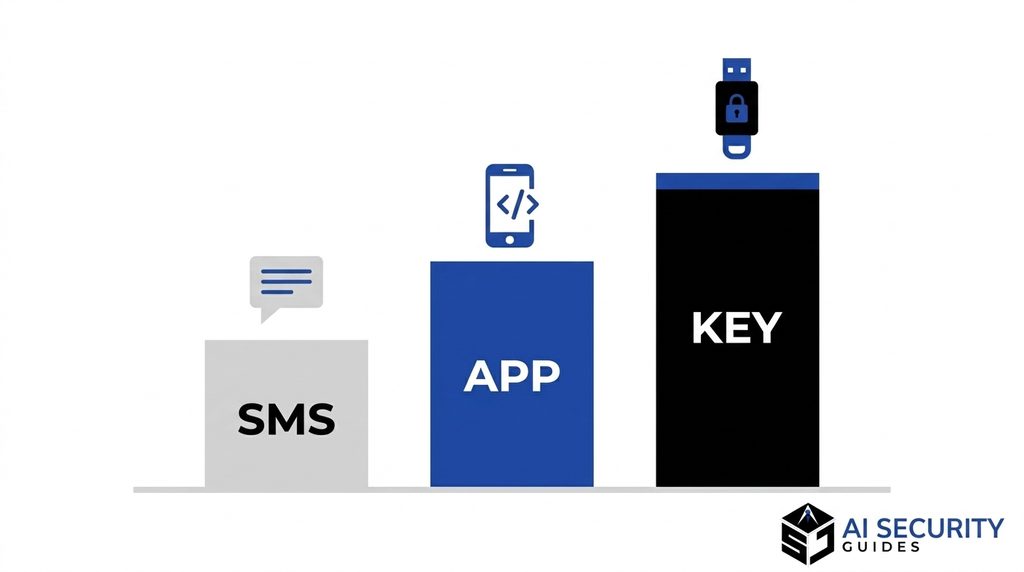
Not every second step offers the same protection. CISA states that any MFA beats no MFA, yet some options resist attacks better than others, according to its guidance on requiring multifactor authentication. Here is how the common choices compare, with authenticator apps explained against each alternative.
Authenticator Apps Explained Side by Side With Other Methods
Use the table below as a quick map. It lists how each method works, where it shines, and where it fails. Most beginners should pick the strongest method each account supports and keep a weaker one only as a fallback.
| Method | How it works | Main strength | Main weakness | Best use |
|---|---|---|---|---|
| Text message code | Your carrier sends a code to your number | Easy, no app needed | Can be intercepted or redirected through a SIM swap | Accounts that offer nothing else |
| Email code | The site emails you a code | Simple for casual accounts | Fails if your email account falls | Low-risk accounts |
| Authenticator app | Your phone creates the code itself | Works offline, no carrier involved | Lost phone means lockout without backups; fake sites can capture codes | Most everyday accounts |
| Push approval | Your phone shows an Approve or Deny prompt | Fast and friendly | Prompt spam can trick tired users | Work accounts with number matching |
| Security key or passkey | A device proves your identity with cryptography | Resists phishing | Costs money, needs setup, not accepted everywhere | Email, banking, and other high-value accounts |
CISA adds an important detail. It says the only widely available phishing-resistant option is FIDO/WebAuthn, the standard behind security keys and passkeys, on its MFA overview page. Authenticator apps sit one step below that level, but they still beat texts and email codes for most people.
When a Text Message Code Still Makes Sense
Sometimes a bank or small business only offers text codes. In that case, use them. A weak second step still blocks many automated attacks, and it costs you nothing.
You can reduce the risk, however. Ask your carrier whether it offers a number lock or a port-out PIN, which makes SIM swaps harder. Then check the account settings again every few months, because many services add authenticator app support over time.
Push Approvals and Number Matching Explained
Authenticator apps explained so far create codes, but some services use push prompts instead. A prompt asks you to approve or deny a login with one tap. This style feels easy, yet it creates a new risk. Attackers can trigger prompt after prompt, hoping you tap Approve just to make the noise stop. Security teams call this approval fatigue.
Number matching reduces that risk. Instead of a simple Approve button, the login screen shows a number, and you must enter that number in the app. Because you must read it from the screen you are actually using, a random prompt that you did not start becomes much harder to approve by accident. CISA lists a fact sheet on this feature on its MFA overview page, and it is worth reading if you manage accounts for a team.
For beginners, the lesson is simple. Prefer code-based or number-matching approvals when you have the choice. If an unexpected prompt appears, deny it and change your password, because someone may already know it.
How to Set Up an Authenticator App Step by Step
Setup takes about five minutes per account, and it goes much smoother when you prepare first. This authenticator apps explained walkthrough works for most major services, although menu names vary. Start with your email account, because email can reset almost every other password you own.

Prepare Before You Scan Anything
A few small preparations prevent most setup headaches. Gather these items before you open any security page:
- A phone with a screen lock, such as a PIN, fingerprint, or face unlock
- Automatic date and time turned on in your phone settings
- Pen and paper for backup codes
- A current recovery email address and phone number on the account
- A strong, unique password, ideally stored in a password manager
Why does the screen lock matter? Your phone becomes a key to your accounts, so anyone who opens it can read your codes. Next, confirm your password is strong and unique. If you need help with that, our password manager guide shows you how to start.
Add Your First Account
Follow these steps on a computer while you hold your phone. The screens differ slightly by site, but the order stays the same.
- Sign in to the account and open its security or login settings.
- Look for a section named two-step verification, two-factor authentication, or multi-factor authentication.
- Choose the authenticator app option.
- Open your authenticator app on your phone and tap the add or plus button.
- Scan the QR code on your computer screen. If scanning fails, choose the option to enter the setup key by hand.
- Type the six-digit code from the app into the website to confirm the link.
- Save the backup codes the site offers, and store them on paper or in another safe place.
The last step deserves extra attention. Many people click past the backup codes screen because they feel finished. That moment is exactly when you should slow down, since those codes are your rescue rope.
What to Do If the QR Code Will Not Scan
Scanning fails more often than you would expect. A dirty camera lens, a dim room, or a tiny code on a screen can all cause trouble. First, enlarge the QR code on the screen and increase your display brightness.
If it still fails, look for a link near the code with wording like “can’t scan” or “enter a setup key”. The site then shows a long string of letters and numbers. Type that key into your app by hand, choose the time-based option if the app asks, and confirm with a fresh code.
Take care with these keys. Write them on paper only if you plan to keep them in a safe place, and destroy any note once the setup works. Authenticator apps explained safely means the secret never sits in a chat, an email, or a screenshot.
Test Before You Trust
Never assume setup worked. Instead, prove it. Open a private browser window, sign in again, and enter a fresh code from the app.
If the login succeeds, you are done. If it fails, check the phone clock and try the next code. Testing is the unglamorous step in authenticator apps explained for beginners, yet it prevents most surprises. You should also confirm that your backup codes are somewhere you can find in an emergency.
Hypothetical example: Luis sets up his bank account and skips the test. Months later, he needs to log in from his laptop and discovers he scanned the wrong profile. A two-minute test would have caught the mistake while he still had a working session open.
Authenticator Apps Explained: How to Choose Without Overthinking
Dozens of authenticator apps exist, and the choice can feel bigger than it is. For beginners, authenticator apps explained simply comes down to a few practical features. Most reputable apps handle the basics, so you only need to compare how they treat backups and moving to a new phone.
Features That Matter to Beginners
Authenticator apps explained for beginners favor a few features, so look for these before you commit. Each one affects how easily you recover from a mistake.
- Backup or sync options: Some apps can save your accounts in an encrypted backup, which helps when you replace a phone.
- A transfer or export tool: This lets you move accounts to a new device on purpose.
- A lock on the app itself: A fingerprint or PIN stops a person who borrows your phone from reading codes.
- Clear support pages: You want published instructions for restoring accounts, written by the company that makes the app.
- A trusted maker: Download only from the official app store, and check the developer name before you install.
Notice that none of these features involves fancy design. Simple and well supported beats flashy every time, and authenticator apps explained without hype means you pick a reliable tool and move on.
Features You Can Skip at First
You do not need every extra. Cute themes, home-screen widgets, and dozens of folders add little security. Likewise, ignore apps that ask for broad permissions, such as your contacts or location, because a code generator needs neither.
If your password manager offers built-in codes, you may wonder whether to use them. They are convenient, but they put your password and your second step in one place. A separate app on your phone keeps those two pieces apart, so a single breach cannot expose both. Many experts therefore suggest a separate app for your most important accounts, such as email and banking.
A Simple Decision Guide for Picking Your App
Use three quick questions to settle the choice. First, ask whether you want automatic backup. If yes, favor an app that offers encrypted backup, and protect the matching cloud account well. If no, pick a plain app and rely on paper backup codes.
Second, ask how many devices you use. People who switch between a phone and a tablet need transfer tools more than anyone else. Third, ask how much you trust a single company to hold your codes. Authenticator apps explained in this decision guide come down to your comfort with convenience versus control.
When you still cannot decide, choose a well-known app from the official store and move on. You can change apps later by adding each account again. A good habit today beats a perfect choice that you never finish setting up.
Authenticator Apps Explained: Backups That Save You Later
Backups are the part of authenticator apps explained least often, and they matter most. Without them, a lost phone can lock you out of your own accounts for days or weeks. With them, the same event becomes an annoying afternoon.
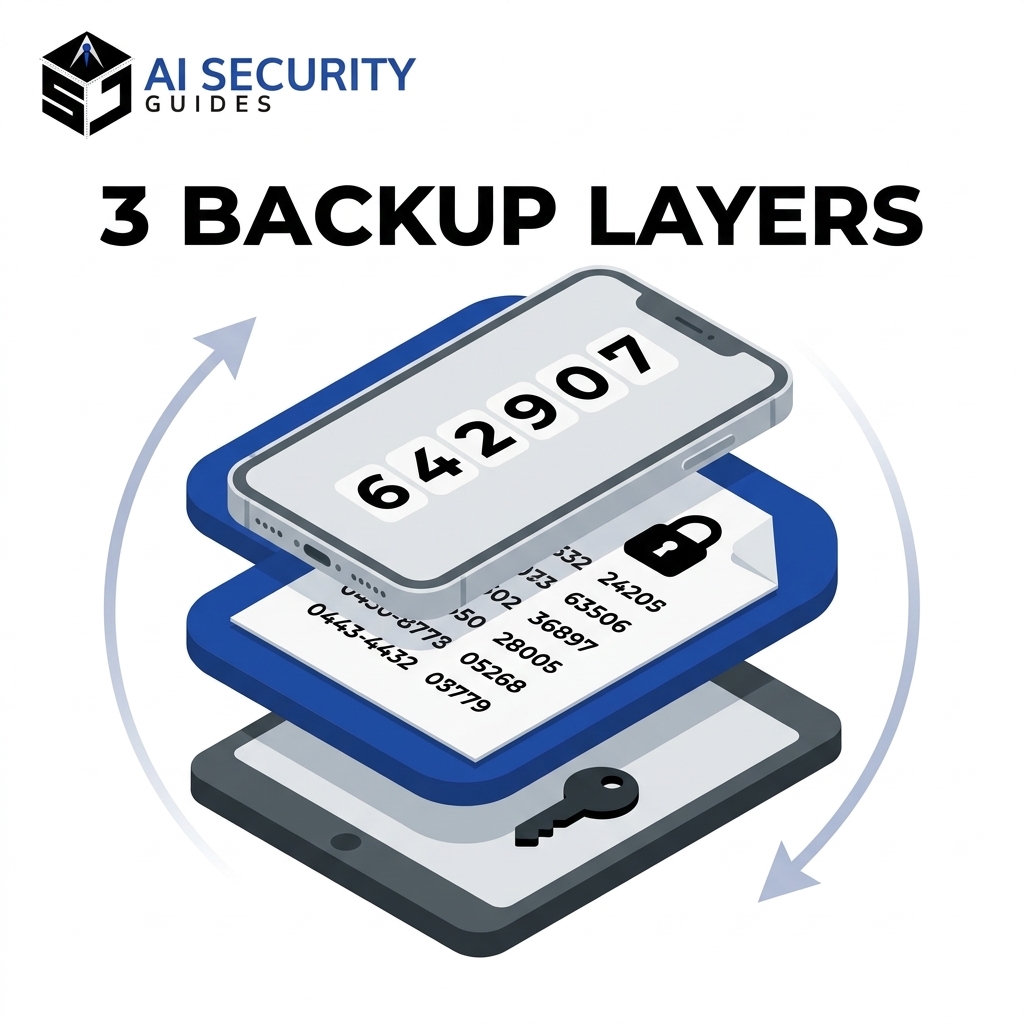
Think in layers. The first layer is the app on your phone. Next come paper backup codes for each account. Finally, add an encrypted app backup or a second device, if your app supports one.
Backup Codes: Your Paper Safety Net
Most major services give you a set of single-use backup codes when you enable two-step verification. Google, for example, says you can use a backup code if you lose your phone or cannot get codes by other methods. Its backup code help page explains that you can generate a new set whenever you want, and that a fresh set makes the older codes inactive.
Google also suggests keeping printed codes somewhere safe, such as with your passport and other important papers. That advice applies well beyond Google. Print or write the codes, label them with the account name, and store them away from your phone.
Here is a simple routine you can follow:
- Generate backup codes for each important account.
- Write or print them, and label each sheet with the account name.
- Store the sheet in a locked drawer, home safe, or similar private place.
- Cross off each code after you use it.
- Create a new set if you use most of them or think someone saw them.
Never share backup codes, and never photograph them and leave the photo in an unlocked gallery. Each code works like a spare key, so anyone who has a code and your password can enter your account.
Encrypted Cloud Backup and Account Sync
Some authenticator apps can save your accounts to the cloud, protected by your Google, Apple, or Microsoft sign-in or by a separate password. This feature makes switching phones easy, and it helps if your phone dies without warning. In short, it trades a little extra risk for a lot of convenience.
Authenticator apps explained at the backup level means choosing how much convenience you want. Weigh that trade-off honestly. If an attacker breaks into the cloud account that holds your backup, they may reach your codes too. Therefore, protect that cloud account with the strongest login you have, ideally a security key or passkey.
Features and names change often, so check your app’s official help page before you rely on them. Do not assume backup is on by default. Look in the app settings, turn it on deliberately, and read what it protects.
Moving Authenticator Apps to a New Phone
Plan every phone upgrade before you wipe the old device. A smooth move follows a predictable order:
- Keep your old phone working and charged until the move finishes.
- Use your app’s transfer, export, or restore feature to copy accounts to the new phone.
- Open the new app and confirm every account shows a live code.
- Test a login on your most important accounts, starting with email.
- Only then reset or sell the old phone.
If your app lacks a transfer tool, you can add each account again. Log in to every service, turn off the old authenticator setup, and scan a new QR code with the new phone. This takes longer, but it works everywhere, and it gives you a chance to refresh your backup codes too. Authenticator apps explained for upgrades boil down to one rule: move first, wipe later.
Hypothetical example: Priya buys a new phone and trades in the old one the same day. She never copied her codes, and her trade-in is already wiped. Because she saved backup codes for her email, she recovers that account first and rebuilds the rest from there.
Recovery Plans: What to Do When You Lose Your Phone
Losing a phone feels stressful, but a calm plan makes it manageable. Recovery works best when you act in a clear order. First protect what you can, then restore access, and finally tighten your setup. Authenticator apps explained for recovery means knowing this order before you panic.
Authenticator Apps Explained for Lost or Stolen Phones
Start by assuming the worst, even if you hope the phone is only misplaced. A thief with an unlocked phone could see your codes, so move fast. Follow these steps in order:
- Use a find-my-device service to lock or erase the phone remotely.
- Contact your carrier to suspend the line or move your number to a new SIM card.
- On a trusted computer, sign in to your email account using a backup code.
- Change your email password, then turn on a fresh authenticator setup on your new phone.
- Repeat for banking, work, and social accounts, in order of importance.
- Generate new backup codes for each account, because the old sheet may no longer be safe.
Carrier help matters most when your account also uses text codes as a fallback, because a thief could otherwise receive them. Meanwhile, if you suspect someone else got into an account, our guide to an email account that was hacked lists the next moves.
Recovery Options Differ by Account
No single rule covers every service. Some sites let you reset the second step with a backup code, others ask for an identity check, and a few offer little help at all. That gap is exactly why you should prepare before anything goes wrong, and why authenticator apps explained for recovery deserve their own plan.
Check each important account for the options below, and note which ones you have set up:
- Backup codes you saved on paper
- A second authenticator device, such as an old phone or tablet kept in a drawer
- A security key or passkey registered as a spare
- A recovery email or phone number that you still control
- A trusted-contact or identity-verification process, if the service offers one
Treat this list as homework, not trivia. An hour of preparation now can save you weeks of waiting on support teams later. Importantly, support staff often cannot bypass security for you, because that same bypass would also help a criminal pretending to be you.
If a recovery request asks for a code you did not request, stop. Scammers sometimes pose as support agents and ask for your login codes. Our guide on AI voice cloning scams shows how criminals can sound like someone you trust, so verify any caller through an official channel first.
Build a Recovery Kit Before You Need One
A recovery kit is a small, private folder or envelope that holds everything you need to get back in after a phone loss. You build it once, and you update it a few times a year. Preparation like this is the practical heart of authenticator apps explained for real life.
Include the printed backup codes for your key accounts, a list of which accounts use an authenticator app, and the name of your carrier with the account PIN. Add the find-my-device login for your phone, plus the contact page for each important service. Keep the kit in a locked drawer or home safe, away from the phone it protects.
Do not store the kit as a note on the same phone, and do not email it to yourself. If an attacker reaches your phone or your inbox, a digital copy hands them the exact keys you tried to protect. For the same reason, avoid saving a complete list of accounts and passwords together with codes in a single unprotected file.
Review the kit twice a year. Check that every account on the list still exists, that the backup codes are unused, and that your recovery email still works. Set a calendar reminder so you do not rely on memory.
Authenticator Apps Explained: Common Problems and Fixes
Most problems fall into two groups. Either the code does not work, or someone tricks you into giving it away. Both have simple remedies once you know what to look for, so authenticator apps explained fully must include them.
When Codes Do Not Work
A rejected code usually has a boring cause. Run through this short list before you panic:
- Wrong account entry: Many apps show several similar entries, so confirm you picked the right service and username.
- Expired code: Wait for the next number and type it quickly.
- Clock drift: Turn on automatic date and time, then restart the phone.
- Old setup: If you reset the account’s second step, the old entry no longer works. Delete it and use the new one.
- Typos: Check for swapped digits, especially in low light.
If none of that helps, use a backup code to sign in. Then rebuild the authenticator setup from scratch inside the account settings. This approach fixes nearly every stubborn case.
Hypothetical example: Marcus keeps getting “invalid code” on his shopping account. He checks his phone and finds the clock set manually, two minutes behind real time. After he switches on automatic time, the next code works on the first try.
What to Do After Using a Backup Code
A backup code gets you in, but it also tells you something went wrong. Treat the moment as a prompt to repair your setup right away. Otherwise, you may find yourself with fewer rescue options next time.
First, remove the old authenticator entry and add a fresh one on your working phone. Next, cross the used code off your sheet, and count how many remain. If you have only a few left, generate a new set and destroy the old sheet. Authenticator apps explained responsibly always end with a repaired setup, not just a successful login.
Phishing, Fake Prompts and Code Scams
Authenticator apps explained fully must cover their weak spot. The app protects you from stolen passwords, but it cannot tell whether the website asking for your code is real. A fake login page can collect your password and your code at the same moment, then use both on the real site.
Defend yourself with a few habits. Type website addresses yourself or use bookmarks, and distrust links in urgent messages. Our guide to what phishing is and how to avoid it explains the common tricks, and the article on AI phishing emails that look polished shows why perfect grammar no longer proves a message is real.
Keep these rules in mind:
- No real company will ask you to read your login code aloud or send it by text or chat.
- A code you did not request means someone else is trying to sign in, so change that account’s password.
- If your app offers push approvals, never tap Approve for a prompt you did not start.
- When a service supports number matching, turn it on, because it makes blind approvals harder.
For your highest-value accounts, consider adding a security key or passkey. As noted earlier, CISA identifies FIDO/WebAuthn as the widely available option that resists phishing. You can keep your authenticator app as a backup method alongside it.
Authenticator Apps for Families, Shared Accounts and Small Teams
Security gets trickier when more than one person shares a login. Streaming services, household utility accounts, and small-business tools all raise the same question: whose phone holds the codes? This section gives you simple rules for those situations.
Shared Accounts and Family Members
Avoid sharing one login whenever the service lets you create separate profiles or users. Separate logins let each person use a personal authenticator app, and they leave a clearer trail if something goes wrong. If sharing is unavoidable, pick one trusted adult to own the account and its recovery options.
Teach family members the basics in plain language. Explain that codes are private, that no real company calls to ask for them, and that backup codes live on paper. Older relatives and teenagers both benefit from a short, calm walkthrough, and authenticator apps explained at the kitchen table often work better than a long article.
Plan for the owner’s absence too. If one person holds every code, an emergency can lock the whole family out. Therefore, store a second set of backup codes with a trusted family member or in a shared safe.
Small Teams and Business Accounts
Small businesses face a bigger risk, because one hacked login can expose customer data and money. Require an authenticator app for email, accounting, payroll, and cloud storage, and give each employee a personal login instead of a shared one. Our small business cybersecurity checklist lists the other steps worth taking beside this one.
Admins should also write down a recovery process before anyone needs it. Decide who can reset a locked-out employee, how that person confirms identity, and where the backup codes live. Naming more than one administrator helps, because a single admin’s lost phone should never freeze the whole company.
Finally, remove access promptly when someone leaves. Reset their sessions, remove their devices, and rotate any shared passwords. A former employee’s phone should never remain a trusted key to company accounts, and authenticator apps explained to new hires should include that rule from day one.
Authenticator Apps Explained: Myths Beginners Believe
Wrong ideas stop many people from ever turning this feature on. Clearing them up removes a lot of fear. Here are the two myths we hear most.
Myth: Authenticator Apps Are Too Technical
Setup involves scanning one square picture and typing one number. If you can scan a restaurant menu or a payment code, you can do this. Most of the work happens once, and after that each login adds about ten seconds.
The harder part is the habit of saving backups, not the technology. Authenticator apps explained in everyday language remove the intimidation: you carry a code book that rewrites itself every half minute. Once you see it that way, the process feels ordinary.
Some people also fear they will break something. In reality, the worst beginner mistake is skipping backup codes, and this guide already shows you how to avoid that. A test login in a private window catches almost every other error.
Myth: One Backup Is Enough
A single backup protects you from a single failure. Yet real problems come in clusters, such as a lost phone plus a house move, or a broken phone plus a forgotten password. Two independent backups, like paper codes and a spare device, handle those clusters much better.
Think of backups the way you think of a spare tire. You hope you never use it, but you check the pressure now and then. Authenticator apps explained responsibly always include at least two ways back in.
Also remember that backups age. Codes get used, phones die in drawers, and email addresses change. Schedule a yearly check so your safety net does not quietly rot.
Authenticator Apps Explained: A Practical Checklist

This checklist turns authenticator apps explained in theory into action. Use it once for your most important accounts, then repeat it for the rest. Print it if that helps you finish. Each item takes only a few minutes.
Before you set up
- Lock your phone with a PIN, fingerprint, or face unlock.
- Turn on automatic date and time.
- Install your chosen app from the official app store.
- Update the recovery email and phone number on each account.
While you set up
- Turn on the authenticator app option for your email first.
- Scan the QR code, or type the setup key by hand.
- Test a fresh login in a private browser window.
- Delete any screenshot of the setup screen.
For backups and recovery
- Save backup codes on paper and store them in a private, safe place.
- Turn on encrypted app backup if your app offers it, and protect that cloud account well.
- Register a spare device, security key, or passkey for your key accounts.
- Review the setup after every new phone, and refresh backup codes once a year.
For ongoing safety
- Never share a code with anyone who contacts you first.
- Type website addresses yourself or use bookmarks.
- Upgrade to a security key or passkey for email and banking when you can.
Authenticator Apps Explained: Frequently Asked Questions
Are Authenticator Apps Safer Than Text Messages?
In most cases, yes. App codes come from your phone, so nobody can intercept them in transit or redirect them through a SIM swap. Text codes are still better than no second step, however, so keep them if that is all a site offers.
Can I Use the Same Authenticator App on Two Phones?
It depends on the app and the account. Many sites let you scan the same setup code on two devices at once, which gives you a spare. Others bind the setup to one device, so check the account’s security page and your app’s help center.
What Happens to My Codes If I Factory Reset My Phone?
A reset normally erases the app and every stored secret, unless you saved an encrypted backup or transferred the accounts first. Without either, you must use backup codes or the service’s recovery process. For this reason, prepare before you reset anything, because authenticator apps explained without backups leave you stranded.
Do Authenticator Apps Need Wi-Fi or Cell Service?
No. The app creates codes from the stored secret and your phone’s clock, so it works in airplane mode. You only need a connection to reach the website where you type the code.
Can Hackers Bypass Authenticator Apps?
Yes, but usually through tricks rather than math. Attackers use fake login pages, urgent messages, or pushy fake support calls to collect your code. Authenticator apps explained realistically are strong but not magic. Stay alert, never share codes, and use a security key or passkey for your riskiest accounts.
Should I Store My Codes in My Password Manager?
It is convenient, but it puts your password and second step in one place. A breach of that single vault could then expose both. For email, banking, and the password manager itself, a separate authenticator app keeps the two pieces apart.
Conclusion: Authenticator Apps Explained in Short
Authenticator apps explained in plain terms: they turn your phone into a second lock that thieves cannot copy from a leaked password. The codes come from a secret key and the clock, they refresh about every 30 seconds, and they work without internet. That design makes them a strong, free upgrade for almost every account you own.
The app alone is not enough, though. Remember this authenticator apps explained recap: codes protect the login, and backups protect you. Backup codes, a safe place to store them, and a tested recovery plan turn a good habit into a reliable one. Start with your email account today, save your backup codes, and test your login before you close the page.
When you finish, keep building your defenses. Our guide to protecting your personal information online shows the next steps, and every account you secure makes you a harder target.