

Learning how to protect your personal information online starts with noticing what you share during ordinary tasks. A shopping account, delivery form, photo, or job application can reveal more than you intended.
Hypothetical example: Sara wants help improving her CV. Before uploading it to a chatbot, she notices her home address, phone number, and references’ contact details. The tool needs her work experience to improve the wording, but it does not need those private details.
She removes them. Then she notices that her email account still uses the same password as an old shopping account. Protecting her information will take more than one careful upload.
This guide explains the practical changes that matter: stronger account access, less oversharing, safer downloads, sensible privacy settings, and a recovery plan. You can work through them gradually without becoming a cybersecurity expert.
Table of contents
- What Is Personal Information?
- Why Is Personal Information Important?
- Protect Your Personal Information With Unique Passwords
- Use a Password Manager
- Protect Your Online Accounts With Two-Factor Authentication
- Learn to Recognize Phishing Scams
- Never Share Passwords or OTPs
- Protect Personal Information on Social Media
- How to Protect Your Personal Information Online With Privacy Settings
- Be Careful With Public Wi-Fi
- Use Secure Websites
- Keep Your Phone and Computer Updated
- Limit App Access to Your Personal Information
- Avoid Downloading Files From Unknown Sources
- Protect Personal Information Stored in Your Email
- Secure Your Online Banking
- How to Protect Your Personal Information Online When Sharing Documents
- Understand Cookies and Tracking
- Keep Your Location Information Private Online
- Secure Your Social Media Accounts
- Watch Out for Social Engineering
- Protect Children’s Personal Information Online
- Use Antivirus and Security Tools
- Back Up and Protect Your Personal Files
- What to Do if Your Personal Information Is Stolen
- Common Online Privacy Mistakes
- How to Protect Your Personal Information Online: 10 Golden Rules
- Frequently Asked Questions
- Conclusion: Make Protecting Your Personal Information a Habit
1. What Is Personal Information?
Personal information is information about an identifiable person. It can identify someone directly, such as a full name on a medical record, or indirectly when combined with other details.
An email address, photo, location trail, or online identifier may count depending on the context. Passwords and recovery codes also deserve protection because they can unlock accounts containing that information. The UK ICO explains these distinctions in its guide to personal information. ico.org.uk
| Information type | Everyday examples | Why to handle it carefully |
|---|---|---|
| Identity and contact | Name, address, birth date, CNIC, passport | Can support impersonation or unwanted contact. |
| Financial | Card details, account statements, payment history | Can expose transactions or support fraud. |
| Account access | Passwords, PINs, recovery codes | May allow someone to enter your accounts. |
| Health and private life | Medical records, private conversations | Can reveal highly personal circumstances. |
| Digital activity | Location, browsing history, account identifiers | Can reveal habits or help identify you. |
Legal definitions differ between countries. For everyday decisions, ask whether the information could identify someone, expose private activity, or provide access.
2. Why Is Personal Information Important?
Your information connects to real parts of your life: your money, relationships, work, and reputation. For example, access to a private inbox may reveal invoices, appointment reminders, and password-reset messages.
Protecting it reduces opportunities for impersonation, account takeover, and unwanted disclosure. However, sharing a name or email address does not automatically mean identity theft will follow. Risk depends on what was shared, who received it, and what they can do with it.
Privacy and security also serve different purposes. Privacy concerns how information is collected, used, and shared. Security concerns protecting it against unauthorized access or damage. You need both: a well-protected account can still have a publicly visible profile.
Understanding how to protect your personal information online helps you decide which details a service needs and which you can keep private.
If you are beginning to use chatbots and other AI services, our AI security guide for beginners explains how these habits apply to everyday AI use.
3. Protect Your Personal Information With Unique Passwords
If you are learning how to protect your personal information online, start by replacing reused passwords on your most important accounts.
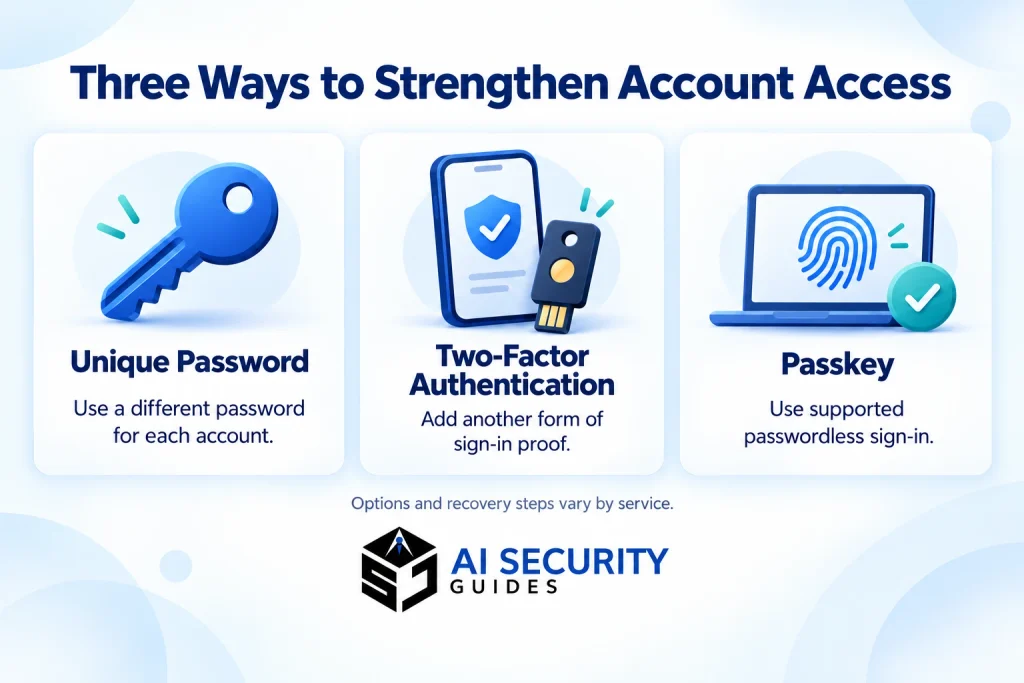
Where you use passwords, choose a different one for every account. Otherwise, a password exposed by one service can be tried elsewhere.
Avoid names, birthdays, common patterns, and predictable substitutions. Adding a year or an exclamation mark to your name does not make a strong password. Instead, use a password manager to generate a long random password, or create a long passphrase from unrelated words.
Do not copy a password example from an article. Create your own, and keep the password for your main email account separate from everything else.
CISA’s account-security guidance supports strong, unique passwords and password managers. If a password has been exposed or reused on a compromised account, replace it promptly. www.cisa.gov
4. Use a Password Manager
A password manager stores login details in a protected vault and can generate new passwords. Some are built into devices or browsers; others work across different platforms.
Choose one that supports your devices and offers clear security and recovery guidance. Then protect its main account with a unique password and additional authentication where available. The UK NCSC explains these considerations in its password-manager guidance. www.ncsc.gov.uk
Practice retrieving a saved login before moving every account. Also keep recovery instructions somewhere secure, because losing access to the vault can be disruptive.
Avoid leaving exported password lists in Downloads or shared folders. An export may be an ordinary readable file rather than a protected vault.
5. Protect Your Online Accounts With Two-Factor Authentication
Two-factor authentication, often called 2FA, adds another form of proof when you sign in. For example, a password may be combined with an authenticator code or a security key.
Available options differ. SMS codes can add protection when stronger methods are unavailable, but codes can still be stolen through phishing. Never approve a login prompt that you did not initiate.
Passkeys work differently: they can replace passwords and use your device’s PIN, fingerprint, or face unlock to authorize sign-in. They are not simply another name for an SMS code. Read the NCSC’s explanation of passkeys. www.ncsc.gov.uk
Before enabling extra protection, save recovery codes securely and check the account-recovery process. Your plan should still work if your phone is lost.
6. Learn to Recognize Phishing Scams
Phishing uses deceptive messages or websites to persuade you to disclose information, open a harmful file, or take another unsafe action. It can arrive through email, text messages, social media, or phone calls.
Hypothetical example: Sara receives a delivery message asking for a small extra payment. Instead of following its link, she opens the delivery company’s app herself and checks the order.
Look for unexpected requests, pressure, changed payment details, or demands for passwords and codes. Poor spelling can be a clue, but good grammar does not prove authenticity.
Our guide to recognizing and avoiding phishing explains how to check suspicious messages through a separate, trusted channel.
7. Never Share Passwords or OTPs
An OTP is a one-time password or verification code. Depending on the service, it may authorize a login, password reset, or payment. Therefore, treat it as an access credential rather than an ordinary message.
Do not read a code to an unexpected caller or forward it to someone claiming to be support. Instead, read the message explaining what the code authorizes. The FTC explains why scammers ask for these codes in its verification-code guidance. consumer.ftc.gov
There is a difference between sharing a code with a stranger and entering it into the genuine app during a process you started. If someone else initiated the request, stop and contact the organization independently.
For workplace access, use approved account-sharing or delegation features rather than passing around one person’s login.
8. Protect Personal Information on Social Media
Knowing how to protect your personal information online also means checking what your photos reveal about other people before posting them.
Consider the whole image or message. A photo may reveal a house number, work badge, delivery label, or school uniform even when its caption seems harmless.
Avoid publishing identity documents, private conversations, or details about someone else without their permission. Consider sharing travel photos after returning rather than broadcasting that your home is empty.
You do not have to remove every personal detail from the internet. Instead, choose the audience and purpose deliberately. A professional contact address may belong on a business profile, while your home address usually does not.
Once information is shared, another person may copy it before you delete the original.
9. How to Protect Your Personal Information Online With Privacy Settings
Privacy settings control different things, so review more than whether an account says “private.” Check who can view posts, find you through your phone number, tag you, or send messages.
Also inspect shared albums, cloud folders, and old public posts. Changing your default audience may not change every previous item.
Hypothetical example: Sara discovers that a folder containing her CV is available to anyone with its link. She changes access to named recipients and removes an old collaborator.
For AI tools, review relevant data controls before uploading personal material. Our guide to information you should never share with an AI chatbot helps identify unnecessary details.
10. Be Careful With Public Wi-Fi
Public Wi-Fi is not automatically unsafe. Modern encrypted connections protect much of the information traveling between your device and online services, as the FTC explains in its public Wi-Fi guidance. consumer.ftc.gov
However, a convincing network name does not prove who operates it. Confirm the network with the venue, avoid unexpected software-installation requests, and do not bypass browser security warnings.
If you are unsure about the network, mobile data is a practical alternative for sensitive tasks. A VPN can protect traffic between your device and the VPN provider, but it does not make a fraudulent website trustworthy.
Disable unnecessary file sharing and automatic connection to unfamiliar networks.
11. Use Secure Websites
HTTPS encrypts the connection between your browser and a website. It helps protect information in transit, but it does not establish that the organization receiving it is honest.
Scam websites can also use HTTPS. Therefore, inspect the address carefully and reach important services through a saved bookmark or their official app. Browser security indicators vary; do not rely on finding a particular padlock icon. blog.mozilla.org
Before uploading documents or entering payment details, ask whether you reached the expected organization and whether the request makes sense.
If a page reports a certificate or connection warning, stop and investigate through another trusted route rather than clicking past it to finish quickly.
12. Keep Your Phone and Computer Updated
Updates can fix weaknesses in operating systems, browsers, and apps. Delaying them leaves those fixes unavailable on your device.
Turn on automatic updates where practical, and allow required restarts. Check less-visible software too, including browser extensions and the apps you rarely open. The Australian Cyber Security Centre’s device-security guidance includes keeping software current. www.cyber.gov.au
Download updates through the device settings, app store, or genuine software interface. A web advertisement claiming that your computer urgently needs an update is not a trustworthy installation route.
If a device or app no longer receives security updates, plan a supported replacement rather than assuming its last update is sufficient forever.
13. Limit App Access to Your Personal Information
Permissions determine what an app can access, such as your contacts, microphone, camera, or location. Grant access for a clear function, not simply because a pop-up appears.
For example, a video-call app needs microphone access during calls. A basic calculator requesting your contacts deserves closer scrutiny. Where available, choose access only while using the app or to selected photos instead of your entire library.
When deciding how to protect your personal information online, review permissions based on what each app actually needs.
Check connected services as well as phone permissions. A tool linked to your email or cloud storage may retain access until you disconnect it through the account settings.
After removing an app, check whether its connected-account authorization also needs revoking.
14. Avoid Downloading Files From Unknown Sources
Get software from its official developer or a recognized app store, and verify the publisher. Even then, check whether the permissions and purpose make sense.
Avoid cracked software, unexpected installer files, and downloads promoted through alarming pop-ups. If a familiar contact sends an unusual attachment, verify it separately before opening.
File labels are not reliable reassurance. A document can contain misleading links or instructions, while an installer can request powerful access. Do not disable security protections just because a download tells you to.
If you accidentally download something suspicious, do not open it to “see what it is.” Use your security software or trusted technical support to assess it.
15. Protect Personal Information Stored in Your Email
Your main email deserves priority because many services send recovery links there. Protect it with a unique password or supported passkey, and enable additional authentication where appropriate.
Review recovery addresses, phone numbers, signed-in devices, and connected apps. Remove entries you do not recognize after checking that they are not your own devices under unfamiliar names.
Also inspect forwarding rules if you suspect unauthorized access. Someone may arrange to receive copies of messages without repeatedly signing in. www.cyber.gov.au
Use a strong device lock and avoid leaving your inbox open on shared computers. When using another person’s device, sign out fully and do not save your credentials in their browser.
16. Secure Your Online Banking
Open your bank through its genuine app or a known website address. Do not use a banking link from an unexpected message, even when the message includes your name.
Enable transaction alerts where available and review unusual activity promptly. Before a transfer, check the amount and recipient; for changed payment details, verify the change through an existing contact route.
You may need to enter card details at a legitimate checkout. That is different from sending them in an unsolicited chat or giving a caller your PIN or login code.
Never move money to a supposed “safe account” on a caller’s instructions. End the conversation and contact your bank independently. consumer.ftc.gov
17. How to Protect Your Personal Information Online When Sharing Documents
CNICs, passports, driving licenses, utility bills, and bank statements can reveal several identifying details together. Before sharing a copy, confirm who needs it, why, and how you should submit it.
Legitimate identity checks sometimes require complete documents. Follow the verified organization’s instructions rather than redacting required fields at random. However, remove unrelated information when a full document is unnecessary.
Store copies in a protected location with restricted sharing. Check uploaded files for comments, hidden spreadsheet sheets, and pages that do not belong in the submission.
Sara can ask a chatbot to improve a paragraph without uploading her full CV. The same principle applies to bills and forms: share the smallest useful extract.

18. Understand Cookies and Tracking
Cookies are small pieces of data stored through your browser. They can keep you signed in, remember preferences, or support analytics and advertising.
Not every cookie is harmful. Nevertheless, you can often decline optional tracking through a website’s privacy controls. The UK ICO explains cookies and user choices in its cookie guidance. ico.org.uk
Review browser tracking settings, and understand the limits of private browsing. It can reduce locally retained browsing history, but it does not make you anonymous to every website or network operator. support.google.com
Deleting cookies may sign you out and reset preferences. It does not automatically erase information the website already holds in its own systems.
19. Keep Your Location Information Private Online
Location can come from an app permission, a public check-in, a photo, or details visible in its background. Precise location can reveal more than a general city or region.
Allow location only when it supports the task. For example, navigation needs location while you travel, but an unrelated app may not. Where available, choose approximate location or access only while using the app.
Review ongoing location sharing with people as well as apps. A setting enabled for a previous journey or relationship may still be active.
Before sharing a photo, check visible addresses and relevant metadata. Removing metadata helps, but recognizable landmarks can still reveal where it was taken.
20. Secure Your Social Media Accounts
Posting controls manage visibility; account-security controls help keep other people out. Review both rather than assuming that a private profile cannot be compromised.
Use separate passwords or supported passkeys, maintain recovery options, and enable login alerts where offered. Remove unused connected apps and check active sessions periodically.
Be cautious with a new profile using a familiar person’s name and photo. Confirm unexpected requests through a contact route you already trust, especially when money or verification codes are involved.
If your account sends messages you did not write, warn affected contacts and follow the platform’s recovery process. Avoid buying recovery services from strangers who contact you afterward.
21. Watch Out for Social Engineering
Social engineering means manipulating a person into taking an action or sharing information. The attacker might pretend to be support staff, a recruiter, a colleague, or a worried relative.
The pressure often centers on urgency, authority, secrecy, or a tempting reward. Instead of arguing with the sender, pause the requested action and verify through another channel.
A realistic voice or video does not remove the need for that check. Ask about the specific request, including any payment amount, recipient, or changed instructions. Our guide to spotting and verifying AI-powered scams explores these situations in more detail.
If you ask a chatbot to assess a suspicious message, treat its answer as assistance rather than proof. Follow our steps for checking an AI answer before trusting it and confirm important claims independently.
Make independent verification an ordinary habit with family and colleagues. Saying “I always check payment changes separately” is easier when everyone already expects it.
22. Protect Children’s Personal Information Online
When explaining how to protect your personal information online to children, use familiar examples such as school names, gaming profiles, and location sharing.
Teach children to ask for help when a message requests private details, photos, money, or secrecy. Make clear that telling you about a mistake will lead to support rather than immediate blame.
Review privacy settings together and use age-appropriate services and parental controls. Australia’s eSafety guidance on children’s privacy offers practical advice for families. www.esafety.gov.au
Adults should also check what they post about children. School badges, birth dates, routines, and addresses can reveal identifying information without the child sharing anything themselves.
Explain unfamiliar terms with examples: “Your school name helps someone work out where you are.” Revisit the conversation as the child’s apps and activities change.
23. Use Antivirus and Security Tools
Security software can help detect or block malicious activity. Keep supported built-in protections enabled, or use a suitable reputable product when you need additional features.
A firewall, screen lock, device encryption, and browser protections serve different purposes. Device encryption helps protect stored data if a device is lost; it does not prevent you from voluntarily uploading a document to the wrong person.
Open the genuine security app to review alerts. Do not trust a browser pop-up simply because it imitates an antivirus warning.
When a scan finishes, review its status and any recommended action. Our guide to reading an antivirus scan result without panicking can help you approach the result calmly.
No scan or tool guarantees that everything is safe. Investigate unresolved alerts, follow legitimate instructions, and seek trusted help if you cannot explain suspicious device behavior.
24. Back Up and Protect Your Personal Files
A backup is another recoverable copy of important files. It helps when a device fails, is lost, or becomes affected by malicious software.
Choose a secure cloud backup, an external drive, or a combination. Keep at least one copy protected from changes to your everyday device. An external backup left permanently connected may also be affected during an attack.
Learning how to protect your personal information online includes securing your backup copies, because they may contain the same private records as your main device.
Check that files actually restore rather than trusting a “backup enabled” label. Also distinguish synchronization from backup: deleting a synced file may delete it elsewhere unless versioning or recovery features are available.
The Australian Cyber Security Centre provides instructions for backing up files and devices. www.cyber.gov.au
25. What to Do if Your Personal Information Is Stolen
Act according to what was exposed. A leaked email address, a stolen password, and a copied passport require different responses.
First, stop the suspicious interaction and preserve useful evidence. Use a trusted device and official contact routes for recovery. If money is involved, contact your bank or payment provider immediately rather than waiting for a police report.
| What was exposed | Priority action |
|---|---|
| Password or recovery code | Secure the account, replace exposed credentials, and review sessions and recovery settings. |
| Card details or a payment | Contact the provider through its official fraud-support channel. |
| Identity documents | Contact the issuer and follow relevant identity-theft guidance. |
| Work or customer information | Notify your organization’s security or privacy contact promptly. |
| Personal files or public links | Restrict access and request removal where appropriate; do not assume copies disappear. |
In the US, IdentityTheft.gov provides identity-theft recovery guidance. In England, Wales, and Northern Ireland, report fraud through Report Fraud; in Scotland, use Police Scotland’s non-emergency number, 101. consumer.ftc.gov
Australian readers can use ReportCyber for cybercrime reporting. In Pakistan, use the official NCCIA complaint portal. Keep report references and continue working with affected providers. www.cyber.gov.au
If you manage customer or employee information, preparation should include clear responsibilities and a reporting process. Use our small business cybersecurity checklist to review your wider business protections.
26. Common Online Privacy Mistakes
A common mistake is protecting the account but ignoring the information inside it. For example, a strong password does not help if a sensitive document is shared through a public link.
Another mistake is treating a tool as a complete solution. A VPN does not authenticate a merchant, antivirus does not stop every scam, and a private profile does not prevent screenshots.
Finally, avoid uploading confidential material to a chatbot merely to ask whether it is confidential. Describe the issue with placeholders instead. If you already uploaded private information, our guide to removing personal data from AI tools explains the separate controls to review.
27. How to Protect Your Personal Information Online: 10 Golden Rules
Use this short checklist after reading the detailed steps. Start with your email, banking, and most-used accounts, then work through less important services.
- Share only the information needed for the task.
- Use unique passwords or supported passkeys.
- Enable additional authentication where appropriate.
- Keep passwords, recovery codes, and OTPs private.
- Verify unexpected requests through a trusted channel.
- Review audiences, sharing links, and app permissions.
- Install updates through genuine sources.
- Protect devices with locks and appropriate security settings.
- Maintain backups and check that you can restore them.
- Respond promptly when information or access is exposed.
For chatbot use and connected AI services, keep our everyday AI safety checklist alongside this privacy routine.

28. Frequently Asked Questions
What Is Personal Information Online?
It is information about an identifiable person, including details that identify someone when combined. Examples include contact details, identity documents, location records, and account-linked activity.
Why Should I Protect My Personal Information?
Careful handling reduces opportunities for fraud, unwanted contact, and disclosure of private information. It also gives you more control over who can see or use your details.
What Information Should I Never Share Online?
Do not publicly share passwords, recovery codes, or private identity documents. Some sensitive information may be necessary for legitimate services, but submit it only through a verified, appropriate channel.
How Can I Create a Strong Password?
Use a long, unique password generated by a password manager, or a long passphrase made from unrelated words. Avoid predictable personal details and do not reuse it elsewhere.
Is Two-Factor Authentication Safe?
It generally strengthens account protection, but methods differ and none removes every risk. Keep recovery options secure and never approve an unexpected login request.
What Is Phishing?
Phishing uses deceptive messages or websites to trick you into revealing information or taking an unsafe action. Verify the request independently before clicking, paying, or sharing credentials.
How Can I Identify a Fake Website?
Check its address, how you reached it, and whether its requests make sense. HTTPS protects the connection, but it does not prove the business behind the website is genuine.
Is Public Wi-Fi Safe?
Encrypted services reduce many risks associated with public Wi-Fi. Still, verify the network, heed security warnings, and use mobile data if you are uncertain about the connection.
How Can I Protect My Social Media Accounts?
Combine strong authentication with current recovery details, audience controls, and connected-app reviews. Also verify unexpected requests from accounts claiming to belong to friends.
What Should I Do If My Account Is Hacked?
Use the provider’s official recovery process, secure the account, and review sessions and recovery settings. Notify affected contacts if fraudulent messages were sent, and contact your bank if money is involved.
Should I Use a Password Manager?
A password manager can make unique passwords easier to maintain. Protect its main account carefully and understand how to recover access if your device is lost.
How Do I Protect My Children Online?
Combine age-appropriate settings with regular, supportive conversations. Teach children to ask for help with suspicious requests, and avoid publishing identifying details about them yourself.
Conclusion: Make Protecting Your Personal Information a Habit
Knowing how to protect your personal information online is useful only when the advice becomes a habit. Start with one action today: secure your email, review a public sharing link, or remove unnecessary app access.
Like Sara, you do not need to fix every setting at once. Make deliberate choices about what you share, verify unusual requests, and keep a recovery plan ready.
For practical guidance on applying these habits to modern tools, explore AI Security Guides and build your own routine for safer online use.