
Social Media Privacy Settings: How to Lock Down Your Accounts
Social media privacy settings decide who can see your photos, find your profile, and send you messages. Most people never open those menus after they sign up. As a result, strangers, scammers, and data brokers often see far more than you intended.
Hypothetical example: Jordan, a college student in Ohio, posts a vacation photo with the hotel tagged. A stranger who follows Jordan’s public profile notices the dates, the city, and Jordan’s full name. A week later, a fake “travel agency” message arrives, packed with details only a close friend should know. Jordan did nothing reckless. The default settings simply did the sharing.
This guide fixes that problem in plain English. You will learn how to protect your accounts, adjust your social media privacy settings, and spot common traps. You will also learn how to help kids and what to do after a hack. If you want the broader picture first, read our guide on how to protect your personal information online, then come back for the step-by-step settings.
Everything below works for beginners. You need about an hour, a phone or laptop, and your login details.
Table of Contents
- What Social Media Privacy Settings Control
- How Hackers and Scammers Target Your Social Media Accounts
- Secure Your Account Before You Change Social Media Privacy Settings
- Social Media Privacy Settings to Change on Every Platform
- Social Media Privacy Settings by Platform: A Quick Comparison
- How to Protect Your Social Media Accounts From Hackers Every Day
- Common Social Media Privacy Settings Mistakes to Avoid
- Social Media Privacy Settings for Work and Small Business Accounts
- Social Media Privacy Settings for Kids and Teens
- What to Do If Someone Hacks Your Social Media Account
- Social Media Privacy Settings Checklist You Can Save as a PDF
- Social Media Privacy Settings FAQ
- Conclusion: Take Control of Your Social Media Privacy Settings
What Social Media Privacy Settings Control
Social media privacy settings are the switches that decide who sees your content and what the platform does with your data. They cover your posts, photos, friend list, location, tags, and message requests. They also shape what advertisers and connected apps learn about you. Understanding these controls comes first, because you cannot protect what you do not understand.
Many beginners treat the settings menu like a legal agreement and skip it. However, a few minutes there often prevents hours of cleanup later. Think of the menu as the locks on your front door and windows. You would not leave them open just because the door looks nice from the street.
Privacy Settings vs. Security Settings

Privacy and security sound similar, but they solve different problems. Privacy settings control who can see your information. Security settings control who can get into your account. For example, switching your profile to private hides your posts from strangers. Turning on two-factor authentication, which asks for a second proof of identity, stops a thief who stole your password.
You need both layers. A private profile with a weak, reused password still falls to a hacker. Likewise, a well-protected login on a fully public profile still hands scammers your life story. Therefore, this guide covers account security first and then walks through social media privacy settings step by step.
Why Default Social Media Privacy Settings Favor Sharing
Platforms earn money through advertising and engagement. As a result, many default settings make your profile easy to find and your posts easy to share. Defaults vary by platform, age group, and region, and companies change them often. Even so, the safest assumption is that the default privacy and security settings for most social media platforms lean toward growth and convenience, not maximum protection.
That assumption has a practical benefit. Instead of trusting the defaults, you review each option yourself and choose the narrowest one that still works for you. For instance, you can share vacation photos with close friends instead of every follower. Over time, those small choices shrink your exposure.
Social Media Security in Cyber Security: The Bigger Picture
Security professionals talk about your attack surface, which means every way an attacker could reach you or your data. Social media widens that surface in three ways. It exposes personal details, it offers a channel for scam messages, and it holds login credentials that criminals want. Therefore, social media security in cyber security covers more than hacking. It also covers oversharing and impersonation.
The Cybersecurity and Infrastructure Security Agency (CISA) makes the same point. Its social media cybersecurity tip sheet explains that criminals use social platforms to spread malware and malicious links. It advises you to limit what you post, keep sensitive numbers private, and set your privacy and security options carefully. Those tips form the backbone of this guide.
What Your Social Media Privacy Settings Reveal About You
Every setting you leave open tells outsiders something. A public friend list shows who you trust. A visible birthday helps identity thieves. Open photo albums show your home, your car, and your workplace. In effect, your social media privacy settings act as a filter between your private life and the public internet.
Data brokers and scammers collect this information in bulk. A data broker is a company that gathers personal details from many sources and sells them. Then scammers combine your posts with leaked data to build a profile that feels trustworthy. For example, a criminal who knows your employer, your manager’s name, and your dog’s name can write a message you believe.
You cannot control every data source. However, you can control the part that comes from your own profile. Strong social media privacy settings cut off that supply at the source. The realistic goal is not invisibility. Instead, you want to become harder to profile than the next person, and that alone discourages most casual attackers.
How Hackers and Scammers Target Your Social Media Accounts
Attackers rarely need advanced skills to break into a social account. Instead, they rely on a short list of cheap tricks that work because people reuse passwords, click quickly, and share freely. Knowing these tricks helps you see why each privacy control matters.
Password Reuse and Credential Stuffing
Credential stuffing means criminals take email-and-password pairs from one data breach and try them on other sites. If you reuse a password, one breach can unlock your Instagram, your email, and your shopping accounts. Moreover, attackers automate these attempts, so they can test huge lists of logins without effort.
You can reduce this risk quickly. First, use a different password on every account. Next, check whether your email appeared in a known data breach. Then change any password that matches an exposed account.
Phishing, Fake Login Pages, and Direct Message Scams
Phishing is a scam message that tricks you into giving away a password or a verification code. On social media, it often arrives as a direct message from a friend’s hacked account, a fake “copyright violation” warning, or a link to a login page that looks real. Our explainer on what phishing is and how to spot it covers the patterns in detail.
The pattern stays the same each time. The message creates urgency, asks you to click, and then asks you to log in or share a code. Therefore, never type your password after you click a link in a message. Instead, open the app directly and check your notifications there.
Oversharing That Helps Attackers Guess Your Answers
Scammers read public profiles the way detectives read case files. Your pet’s name, high school, birthday, and hometown often match the answers to security questions. Furthermore, posts about travel tell burglars when your home sits empty. Tagging your workplace also gives phishers a believable story to tell.
For example, a public post that says “Happy birthday to my golden retriever, Max!” supplies a common password ingredient. Similarly, a photo of your boarding pass can expose your booking number and full name. Tightening your social media privacy settings limits who can collect these details, and posting less limits what they can collect.
Fake Profiles, Romance Scams, and Giveaway Traps
Scammers also build fake profiles or clone real ones. They send friend requests, then pivot to romance, investments, or “free” giveaways. The Federal Trade Commission advises you to slow down when someone rushes a friendship or romance online. It also suggests calling a friend directly when a message from that friend asks for money, because their account may have been hacked.
Pay attention to payment requests. Scammers often ask for gift cards, wire transfers, or cryptocurrency, since those methods are hard to reverse. Therefore, treat any request for money on social media as suspicious until you confirm it by another channel. Locking down who can contact you also shrinks the pool of scammers who can reach you.
AI-Powered Impersonation
Generative AI now lets scammers clone a voice from a short audio clip or build a convincing fake profile in minutes. A public video of you speaking can supply the sample. As a result, a “relative in trouble” call can sound real. Read our guide to AI voice cloning scams and how to verify them for specific warning signs.
Your defense is simple. Limit who can view your videos, agree on a family code word, and always call back on a known number before you send money. Social media privacy settings help here too, because a private account gives scammers less audio, video, and personal detail to copy.
Secure Your Account Before You Change Social Media Privacy Settings

Order matters. If someone can log in as you, no privacy setting protects you, because the thief can simply change the settings back. Therefore, spend your first twenty minutes on the four steps below. Then move on to social media privacy settings with confidence.
Secure Your Email First (Including Gmail)
Your email address is the master key to your social accounts. Anyone who controls it can click “forgot password” on every platform you use. Consequently, protect it before anything else.
If you wonder how to secure my Gmail account from hackers, start with these steps:
- Create a long, unique password that you use nowhere else.
- Turn on 2-Step Verification in your Google Account.
- Run Google’s Security Checkup and remove devices you do not recognize.
- Review which apps and sites have access to your account, and remove old ones.
- Confirm your recovery phone number and recovery email are current.
Other email providers offer similar tools, so look for a “Security” or “Sign-in” page in your account settings. If you suspect a break-in already, follow our guide to recover and secure a hacked email account right away.
Create Strong, Unique Passwords With a Password Manager
A password manager is an app that creates, stores, and fills in strong passwords for you. You remember one strong master password, and the app handles the rest. This approach beats memory and sticky notes every time. For a full walkthrough, see our beginner’s guide to using a password manager.
When you create a password, aim for a long passphrase of 14 or more characters. For example, four random words strung together are easy to type and hard to guess. In addition, never reuse a password across accounts. If a site offers a passkey, which lets you sign in with your fingerprint, face, or device PIN instead of a password, consider using it. Strong logins and social media privacy settings should always travel together.
Turn On Two-Factor Authentication
Two-factor authentication (2FA), also called multifactor authentication, asks for a second proof of identity after your password. CISA says multifactor authentication makes you much more secure, and it lists social media among the accounts where you should use it. Even if a thief steals your password, the second factor blocks the login. No set of social media privacy settings can replace that second layer.
Not every second factor offers the same protection. Here is a quick ranking from stronger to weaker:
- Passkeys or security keys: CISA notes that FIDO/WebAuthn is the only widely available phishing-resistant option.
- Authenticator app codes: These codes refresh every 30 seconds. Our guide to authenticator apps explained shows how to set one up and back it up.
- Text message codes: These beat having no second factor, but criminals can sometimes trick phone carriers or you into handing them over.
After you enable 2FA, save your backup codes somewhere safe, such as inside your password manager. Otherwise, a lost phone could lock you out of your own account.
Set Up Safe Recovery Options
Recovery options help you regain access, but they also give thieves a path in. Therefore, treat them as part of your account security, not an afterthought. Add a recovery email that you control and protect with its own strong password and 2FA. Similarly, keep your recovery phone number current, and remove old numbers you no longer own.
Next, handle security questions with care. If a platform still asks them, avoid true answers, because public posts often reveal them. Instead, type a random phrase and store it in your password manager. Finally, keep your backup codes offline or inside the manager. Once you finish these basics, your social media privacy settings rest on a solid base, and a forgotten password will not turn into a lockout.
Review Login Activity and Connected Devices
Every major platform lists where you are logged in. Look for a section called “Security,” “Login activity,” or “Where you’re logged in.” This check supports your social media privacy settings, because it shows who else has a way in. Then log out of any device or location you do not recognize. Next, change your password if anything looks wrong.
Also turn on login alerts. These notifications tell you when someone signs in from a new device. As a result, you can react within minutes instead of weeks. Make this review a monthly habit, and your accounts will stay much cleaner.
Social Media Privacy Settings to Change on Every Platform
Platform menus look different, but the choices behind them repeat. Once you understand the five groups below, you can find them on any app. Menu names change often, so use the search bar inside your settings page if you cannot find an option.
Make Your Profile Private in Your Social Media Privacy Settings
A private profile means only approved followers can see your posts. Choose this option unless you need a public presence for work or a creative business. This one change does more for your social media privacy settings than any other. If you do need a public profile, create a separate personal account for family and friends.
Next, check your default audience for new posts. Where the platform offers it, pick “Friends” or “Followers” instead of “Public.” Moreover, some platforms let you restrict older posts in one step, and you should use that feature to clean up years of past sharing. Finally, build a “close friends” list for personal photos, so you never wonder who can see them.
Control Who Can Message, Tag, and Find You With Privacy Settings
Open the section that controls contact. These contact limits count among the most important social media privacy settings. Limit direct messages to people you follow or to friends. Otherwise, strangers and scammers can land in your inbox without any effort. In addition, set tags and mentions so that you approve them before they appear on your profile.
Then review how people can find you. Many platforms let strangers search for you by email address or phone number. Turn that off if you can. As a result, a stranger who has your phone number cannot instantly match it to your face, your friends, and your photos.
Hide Location and Activity Status in Social Media Privacy Settings
Your location tells a story that you may not want to share. Location controls belong near the top of any social media privacy settings checklist. Turn off location tagging on posts, and check whether your camera app adds location data to your photos. Furthermore, review whether the app tracks your location in the background. Most phones let you set this to “While Using the App” or “Never.”
Next, look at contact syncing. This feature uploads your address book so the platform can suggest friends. It also shares data about people who never agreed to it. Switch it off unless you truly need it. Finally, hide your “last active” and “online” indicators, because they reveal your daily routine.
Limit Ads and Data Sharing in Your Social Media Privacy Settings
Most platforms use your activity to show targeted ads. Look for sections named “Ads,” “Data,” or “Off-platform activity.” Then reduce personalization where the platform allows it. The Federal Trade Commission also advises people to review their settings and, where possible, opt out of targeted advertising.
Keep realistic expectations here. These controls reduce the data the platform uses for ads, but they rarely stop all collection. Therefore, treat this step as a way to shrink your data trail rather than erase it. Combined with careful posting, it still makes a real difference.
Clean Up Third-Party Apps and Old Posts
Quizzes, games, and “Log in with Facebook” buttons often keep access to your profile long after you stop using them. Open the list of connected apps in your settings and remove everything you do not use today. Likewise, delete old accounts you no longer need, because forgotten accounts rarely get security updates.
Then scroll through your old posts. Remove anything that reveals your home address, your child’s school, your employer’s internal details, or your routine. This cleanup may feel tedious. However, it removes exactly the material that scammers search for first.
Check Photo, Story, and Search Visibility in Your Social Media Privacy Settings
Photos reveal more than faces. Backgrounds can show your street, your school logo, or your license plate. Therefore, check who can see your photos, stories, and reels, and trim the audience where you can. Some platforms let you review tagged photos before they hit your profile, and you should switch that on.
Also check how search works. Some services let search engines index your profile, which means anyone can find it through a web search. Look for an option that limits this, and turn it on if you want more privacy. In addition, search your own name and profile photo online. If you find something you do not like, ask the platform or the website to remove it.
Finally, think about old stories and highlights. Archive or delete the ones that show your home, workplace, or daily routine. These small changes make your social media privacy settings work harder, because they shrink the pool of content that anyone can reach.
Social Media Privacy Settings by Platform: A Quick Comparison

The table below shows where to start on popular platforms. Menu labels change as apps update, and the paths vary by device. Treat the table as a map, and use your settings search bar to confirm each option.
| Platform | Where to look for privacy | Key setting to check | Where to look for security |
|---|---|---|---|
| Settings & privacy, then Privacy Checkup | Default audience set to Friends; tag review on | Password and security, then two-factor authentication | |
| Settings, then Account privacy | Private account on; limit who can message you | Accounts Center, then Password and security | |
| TikTok | Settings and privacy, then Privacy | Private account on; limit direct messages and downloads | Security and permissions, then 2-step verification |
| X (Twitter) | Settings and privacy, then Privacy and safety | Protect your posts; control tagging and discoverability | Security and account access, then Security |
| Snapchat | Settings, then Privacy Controls | Contact Me and location sharing set to friends or off | Settings, then two-factor authentication |
| YouTube and Google | Google Account, then Data & privacy | Review activity controls and ad personalization | Google Account, then Security Checkup |
Facebook and Instagram Privacy Controls
Facebook offers a guided Privacy Checkup that walks you through who can see your posts, how people find you, and which apps connect to your account. Start there, because this tool reviews your key social media privacy settings in one place. Then open your security area and turn on two-factor authentication. Instagram sits under the same company, so its security options often live in a shared account center.
On Instagram, switching to a private account is the single biggest change. After that, limit who can message you and who can see your story. In addition, review your tagged photos, because other people’s posts can expose you even when your own posts stay private.
TikTok, Snapchat, X, and YouTube Privacy Controls
TikTok lets you choose a private account and decide who can send you messages or download your videos. Snapchat focuses on who can contact you and who can see your location on its map. Therefore, check your location sharing first on Snapchat, since a visible map can reveal your home and school.
On X, you can protect your posts so only approved followers see them. For YouTube, your Google Account controls your watch history and ad settings. These apps bury social media privacy settings in different menus, so patience helps. Across all of them, the same logic applies. Narrow your audience, limit contact, and turn on a second login factor.
Which Social Media Privacy Settings Matter Most?
Time is limited, so start with the changes that give the biggest payoff. Here is a simple order of priority:
- Make the account private or limit who sees your posts.
- Limit who can contact you, especially through direct messages.
- Turn off precise location sharing on posts, photos, and maps.
- Review tags and mentions before they reach your profile.
- Reduce ad personalization and data sharing where the platform allows it.
If you finish only the first three items today, you still cut most of your exposure. Then schedule the rest for the weekend. Strong social media privacy settings do not require perfection. They require steady progress, and they work best alongside the account security steps you completed earlier.
How to Protect Your Social Media Accounts From Hackers Every Day
Social media privacy settings give you a strong foundation, but daily habits keep it strong. Hackers adapt, and they usually target people instead of software. Therefore, a few repeatable habits matter as much as any menu change.
Spot Suspicious Links, Messages, and Login Pages
Slow down before you click, because even perfect social media privacy settings cannot stop you from tapping a bad link. Check the sender’s name, but also check the context. A friend who never messages you suddenly sending a link should raise a flag. Similarly, urgent warnings about “account suspension” or “copyright violations” usually signal a scam.
If a message worries you, do not use its link. Instead, open the app or type the official address yourself. Then look for the same alert inside your notifications. Real alerts appear there, and fake ones do not.
Use Safe Devices and Networks
Strong devices and strong social media privacy settings work as a team. Keep your phone, browser, and apps updated, because updates fix known security holes. Also lock your phone with a PIN or biometrics so a lost device does not hand over your accounts. Avoid logging in on shared computers. If you must, use a private window and log out completely when you finish.
Your home network matters too. A poorly protected router can expose every device in your house. Our guide to securing your home Wi-Fi router walks you through the fixes in ten easy steps. On public Wi-Fi, avoid logging in to sensitive accounts unless you must.
5 Ways to Stay Safe on Social Media
If you remember nothing else, follow these five habits:
- Use a unique password and 2FA on every account. This single step blocks most takeover attempts.
- Set your profile to private or limit your audience. Fewer eyes mean fewer targets.
- Think before you post. Skip addresses, travel dates, ID photos, and boarding passes.
- Verify before you trust. Confirm odd requests from friends by calling or texting them separately.
- Review your settings every few months. Apps update, and new options appear.
How to Use Social Media Safely and Responsibly
Safe use also means respectful use. Ask before you tag or post photos of friends, children, or coworkers. Remember that a screenshot lasts forever, even when you delete the post and tighten your social media privacy settings later. In addition, avoid sharing rumors or unverified news, because misinformation harms real people.
Finally, separate work and personal life online. Never share confidential work information, customer data, or screenshots of internal tools. A responsible posting habit protects both your reputation and the people around you.
Common Social Media Privacy Settings Mistakes to Avoid
Even people who open the settings menu make errors that leave gaps. Fortunately, most of these mistakes are easy to fix once you spot them. Use this section as a final audit of your social media privacy settings.
Trusting a Private Account Too Much
A private account hides your posts from strangers, but it does not hide everything. Your name, profile photo, and bio often stay visible. Moreover, any approved follower can screenshot your posts and share them. Therefore, approve only people you know, and post as if a screenshot could reach a wider audience.
Accepting Friend Requests From Strangers
Scammers create fake profiles or clone real ones to join your circle. Once you accept, they can see your private posts, message you directly, and impersonate you to your friends. If a request looks like a friend you already have, check the original profile before you accept. Likewise, remove followers you do not recognize. Social media privacy settings only work when you control who stands inside the fence.
Skipping Updates and Policy Changes
Apps change menus, add features, and sometimes switch on new sharing options. A setting you chose last year may not mean the same thing today. As a result, read update notices when they appear, and recheck your key social media privacy settings after major changes. This habit takes five minutes and catches surprises early.
Using One Social Login for Everything
The “Log in with” button saves time, but it creates a single point of failure. If a thief takes over that one account, every connected service falls too. Instead, create separate logins backed by your password manager. At minimum, protect your main social login with a security key or an authenticator app.
Keeping Old Accounts Open
Forgotten accounts hold old photos, old passwords, and weak settings. Hackers love them because nobody watches them. Delete accounts you no longer use, or at least lock them down with the same social media privacy settings you use on active ones. Then remove their connections to other apps.
Social Media Privacy Settings for Work and Small Business Accounts
Business pages face different risks than personal profiles. A hacked company page can spread false information, damage customer trust, and expose private messages. Therefore, owners and managers should apply the same social media privacy settings they use at home, plus a few extra controls.
Separate Personal and Professional Profiles
Keep your personal profile private and your business page public. Never mix the two. In addition, avoid posting internal documents, customer details, or screenshots of internal tools anywhere. A single careless photo of a desk can show passwords, client names, or access badges.
Limit Who Can Log In and Post
CISA’s guidance on protecting organization-run social media accounts recommends keeping a social media policy, managing credentials carefully, and enforcing multifactor authentication. It also advises you to limit how many employees have access, use trusted devices, and protect the email accounts linked to each profile. You can read the CISA alert on protecting organization-run social media accounts for the full list. CISA wrote it mainly for federal agencies, yet the agency says the guidance applies to all organizations.
Write a Simple Policy for Your Team
A short written policy prevents most mistakes. State who may post, which devices they may use, and what they must never share. Then explain what to do if an account looks compromised. Our guide on creating a simple AI use policy for your small business shows how to keep such a policy short and practical. Review your business social media privacy settings together each quarter, and remove access when someone leaves.
Social Media Privacy Settings for Kids and Teens
Young users face extra risks, including contact from strangers, bullying, and pressure to overshare. Parents often ask how to stay safe on social media for kids, and the answer combines settings, rules, and honest conversation. Social media privacy settings give you a technical safety net, but talking with your child matters more.
Check Age Rules and Choose the Right Platform
Most major platforms set a minimum age of 13. Part of the reason is the Children’s Online Privacy Protection Act (COPPA), a federal law that limits how online services collect data from children under 13. Therefore, do not help a younger child create an account with a fake birthday. A false age can remove protections that the platform applies to younger users.
Before you agree to any app, read its family or teen safety page and its social media privacy settings for minors. Look for built-in parental tools, default private accounts for teens, and limits on who can message minors. Features differ by platform and change often, so check each app’s current help pages instead of assuming.
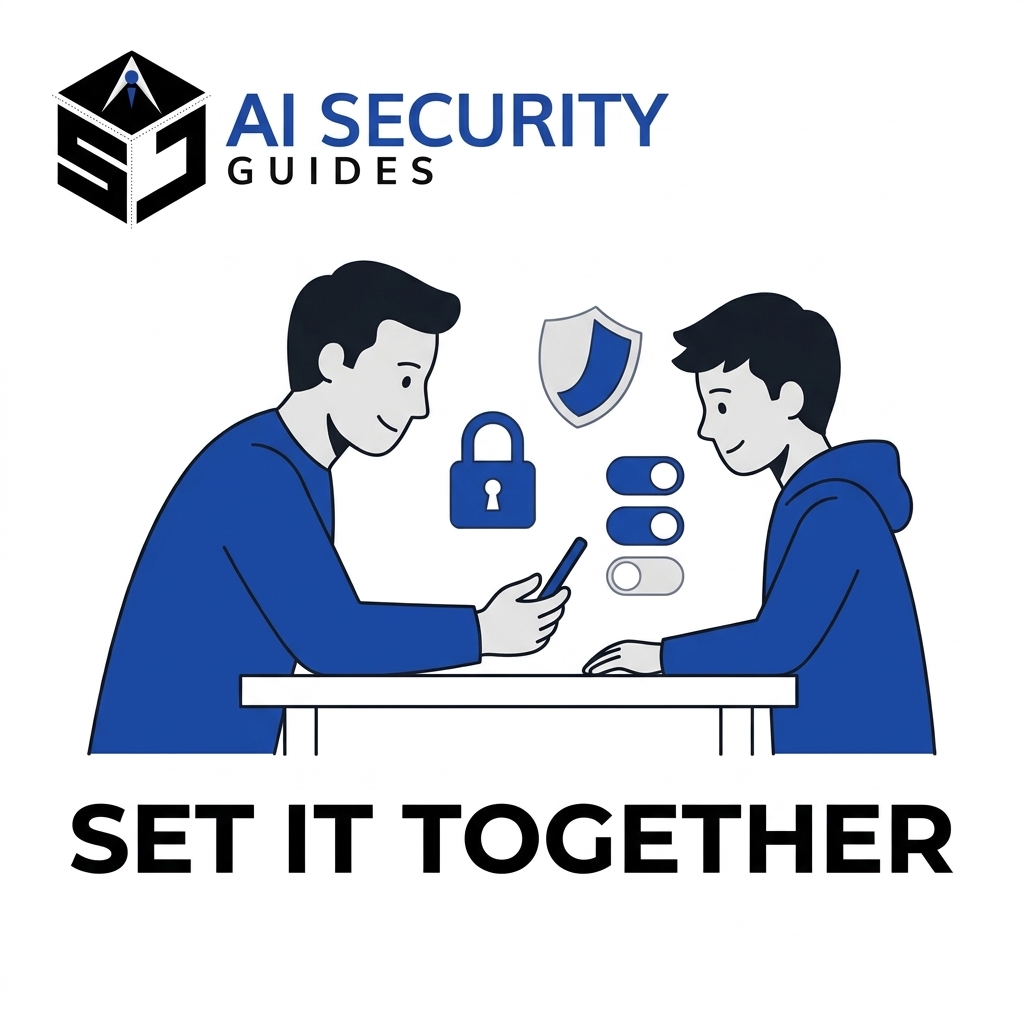
Social Media Privacy Settings to Set Together
Sit down with your child and go through the settings side by side. This approach teaches skills instead of just enforcing rules. Start with these steps:
- Set the account to private and approve every follower together.
- Limit direct messages to people your child already knows.
- Turn off location sharing and location tags on photos.
- Disable contact syncing and suggestions to strangers where possible.
- Set up two-factor authentication on a device you can both access in an emergency.
- Review the friends list every few months and remove people your child does not know in real life.
Talk With Kids, Not Just About Controls
Settings cannot catch everything. Children also need to know what to do when something feels wrong. Tell them they will never get in trouble for reporting a strange message. In addition, teach them to avoid sharing their school, full name, and daily schedule.
Make a family rule that no one sends money, gift cards, or photos to someone they met online. Moreover, explain that scammers sometimes pose as other kids. When your child knows the warning signs, they can protect themselves even when your settings fall short. Keep the conversation open, calm, and regular, and revisit your child’s social media privacy settings every few months.
Handle Strangers, Bullying, and Screen Time
Even with strong settings, a child may meet an unkind or unsafe person online. Explain how to block and report someone, and practice the steps together. Also agree on screen-time limits and device-free times, such as dinner and bedtime. Children who sleep and eat without a phone usually handle online drama better.
Watch for warning signs, including sudden secrecy, mood changes, or new contacts who push for private chats. If you see them, stay calm and ask open questions. Then adjust the social media privacy settings together instead of simply taking the phone away. Punishment teaches kids to hide problems, while partnership teaches them to ask for help.
What to Do If Someone Hacks Your Social Media Account
Even careful users get hacked sometimes. The FTC lists common warning signs, including notices that your email or phone number changed, login alerts you did not cause, and an inability to log in. If you see any of these, act fast and stay methodical.
Take These Steps in the First 30 Minutes
First, try to log in. If you can get in, change your password immediately to a new, unique one. Next, turn on two-factor authentication and log out of all other devices. Then check that your email address and phone number on the account still belong to you.
If you cannot log in, use the platform’s account recovery or hacked-account page. Search for the official help center instead of clicking links in emails. Meanwhile, change the password on your email account, because the attacker may control or target it. Finally, warn friends that scam messages may come from your profile.
Clean Up After You Regain Access
Once you are back in, check what the attacker changed. Review your posts, direct messages, connected apps, and recovery options. Remove anything you did not authorize, and restore any social media privacy settings the attacker changed. Also update any other account that shared the same password, since the thief may try it elsewhere.
Next, run a security scan on your phone or computer in case malware helped the attack. Unexpected pop-ups, slow performance, and unfamiliar apps can signal malware. Then review your social media privacy settings again, because attackers sometimes change them.
Report the Scam and Protect Your Identity
Report the hack to the platform so it can investigate. Save screenshots of suspicious messages as evidence. If the attacker may have stolen your personal information, visit IdentityTheft.gov to report it and get a personalized recovery plan. Consider placing a credit freeze if your Social Security number or financial details could have leaked.
You can also report scams to the Federal Trade Commission at ReportFraud.ftc.gov. Reporting helps investigators spot patterns. It also helps other people, because platforms use reports to remove scam accounts. Do not feel embarrassed, since many careful people fall for well-built scams.
Social Media Privacy Settings Checklist You Can Save as a PDF

Many readers search for a social media security PDF they can keep. You can build your own in two minutes. Use the checklist below to review all your social media privacy settings in one sitting. Copy it into a document, then use “Save as PDF” or “Print to PDF” on your computer or phone. Keep it where you can find it, and tick items off as you go.
One-Time Setup
- Secure your email account with a unique password and 2-step verification.
- Install a password manager and replace reused passwords.
- Turn on two-factor authentication for every social account.
- Save your backup codes in a safe place.
- Switch your profiles to private or limit your audience.
- Set messages, tags, and mentions to friends or approved followers.
- Turn off location tagging and contact syncing.
- Remove connected apps you no longer use.
Monthly Habits
- Review login activity and sign out of unknown devices.
- Check new followers, friend requests, and tagged photos.
- Update your phone, browser, and apps.
- Delete messages and posts that reveal private details.
Yearly Review
- Re-check every privacy setting, because updates sometimes reset options.
- Delete old accounts you no longer use.
- Search your own name online and look for exposed personal details.
- Review your family’s rules and settings for any children who use social media.
Social Media Privacy Settings FAQ
Are social media privacy settings enough to keep my account safe?
No. Social media privacy settings control who sees your content, but they do not stop a thief from logging in with a stolen password. You also need a unique password, two-factor authentication, and careful clicking habits. Together, these layers protect both your privacy and your account.
What are the default privacy and security settings for most social media platforms?
Defaults differ by platform, age, and region, but many lean toward visibility and sharing instead of tight protection. Platforms want people to connect and engage. Therefore, review every one of your social media privacy settings yourself, and do not assume the default matches your comfort level.
How often should I review my social media privacy settings?
Review them at least twice a year, and do a quick check whenever an app announces a major update. Platforms sometimes add new options or change old ones. Also review them after any suspected hack, a password leak notice, or a big life change such as a new job.
How can I secure my Gmail account from hackers?
Use a long, unique password, turn on 2-Step Verification, and run Google’s Security Checkup. Then remove unknown devices and old third-party app access. Finally, keep your recovery phone and email current so you can regain access if something goes wrong.
How do I protect my child’s social media privacy settings?
Set the account to private, limit messages to known contacts, and turn off location sharing together with your child. Then review the friends list regularly and keep an open conversation about what to report. Settings help, but trust and communication protect kids best.
Does a private account protect me from hackers?
Not by itself. A private account hides your posts from strangers, but hackers target your login, not your audience. Therefore, pair a private profile with a unique password and two-factor authentication. Together, those steps cover both visibility and access.
Conclusion: Take Control of Your Social Media Privacy Settings
You do not need to become a security expert to protect your online life. First, lock down your email and logins with strong passwords and two-factor authentication. Next, work through your social media privacy settings so that only the right people see your posts, photos, and location. Then build small habits: think before you post, verify odd requests, and review your accounts every few months.
If you want to keep going, explore more guides in our Privacy & Safety section. Start with one platform today, finish the checklist this week, and share it with a family member who needs it. Your social media privacy settings take minutes to improve, and they protect you every day. Small, steady changes beat a perfect plan that you never finish.