


How to Secure Home Wi-Fi Router Settings Step by Step
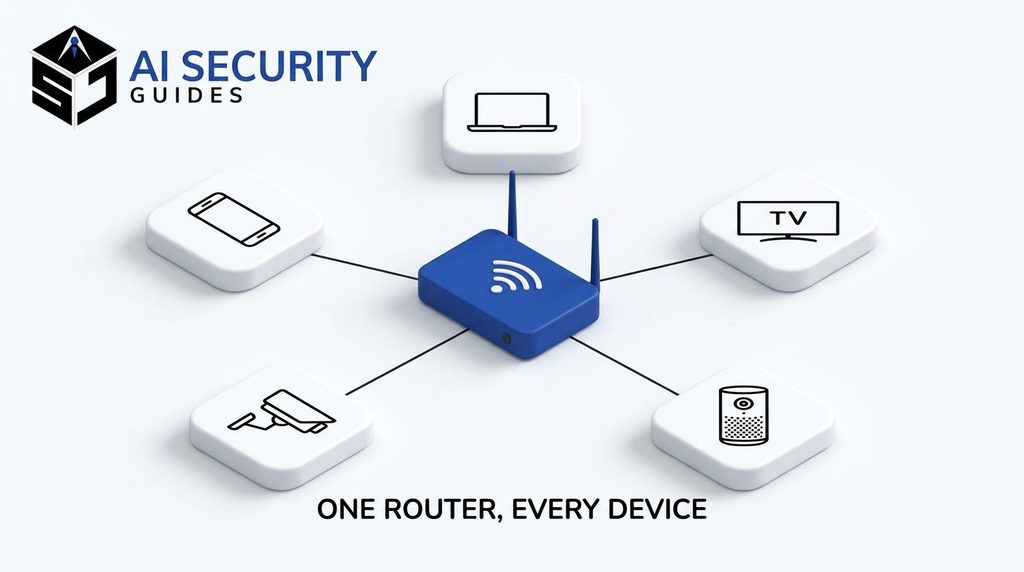
Learning to secure home Wi-Fi router settings usually takes less than an hour, and it protects every device you own. Your router connects your phone, laptop, smart TV, and cameras to the internet. Therefore, one weak setting can expose all of them. This guide walks you through each fix in plain language.
You do not need technical skills. Each step explains what to change, why it matters, and where to look, so you can follow along without special tools. If you also want to protect your accounts, read our guide on how to protect your personal information online.
Hypothetical example: Priya’s internet provider installed her router, and she never changed the login on its settings page. Months later, a visiting friend’s infected phone joins her main network. Because everything shares one network, her laptop and smart cameras now sit next to the problem.
Table of Contents
- Why You Should Secure Home Wi-Fi Router Settings Today
- Secure Home Wi-Fi Router Admin Access First
- Protect Your Home Wi-Fi With WPA3 and a Strong Password
- Make Your Wi-Fi Router Safer: Features to Turn Off and On
- Secure Home Wi-Fi Router Settings: Quick Comparison Table
- Secure Home Wi-Fi Router Checklist
- Secure Home Wi-Fi Router: Frequently Asked Questions
- Conclusion: Secure Home Wi-Fi Router Settings Today
Why You Should Secure Home Wi-Fi Router Settings Today
Your Wi-Fi network is your home’s wireless internet connection, and your router sends the signal. The Federal Trade Commission (FTC) explains that without a password, any device in range can use that signal. Nearby strangers might also see what you do online, including personal information you enter. Read the FTC’s full guidance here.
Default settings add to the risk. The Cybersecurity and Infrastructure Security Agency (CISA) says default router information may be publicly available, so attackers can look it up. In addition, the FTC warns that if someone uses your network to commit a crime, the activity could be traced back to you.
Fortunately, the fixes are simple. A secure home Wi-Fi router blocks most casual intruders, and you only need to change a handful of settings.
Today, your home network carries far more than laptops. The FTC lists phones, IP cameras, voice assistants, smart TVs, and connected appliances among the devices on a typical network. As a result, a single unprotected router can put your whole household at risk.
Short on time? If you only have ten minutes, do three things first. Change the admin password, turn on WPA3 or WPA2 encryption, and check for a firmware update. Then finish the rest of this guide later.
Before you begin, find your router’s login details. Check the label on the device or your internet provider’s app, because many routers use an address such as 192.168.1.1. Type that address into your browser’s address bar, then enter the username and password from the label.
Secure Home Wi-Fi Router Admin Access First
Your router has two separate passwords. The admin password opens the settings page, while the Wi-Fi password lets devices join the network. If a hacker reaches the admin side, they can change any setting, including your Wi-Fi password, and that undoes your other security work.

Change the Default Admin Login
Replace the default admin username and password with unique ones. Avoid your name, address, or router brand in either. A password manager can create and store a long, random password, and our beginner’s guide to using a password manager shows you how. Next, never reuse your Wi-Fi password for the admin account.
Finally, log out of the admin page when you finish. The FTC points out that an open admin session lets anyone with access change your settings, so closing it takes only a second.
Physical access matters too. CISA notes that anyone who can touch your router could factory reset it and use the default details. Therefore, keep it somewhere visitors cannot reach easily.
Keep Your Wi-Fi Router Firmware Updated
Firmware is the software that runs your router. Updates fix security flaws, so install them as soon as they appear.
If your router offers automatic updates, turn them on, which CISA recommends when possible. Otherwise, visit the manufacturer’s website, register your router, and sign up for update notices, as the FTC suggests. Regular updates are a core part of any good router security routine.
If your internet provider supplied the router, ask whether it sends updates automatically. Providers handle this differently, so a quick support chat saves guesswork. Afterward, glance at your settings to confirm everything still looks right.
Protect Your Home Wi-Fi With WPA3 and a Strong Password
Encryption scrambles the data moving through your network, so outsiders cannot read it easily. Your router needs it switched on. Open your router’s wireless settings and choose WPA3 Personal or WPA2 Personal. Look for menus named Wireless, Wi-Fi, or Security, because each brand labels them differently.
WPA3 is newer and stronger, but the FTC says both scramble your information, and CISA adds that WPA2 should use AES.

Some older devices cannot use WPA3. If that happens, many routers offer a mixed WPA2/WPA3 mode. Meanwhile, avoid the older WEP and WPA options, which the FTC calls outdated and not secure.
If those are your only choices, update the router software and check again. If WPA2 or WPA3 still do not appear, consider buying a new router.
Next, create a strong Wi-Fi password. Choose a long passphrase of several unrelated words, and keep it different from your admin password. In addition, change the default network name, also called the SSID, to something neutral. Skip your last name, street address, and router brand.
Then share the password only with people you trust. After you save new wireless settings, your devices will disconnect, so reconnect each one with the new password. If you ever suspect a stranger has the password, change it again.
Make Your Wi-Fi Router Safer: Features to Turn Off and On
Some router features trade security for convenience. Other built-in tools add protection with little effort. To make your router safer, review both groups in your settings.
Turn Off Remote Management, WPS, and UPnP
The FTC recommends turning off three features. Remote management lets someone change router settings over the internet. Wi-Fi Protected Setup (WPS) connects a device when you press a button instead of entering a password. Universal Plug and Play (UPnP) lets devices find each other on the network.
Each one can make setup easier, but each can also weaken your network. Therefore, switch them off unless you have a specific reason to keep one. Most households never miss them.
Use a Guest Network and Firewall

A guest network has its own name and password. To limit what visitors can reach, look for a guest option in your wireless settings and give it a different name and password. Then turn it on.
This choice helps for two reasons. First, fewer people know your main password. Second, if a visitor’s phone carries malware, it stays off your primary network. You can also place smart plugs, cameras, and TVs there, because those gadgets often get fewer security updates than phones and laptops.
Next, make sure your router’s firewall is on. A firewall adds a layer of protection against viruses, malware, and hackers, and most routers include one. Finally, secure the devices themselves. The FTC’s guide to securing your internet-connected devices at home shows how, and our list of signs of malware helps you spot trouble.
Check Which Devices Use Your Home Wi-Fi
Open your router’s settings and find the list of connected devices. Compare it with the phones, laptops, TVs, and gadgets you own. CISA’s older home network tip also advises you to watch for unknown devices joining your network.
If you spot a stranger, disconnect it and change your Wi-Fi password. However, confirm first that the device is not a forgotten smart plug or an old tablet. Checking this list every few months keeps surprises small.
Secure Home Wi-Fi Router Settings: Quick Comparison Table
Use this table to compare risky choices with safer ones. Check each row against your own router.
| Setting | Risky choice | Safer choice |
|---|---|---|
| Encryption | Open network, WEP, or WPA | WPA3 Personal or WPA2 Personal |
| Admin login | Factory default username and password | Unique username and long, random password |
| Wi-Fi password | Short, shared widely, or based on your name | Long passphrase, different from the admin password |
| Network name | Includes your name, address, or router brand | Neutral name with no personal details |
| Firmware | Never updated | Automatic updates, or regular manual checks |
| Remote management, WPS, UPnP | Left on | Turned off |
| Visitors and smart gadgets | Share your main network | Use a guest network |
If you use a mesh system or a range extender, repeat the same checks on every unit. Each one should use the same encryption and run current firmware.
A strong setup still cannot stop every attack. For example, phishing tricks you into handing over passwords, no matter how safe your router is. Learn the warning signs in our guide on what phishing is. If you run a business from home, our small business cybersecurity checklist covers the next layer.
Secure Home Wi-Fi Router Checklist
Use this checklist to confirm you finished every step.

- I found my router’s login details and signed in to the settings page.
- I changed the admin username and password to unique ones.
- I turned on automatic firmware updates or checked for the latest version.
- I chose WPA3 Personal or WPA2 Personal encryption.
- I created a long Wi-Fi passphrase that differs from the admin password.
- I changed the network name so it reveals no personal details.
- I turned off remote management, WPS, and UPnP.
- I set up a guest network for visitors and smart gadgets.
- I confirmed the router firewall is on.
- I logged out of the admin page when I finished.
Secure Home Wi-Fi Router: Frequently Asked Questions
Is WPA2 still safe for home Wi-Fi?
Yes, for most homes. The FTC says both WPA2 Personal and WPA3 Personal encrypt your traffic, although WPA3 is newer and stronger. Choose WPA3 when your router and devices support it, and use WPA2 with AES otherwise.
How often should I update router firmware?
Turn on automatic updates if your router offers them. Otherwise, check the manufacturer’s website regularly, and a monthly reminder is a reasonable habit. Updates close known security holes, so do not skip them.
Should I hide my Wi-Fi network name?
Hiding the name is not a substitute for strong encryption and a good password. Focus on those first. However, do change the default name so it does not reveal your router brand or personal details.
How do I know if someone is using my Wi-Fi?
Open your router’s settings and look at the list of connected devices. If you see one you do not recognize, disconnect it, and then change your Wi-Fi password. After that, reconnect your own devices with the new password.
When should I replace my router?
Replace it if it offers only WEP or WPA, even after a software update, because the FTC calls those options outdated. Replace it, too, if the manufacturer no longer releases updates. In that case, you cannot patch the firmware, and settings alone will not close the gap.
Conclusion: Secure Home Wi-Fi Router Settings Today
When you secure home Wi-Fi router settings, you protect every phone, laptop, and smart device at once. Start with the admin login, then update firmware, choose WPA3 or WPA2, and turn off risky features. Finally, add a guest network and keep the firewall on.