


Remove personal information from Google is a question many people ask after they search their own name and find a phone number, home address, or email they would rather keep private. The good news is that Google offers a formal way to request removal of certain personal details from its search results. The less comfortable news is that this process removes the link from Google, not the information from the internet itself. Knowing both points before you start saves time and sets realistic expectations.
Google Search is a tool that finds and displays web pages. When a page contains your personal details, that page can appear in results for your name. Google’s removal request process lets you ask Google to stop showing those specific links in search results. The original website may keep the content, so you may need to contact the site owner as well. This guide explains each step in plain language, from searching your name to following up after Google reviews your request.
Hypothetical example: Elena, a nurse in Ohio, searches her own name and finds a directory site listing her home address and personal phone number. She had never heard of the site. Elena does not panic, and she does not pay a stranger to fix it. Instead, she writes down the web addresses, takes screenshots, and submits a request through Google’s form the same afternoon. Her steps were simple, and they gave her a clear path forward.
Before you start, it helps to protect the rest of your digital footprint. Our guide on how to protect your personal information online explains everyday habits that reduce future exposure. You can also use a data breach check to see whether your email address appeared in a known leak. Together, these steps make your removal request more effective because they address the source of the problem as well as the search result.
Think of this article as a practical checklist with context. You will learn what Google can remove, how to gather evidence, how to use the official form, and what happens after you submit. Each section includes steps you can apply today. Nothing here requires technical skills, and you can complete the core process without paying anyone.
What Does It Mean to Remove Personal Information From Google?
Removing personal information from Google means asking the search engine to stop showing specific links when someone searches for certain details. These details usually include contact information, sensitive records, or login data that appear on a third-party website. Google reviews each request, and it decides whether the content qualifies under its policies. If the request is approved, the link may no longer appear in results for the queries you named.
It helps to understand what this process does not do. Google does not operate the websites that publish your information, so it cannot delete the page from the host’s server. The content may still exist online, and people can still reach it by visiting the site directly. For that reason, removal from search results reduces how easily others find your details, but it does not erase them entirely.
Removing Search Results Is Not Deleting the Source
Think of a search result as a signpost, not the destination. Google points people toward a page, and removal takes down that signpost in its own results. The page itself remains on the website until the site owner removes or changes it. This distinction matters because a removed search result can reappear if the original page is still public and Google indexes it again later.
Therefore, combine your Google request with a message to the website owner when you can. Many sites respond to privacy requests, especially when the information clearly causes harm. Ask them to remove the page or the specific details, and keep copies of your messages in case you need to follow up.
Why Search Results Matter for Your Privacy
Search engines are often the first place people look when they want to learn about someone. A single result can expose a home address to a stranger, reveal a phone number to a scammer, or connect your name to records you never meant to share publicly. Even when the information is not secret, it may be easy to misuse once someone finds it.
In addition, search results can make scams more convincing. A fraudster who knows your phone number and address can sound more legitimate when they call you. Reducing the visibility of those details makes it harder for criminals to build a believable story. You can read more about these risks in our article on what phishing is and how to avoid common scams.
What Personal Information Can Google Remove?
Google does not remove every mention of your name. Its policies focus on specific categories of personal information that could cause direct harm if left public. Understanding these categories helps you decide whether your request has a reasonable chance of approval. It also helps you avoid wasting time on content that Google is unlikely to remove.
The visual below groups the most common categories so you can see where your situation fits.

Keep in mind that policies can change, and Google reviews each request on its own facts. The categories below reflect what Google’s current removal form and public guidance describe. Check the form before you submit, because it will list the most current options.
Contact Details: Phone Numbers, Emails, and Addresses
Contact information is the category people request most often. This includes personal phone numbers, private email addresses, and home or physical addresses that appear on third-party pages. These details can be used for harassment, unwanted visits, or scams, so they are a common reason for a removal request.
Business contact details are treated differently. A public listing for a company phone line or a professional website address may not qualify, because it serves a business purpose. If your personal number is mixed with business information, focus your request on the personal details and the pages where they appear.
Sensitive Records and Government ID Numbers
Highly sensitive records can also qualify for removal. Examples can include medical records, certain official documents, and government identification numbers that appear online without a legitimate reason. These records often contain details that make identity theft easier, which is why Google treats them seriously.
However, public records are not always removable. Court documents, government announcements, and news reports may remain visible even after you submit a request. Google has said it may decline removal when information is newsworthy or appears on an official government site, so review the specific page before you submit your request.
Login Credentials and Financial Details
Google also accepts requests for information that could help someone access your accounts or money. This category can include passwords, login details, bank account numbers, and similar financial data posted on a public page. If you find this type of information, act quickly. Report it through the form and change the affected credentials immediately.
Once you change your passwords, enable multi-factor authentication. Our guide on authenticator apps and how they protect your accounts explains how a second verification step helps protect accounts after a leak.
Personal Information Google Usually Cannot Remove
Some content is difficult to remove through this process. Ordinary public posts, opinions, photos, and articles about you usually do not qualify unless they contain one of the sensitive categories above. Content that is clearly newsworthy, such as reporting on a public event, often stays in results.
If you are unsure, read the form’s categories carefully before you submit. A request that clearly fits one category has a much better chance of approval than a broad request to remove everything about you. Focus on the specific links and details that cause the real problem.
Before You Submit: Gather Your Evidence
A strong request begins with good preparation. Google needs enough information to locate the content and confirm that it matches your situation. Incomplete or vague requests often take longer, and some may be denied. Spending fifteen minutes gathering evidence can save several days of back-and-forth.
Start by deciding exactly what you want removed. Write down the personal details, the websites that show them, and the search terms that bring those results up. This list becomes the foundation of your request, and it keeps you organized if you submit more than one.
Confirm the Personal Information Belongs to You
Before you submit, confirm that the information belongs to you or to someone you represent. The form asks you to describe your relationship to the person in the content. Requests for other people are allowed when you have a legitimate connection, such as a parent requesting removal for a child or an authorized representative acting for a client.
Be honest in your answers. If you submit a request for information that does not belong to you, Google may reject it, and you could lose credibility for future requests. When you are unsure whether a detail counts as personal, compare it with the categories described earlier and choose the most accurate description.
Organize Your Evidence
Create a simple document or spreadsheet with three columns: the web address of each page, the search term that shows it, and the personal detail that appears. Add a short note explaining why the detail is sensitive. This format matches what the form requests, and it makes your submission easier to complete accurately.
Next, save screenshots of the search results and the pages themselves. Store them in a safe folder on your device, and label each file clearly. Screenshots help Google locate the content, and they also give you a record if the page changes or disappears before review.
How to Remove Personal Information From Google Using the Official Form
The official form is the most direct way to request removal of personal information from search results. Google provides it at no cost, and you can complete it from a phone or computer. The process takes about fifteen to thirty minutes if you have already gathered your evidence. Follow the four steps below in order, and keep your organized list beside you.
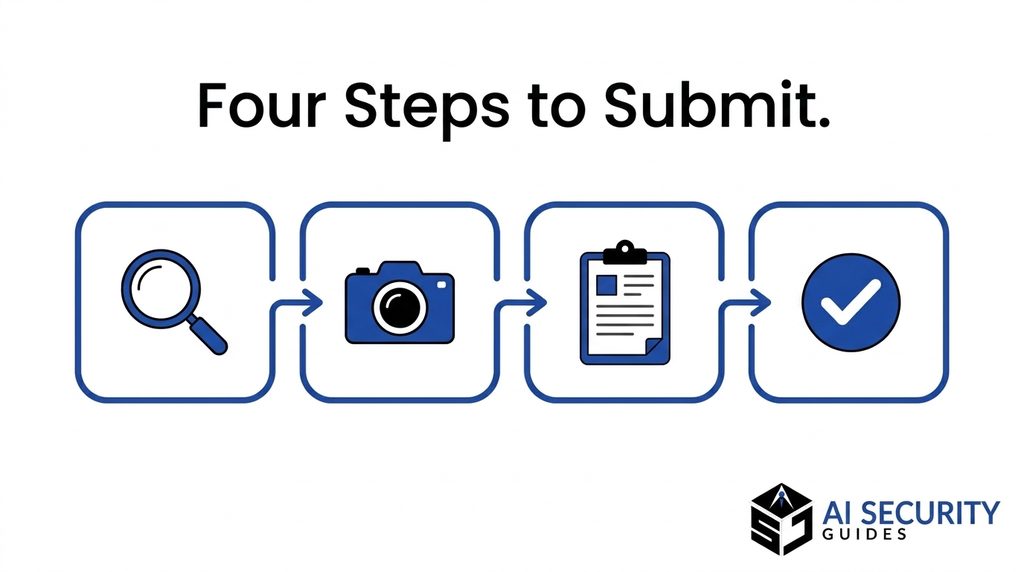
Remember that the form is only one part of a complete plan. You may also need to contact the website owner, and you should check other platforms that might repeat the same information. The steps below focus on the Google request, which you can finish in one sitting.
Step 1: Search Your Name and Note Each URL
Search for your name, along with any city or detail that helps identify you, in a private browser window. A private window reduces the chance that your personal search history influences the results you see. Scroll through the first few pages, and note every link that shows personal information you want removed.
Copy each web address exactly into your list. Include the full URL, not just the domain, because the form asks for specific pages. If the same information appears under several search terms, record each term separately, since the form may ask which queries produce the results.
Step 2: Take Screenshots of Each Result
Capture a screenshot of each search result that shows the personal detail. Make sure the screenshot includes the web address and the visible content, but avoid cropping out important context. If a page contains information you do not need to share, you can blur unrelated details in your image editor, provided the sensitive part remains visible for review.
Store the screenshots with your URL list. You will likely upload them during the form or provide them if Google asks for more information. Clear screenshots help reviewers find the exact content, which speeds up the decision.
Step 3: Open the Google Removal Form
Go to Google’s official request form, which is available at reportcontent.google.com/forms/rtbf. Some people reach the form through Google’s help pages instead, and both routes lead to the same process. Choose the option that matches your goal, such as removing information that appears only in Google Search or in search results and on a website.
Many people choose the option for both Google Search and the website, because that choice matches most situations where the content is public on a third-party page. Read each prompt before you continue, and select the category that best matches the information you want removed. If you need to remove several categories, you may need to complete a separate form for each one.
Step 4: Remove Personal Information From Google With the Form
Complete each field carefully. Typical fields ask for your full name, your country of residence, a contact email address, and the web addresses of the pages you want removed. Paste the URLs from your list, and attach the screenshots if the form requests them. Double-check spelling and links, since small mistakes can slow down review.
Finally, review your answers and submit the request. Save a copy of your submission details, including the confirmation message and any reference number. These details help you follow up later, and they give you a record of exactly what you asked Google to remove.
How to Request Removal Directly From a Search Result
Google also offers a shortcut for some personal contact information. You can start a removal request from the search results page instead of opening the full form. This option is convenient when you already see a result that shows your phone number, email address, or home address. It walks you through the request and reduces the number of fields you need to complete.
The shortcut works best for contact details. If your request involves sensitive records, financial data, or login credentials, you will usually need the full form. The menu may route you there automatically, so keep your evidence ready in either case.
Using the Remove Result Option on Your Phone
On a phone, search for your name in the Google app or your mobile browser. Find the result that shows the personal detail, and tap the three-dot menu next to its web address. Choose the option to remove the result, then select the reason that best describes the content. If you choose a contact information reason, you can usually continue through a short confirmation before the request is sent.
Menus change over time, so the wording may differ on your device. If you do not see the exact option, look for a similar phrase such as “Remove result” or “Report.” If the menu sends you to a page that asks for supporting documents, follow that page and use the full form.
Using the Remove Result Option on a Computer
On a computer, the process is similar. Search for your name, click the three-dot menu beside the result you want to remove, and select the removal option. Pick the reason that matches the content, such as personal contact information, and continue through the confirmation prompts. Google will send the request for review after you confirm.
Because the desktop and mobile menus can differ, take a screenshot of each step as you go. This record can help you remember what you selected if you need to follow up. It also shows the request’s details if you need to explain your choices later.
What Happens After You Submit a Request
Submitting the request starts a review process, and you do not need to take further action right away. Google may check the content, compare it with its policies, and decide whether to remove the links. The process can take several days, and you may receive emails asking for more information. Responding promptly keeps your request moving.
Approval usually removes the specific links from the search results you named, not every result connected to your name. If you find new pages later, you will need to submit another request. Keeping a running list of your requests makes that process easier.
Review Timeline and Confirmation
Google typically reviews requests within a few days, though timing can vary with the volume of submissions and the complexity of the case. During this period, watch your email, including your spam folder, for messages from Google. A confirmation or request for more information may arrive there. Respond quickly and provide only the information requested.
After Google makes a decision, it should inform you of the outcome. Approved removals may take time to appear across all search results and regions, so check again after a few days. If the link still appears, note the search term and date, then follow up through the same form.
Common Reasons Google Declines a Request
Requests can be denied for several reasons. The most common causes include content that serves a clear public interest, such as news coverage, and information on an official government website. Requests that are missing details, have incorrect links, or do not match Google’s categories can also be declined.
If your request is denied, read the explanation carefully. It may point to a specific problem, such as a missing screenshot or a category mismatch. You can often correct the issue and submit a new request. In some cases, the best remaining option is to contact the website owner directly, because the page itself is the real source of the information.
How to Follow Up Effectively
Follow up when the timeline has passed or when the link still appears after an approval. Use the reference number and original submission date in your message. Be concise, state the URLs and search terms again, and explain what has not changed. Clear, specific follow-ups are easier for reviewers to process.
In addition, keep a simple log of each attempt. Note the date, the action you took, and any response you received. This record helps you spot patterns, decide when to escalate, and explain the situation if you need outside help.
Remove Personal Information From the Internet Too
Removing a search result from Google helps, but it may not solve the whole problem. The same information can appear on other search engines, data broker sites, social platforms, and forums. Taking a broader approach gives you better protection and reduces the chance that the information reappears later.
Start with the source. Contact the site owner, ask for removal, and keep a copy of your request. Then check other search engines and people-search sites that may repeat the same details. Each platform has its own process, so track each request separately.
Contact the Website Owner
Look for a contact page, privacy email address, or removal form on the site that hosts your information. Write a short, polite message that identifies the page, explains which details you want removed, and asks for a response within a reasonable time. Include the web address and a clear statement that the information is personal.
Some websites remove content quickly, while others ignore requests. If you receive no response, you can escalate by contacting the hosting provider. Keep your messages factual, since clear documentation makes it easier for the host to act.
Ask Other Search Engines to Remove Personal Information
Other search engines, such as Bing, offer their own removal request processes. The steps are similar to Google’s, and you may need to submit a separate request for each search provider. Start with the engines your friends or family are most likely to use, and then work through the rest.
Data broker and people-search sites often collect contact details from public records and other sources. Many have opt-out pages, but the process may take time and require verification. Keep your evidence organized so you can complete each form without starting over.
Be Careful With Paid Removal Services
Some companies charge fees to remove personal information for you. A few services may be legitimate, but others make promises they cannot keep or collect data in the process. Before you pay anyone, research the company, read its privacy policy, and confirm exactly what it will do. Never share your full Social Security number, bank account details, or passwords with a service you have not verified.
Remember that you can complete the Google form and most basic requests yourself at no cost. A paid service may save time, but it should not be the only option you consider. Ask yourself whether the fee matches the work and whether the company explains its process clearly.
For help with identity-related concerns, the Identity Theft Resource Center offers free guidance and advisors. You can find more information at idtheftcenter.org. Its advisors can help you think through next steps if your information appears connected to fraud or identity theft.
Google Personal Information Removal Options Compared
Google offers several ways to request removal, and each one fits a different situation. Comparing them helps you choose the right path before you spend time on a request. The table below summarizes the main options and the situations where each works best.

| Option | Cost | Best for | Main limitation |
|---|---|---|---|
| Official removal form | Free | Contact details, records, and login data on any page | Takes longer and needs URLs and screenshots |
| Remove result on the search page | Free | Quick requests for contact details | Limited to certain reasons and may route you to the full form |
| Contacting the website owner | Free | Removing the source page itself | Depends on the site owner’s willingness to respond |
| Other search engine forms | Free | Removing results from other search providers | Each provider has its own process and timeline |
| Paid removal services | Usually paid | People who want help managing many requests | Quality varies, and you still need to verify the results |
The table shows that most people can handle the essential steps without paying. Start with the free options, and use a paid service only if you have many requests or cannot manage the process yourself. Whichever path you choose, keep a record of your submissions and outcomes.
Notice that the free options work together. A search-page removal may handle one result quickly, while the official form covers pages that need more detail. Contacting the website owner addresses the original source. Using them together gives you the strongest chance of reducing exposure.
Checklist to Remove Personal Information From Google
Use this checklist when you prepare and submit your request. Work through each section in order, and check off each item as you complete it. Keeping a written record of your progress helps you follow up accurately.
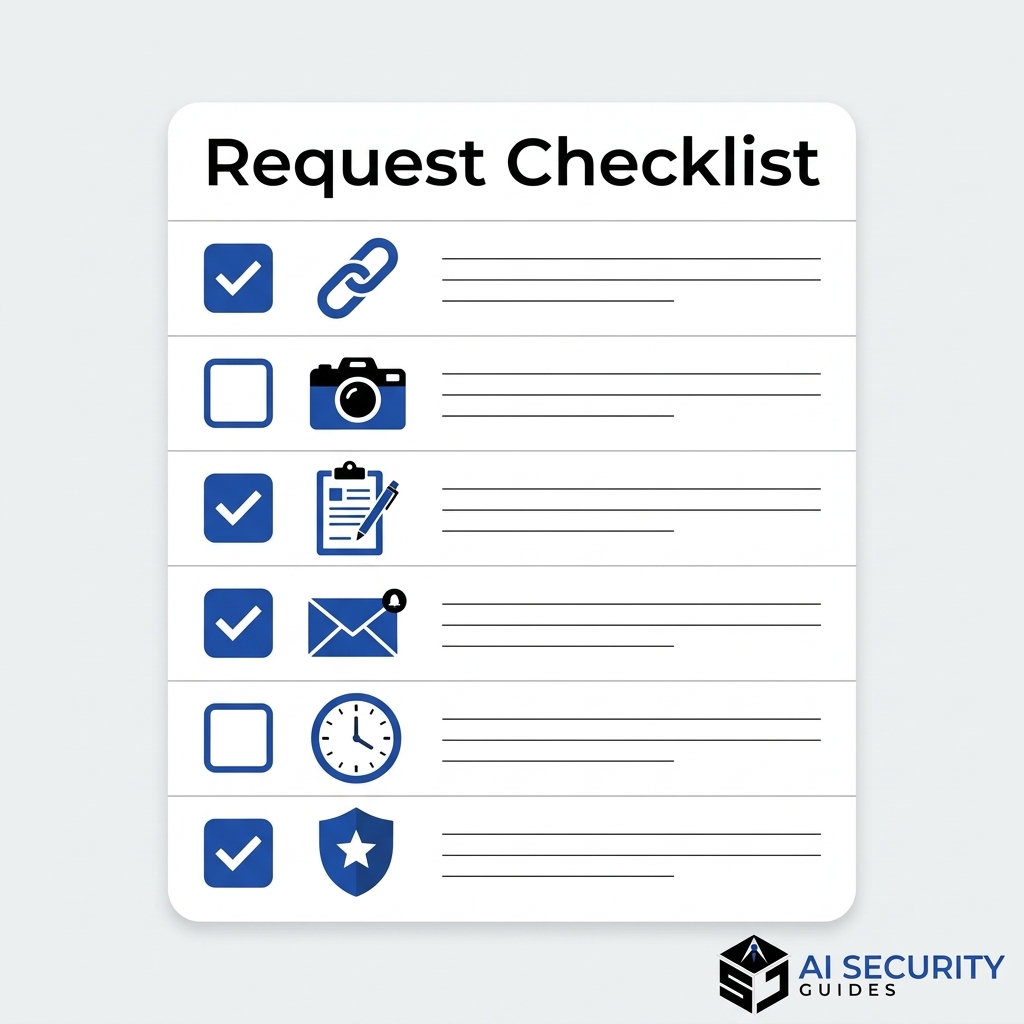
Before you submit, complete these steps:
- Search your name in a private browser window and note every relevant URL.
- Record the search terms that show each result.
- Save screenshots of the search results and the pages themselves.
- Confirm that the personal details belong to you or to someone you represent.
- Check whether the information falls into a category Google reviews, such as contact details or sensitive records.
While you submit the request, complete these steps:
- Choose the correct removal option on the official form.
- Paste each URL exactly and attach your screenshots if requested.
- Review your answers for spelling, links, and accuracy.
- Save your confirmation message and any reference number.
After you submit, complete these steps:
- Watch your email, including the spam folder, for requests for more information.
- Check the search results again after the review period.
- Contact the website owner about the original page.
- Log any follow-up actions and responses.
Frequently Asked Questions: Remove Personal Information From Google
Can I Remove Personal Information From Google for Free?
Yes, you can use Google’s official request form at no cost. The form asks for your details, the web addresses of the pages, and screenshots if needed. You do not need to pay a third party to submit a request. However, removal from search results does not delete the content from the original website, so you may still need to contact the site owner.
Can I Remove My Private Info From Google Search?
You can request removal of certain private details, especially contact information, sensitive records, and login or financial data. Google reviews each request against its policies, so approval is not guaranteed. Requests are more likely to succeed when they clearly identify the personal information and the pages that display it. Keep your request specific rather than asking for everything about you.
Does Removing a Result Delete the Website?
No. Removing a result from Google changes what appears in Google Search results. The website may still host the page, and other search engines may still show it. To remove the content from the website itself, contact the site owner or hosting provider and ask them to delete or edit the information.
How Long Does a Google Removal Request Take?
Review times vary, and some requests take longer than others. Google may need additional information, which can extend the process. After approval, the change may take time to appear across all search results, so check again after a few days. If the link remains visible, follow up with your reference number and the specific URLs.
Can I Request Removal for Someone Else?
Yes, in some situations. The form allows requests for others when you have a legitimate connection, such as a parent requesting removal for a child or an authorized representative acting for a client. Be accurate about your relationship to the person in the content. Requests that do not match the person’s information may be declined.
Is There a Google Personal Information Removal Tool?
Yes, Google provides a request form for personal information in its search results, and some search results include a removal option in the three-dot menu. These tools are free to use. Their availability and wording can change, so use the official form and the menu options that appear on your device at the time you submit.
Conclusion: Remove Personal Information From Google Safely
Removing personal information from Google is a practical process you can complete yourself. Start by searching your name and recording each relevant result. Gather screenshots and details, then use Google’s official form or the search-page option to submit your request. Follow up on the review, and contact the website owner to address the original source. Each step reduces the chance that strangers will find your private details.
Remember that Google removes search results rather than the underlying content. Some requests will be approved, while others may be denied because the information is newsworthy or appears on an official government site. A denial does not mean you have no other options. You can still contact the site owner, check other search engines, or seek free guidance from organizations that help with identity-related concerns.
Protecting your information is an ongoing habit. Review your search results every few months, and act quickly when new details appear. Strengthen your accounts with a password manager and multi-factor authentication, and use our guide on how to remove your personal data from AI tools to address other places where your details may be stored. If you discover login credentials in a search result, change those passwords right away, and review your accounts for suspicious activity. Start with one request today, and build from there.