


Test Backup Restore: A Beginner’s Guide to Proving Your Files Come Back
Hypothetical example: Maria saves two years of family photos and tax records to an external drive. One morning her laptop dies, so she plugs the drive into a replacement computer. The drive looks empty. A quick test backup restore months earlier would have exposed the problem while she still had time to fix it.
Many people trust a backup because a green checkmark says “complete.” However, that checkmark only proves the software finished its job. It does not prove you can open your file again. In this guide, you will learn how to test backup restore in about ten minutes, using one small file and tools you already own.
You do not need technical skills. Instead, you need a spare file, a few quiet minutes, and the courage to click “Restore.” We will cover Windows, Mac, and cloud services. Along the way, you will also learn how to check the restored file, how often to repeat each test backup restore, and what to do when something goes wrong.
This habit matters for security, too. Ransomware is malicious software that locks your files until you pay a criminal, and it often hunts for backups. Our ransomware prevention and recovery guide explains the wider picture. A regular test backup restore gives you proof that your safety net works before an attacker, a crash, or a spilled coffee tests it for you.
Table of Contents
- Why You Should Test Backup Restore Before Disaster Strikes
- What a Successful Restore Actually Proves
- Prepare Before You Test Backup Restore
- Your First Test Backup Restore in 10 Minutes: A Walkthrough
- Test Backup Restore When You Copy Files to an External Drive by Hand
- Test Backup Restore on Windows With File History
- Test Backup Restore on a Mac With Time Machine
- Test Backup Restore With Cloud Backup Services
- Test Backup Restore on Phones and Tablets
- How to Verify a Restored File Is Complete
- How Often Should You Test Backup Restore?
- Test Backup Restore Methods Compared at a Glance
- Your Test Backup Restore Checklist
- Fix Common Problems When You Test Backup Restore
- Mistakes to Avoid When You Test Backup Restore
- Test Backup Restore for Small Businesses
- How a Test Backup Restore Supports Ransomware Defense
- Test Backup Restore FAQs
- Conclusion: Make Test Backup Restore a Habit
Why You Should Test Backup Restore Before Disaster Strikes

A Backup You Never Tested Is Only a Guess
A backup is a second copy of your data that you keep somewhere else. It protects you from deleted files, broken devices, theft, and ransomware. However, a copy you cannot restore protects you from nothing. Until you try to bring a file back, you only hope your backup works.
Think of the spare tire in your trunk. You feel safe because it sits there. Yet you only learn whether it holds air when you get a flat on a dark road. A test backup restore is the same as checking that tire’s pressure in your driveway, where a mistake costs you nothing.
Government guidance supports this habit. The Cybersecurity and Infrastructure Security Agency (CISA) advises organizations to keep offline, encrypted backups and to regularly test their availability and integrity in a disaster recovery scenario, according to the CISA #StopRansomware Guide. That guide targets organizations. Still, the same advice fits a home user with one laptop and one external drive.
The Most Common Ways Backups Fail Silently
Backup software usually runs in the background and rarely complains. As a result, problems can sit unnoticed for months. Here are the failures people discover too late:
- The backup job stopped after a password change, a software update, or a full drive.
- The software skipped the one folder you care about most.
- The backup drive died, or you unplugged it and forgot.
- A file copied over but arrived damaged.
- The backup is encrypted, and nobody remembers the password.
- A sync tool copied your mistake, such as a deletion, to every device.
That last item deserves extra attention. Sync services, such as shared cloud folders, mirror your changes everywhere. If you delete a file, the deletion can spread to each connected device. Therefore, sync is not the same as backup unless the service also keeps older versions you can restore.
Each failure above has one thing in common. You can only spot it by trying to restore something, which is exactly what a test backup restore does. That is why a test backup restore matters more than any status light or email notification.
What a Successful Restore Actually Proves
Backup, Restore, and Recovery: Three Terms Explained
People use these words loosely, so let us define them. A backup is the act of copying your files to another place. A restore is the act of pulling a file or folder back out of that copy. Recovery is the bigger project of returning to normal, which may include reinstalling apps and settings.
A test backup restore focuses on the middle step. It checks that the copy exists and that you can pull a file from it. You can run that check in minutes. Full recovery drills take longer, and most beginners do them rarely, if ever.
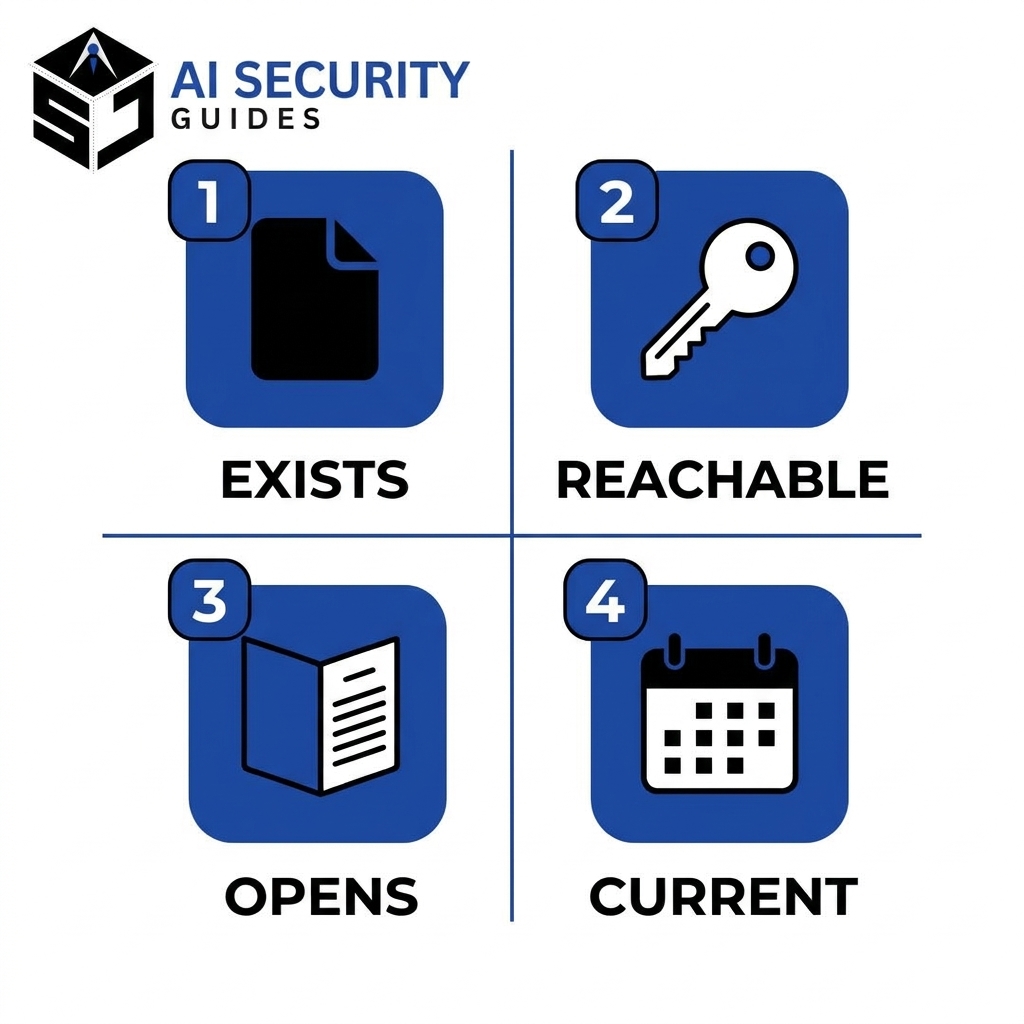
Four Things a Good Restore Test Confirms
When you test backup restore properly, you confirm four separate facts:
- The file exists in the backup. The software actually captured it.
- You can reach it. Your passwords, drive, and account work today.
- The file opens correctly. It is not blank, scrambled, or cut short.
- The version is recent enough. The backup holds your latest work, not last year’s draft.
Each check catches a different kind of failure. For example, a backup can contain a file name but hold zero bytes of data. Likewise, a cloud account might hold your files while a lost two-factor device locks you out. Testing all four facts together gives you real confidence.
Prepare Before You Test Backup Restore
Find Out Where Your Backups Actually Live
First, list every place your files might be copied. Common destinations include an external hard drive, a network drive at home, a built-in tool like File History or Time Machine, a cloud storage account, and a third-party backup app. Many households use two or three of these without realizing it.
Next, open each backup tool’s settings. Write down the destination, the last successful run, and the folders it includes. If the “last backup” date is weeks old, you have already found a problem. If you find no backup at all, that discovery helps too, because you can set one up today.
Many experts suggest the 3-2-1 guideline: keep three copies of important data, on two types of storage, with one copy offsite. You do not need to follow it perfectly. Still, it gives you a useful target. A test backup restore then confirms that each copy in your plan actually works.
Pick a Safe Test File
Choose a file you can afford to lose and that lives in a folder you back up. A small document or photo works well. Avoid using your only copy of anything important during your first test.
Here is an easy method. Create a new text file called restore-test with today’s date in the name. Type a sentence inside it, and save it in your Documents folder. Then wait for the next scheduled backup, or start one yourself if your tool allows it. Now you have a harmless file that proves the backup captured something new.
Hypothetical example: Dev creates “restore-test-oct-20.txt” at 9:00 a.m. and writes “Backup works” inside. That evening, he restores the file from his backup to a different folder and opens it. The sentence appears, so he knows the whole chain works.
Gather Your Passwords, Keys, and Recovery Codes
Encrypted backups need a password or key to open. Apple notes that you may have to enter the password you used to encrypt a Time Machine backup when you restore. If you cannot find yours, you cannot restore. Therefore, locate it now, before the stress of a real emergency.
A password manager solves this problem neatly. If you have not set one up, our beginner’s guide to using a password manager walks you through the process. Store your backup passwords there, and keep a printed copy of any recovery codes in a safe place.
Also think about the account behind your cloud backup. If someone takes over the email address tied to it, you could lose access to everything. Our guide on what to do when your email account is hacked explains how to recover and lock it down. Fix that weakness before you rely on the backup.
Your First Test Backup Restore in 10 Minutes: A Walkthrough
Let us put the pieces together with a realistic timeline.
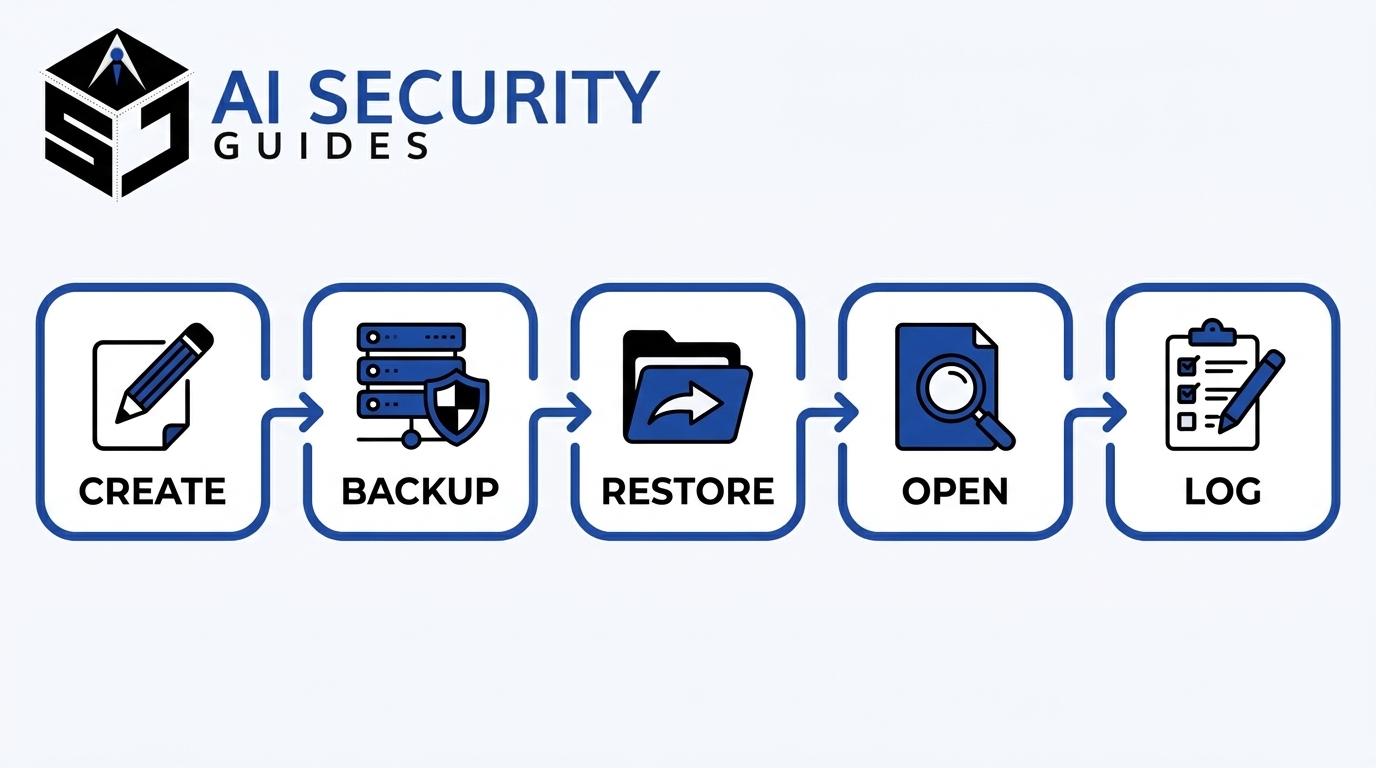
Hypothetical example: Sam uses a Windows laptop and an external drive. He decides to run his first test backup restore on a quiet Saturday morning.
At 9:00 a.m., Sam plugs in the drive and checks the date of the last backup. It reads two days ago, which is acceptable. At 9:03, he creates a text file called restore-test with one sentence inside. At 9:05, he starts a manual backup so the tool captures the new file. The backup finishes around 9:12.
Next, Sam opens the restore screen and browses to his Documents folder. He finds the test file in the newest saved version and restores it to his Desktop. At 9:16, he opens the file. The sentence matches, and the file size looks right. In total, the test takes about sixteen minutes, and most of that time is waiting.
Sam then writes the date and the word “pass” in a note on his phone. He also sets a calendar reminder for three months later. Notice what he did not do. He did not delete anything important, buy special software, or call a technician. Anyone can repeat his routine, which is why a small test backup restore beats a vague promise to “be more careful.”
Test Backup Restore When You Copy Files to an External Drive by Hand
Some people skip backup software and simply drag folders onto an external drive. That method is better than nothing. However, it has no “Restore” button, so your test looks a little different. Instead of restoring, you prove that the copy opens and that it is current.
Follow these steps for a manual copy test backup restore:
- Plug in the drive and open it. Browse to the folder where you keep your copies.
- Check the newest dates. If the latest file is months old, your copy no longer reflects your work.
- Open several files directly from the drive. Choose a document, a photo, and a video if you have one.
- Copy one file to a different folder on your computer. Then open that copy.
- Try the drive on a second computer. This step proves the drive works without your main machine.
Also listen to the drive and watch how it behaves. Clicking noises, long delays, or repeated error messages suggest the hardware is failing. In that case, copy everything to a new drive right away. Remember that a manual copy never updates itself, so schedule a regular reminder to refresh it.
Hypothetical example: Lena copies her wedding photos to a drive in 2022 and never checks it again. Two years later, she plugs it in and sees only half the folders. A routine test backup restore would have shown the gap while the original photos still sat on her laptop.
Test Backup Restore on Windows With File History
Why File History Works Well for a First Test
File History is a Windows feature that saves copies of your personal files and keeps earlier versions. Microsoft describes it as a backup system that lets you recover previous versions of files and folders if something goes wrong. It works with an external drive or a network location. If you use another Windows backup tool, the same ideas apply, although the menu names will differ.
One quick note on Windows versions. Microsoft ended support for Windows 10 on October 14, 2025, so that version no longer receives free security updates. If your computer still runs it, plan an upgrade soon. Meanwhile, keep your backups healthy.
Step-by-Step: Test Backup Restore With File History
Menu names shift slightly between Windows versions. Still, these steps match the process Microsoft documents in its File History support article.
- Connect your backup drive. Make sure it is plugged in and turned on.
- Create your test file. Save a small text file in a folder File History protects, such as Documents.
- Let a backup run. Wait for the next scheduled backup, or start one manually if your version offers that option.
- Open the restore screen. Search the Start menu for “Restore your files with File History.”
- Browse to the right folder. Use the arrows to move between saved versions, and find your test file.
- Restore to a different location. Right-click the Restore button, choose “Restore to,” and pick your Desktop. Microsoft notes that this option avoids overwriting the current version.
- Open the restored file. Read the sentence you typed, and confirm it matches.
Notice the sixth step. Restoring to a new location protects your original file from accidental changes. In addition, it lets you compare the two copies side by side. You have now completed a test backup restore on Windows.
What Success and Failure Look Like
Success looks simple. In a good test backup restore, the file appears in the version list, you restore it, and it opens with the right content. The whole test takes about ten minutes, and most of that time is waiting.
A failed test backup restore takes several forms. Your test file might not appear at all, which suggests the backup missed that folder or never ran. Alternatively, File History might report that the drive is disconnected. Treat each of these as useful news. You found the gap on a calm afternoon instead of during a crisis.
Test Backup Restore on a Mac With Time Machine
How Time Machine Handles Your Files
Time Machine is the backup tool built into macOS. It copies your files to an external drive or a supported network volume. According to Apple, Time Machine does not back up the macOS operating system itself. It protects your personal files, so recovering a whole Mac means reinstalling macOS first and then restoring your files.
Apple also notes that files in iCloud Drive and photos in iCloud Photos already live in iCloud, so they do not need to be part of your Time Machine backup. However, that does not mean they are backed up in the sense that matters to you. Test them separately, as the cloud section below explains, using the same test backup restore steps.
Step-by-Step: Test Backup Restore With Time Machine
Apple’s guide to restoring items backed up with Time Machine describes the process. Follow these steps to test backup restore on your Mac:
- Connect your backup disk. If the disk sits on a network, make sure your Mac is on the same network.
- Create a test file. Save a short note in your Documents folder, then wait for a Time Machine backup to finish.
- Delete the test file. Move it to the Trash and empty the Trash. Use only the test file for this step.
- Open the folder in Finder. Open the Documents folder, where the file used to live.
- Launch Time Machine. Open Launchpad, look in the Other folder, and start Time Machine.
- Browse the timeline. Use the arrows and the timeline to find a backup from after you created the file.
- Restore it. Select the file and click Restore. Apple says restored items return to their original location.
- Open the file. Confirm the sentence you typed is still there.
If your backup disk uses encryption, macOS may ask for your backup password. That prompt is a good sign, because it shows you remember the password. If you do not, you have just learned something critical.
Reading the Timeline Correctly
Apple notes that a pulsing or dark gray tick mark in the timeline represents a backup that is still loading or validating on the backup disk. Wait for it to finish before you judge the result. Patience here prevents false alarms.
Also check the dates along the timeline. A healthy backup has regular entries up to the present. A timeline that stops months ago signals that Time Machine quit working, perhaps because the disk filled up or you disconnected it.
Test Backup Restore With Cloud Backup Services
Restore a File From Cloud Storage
Cloud services such as OneDrive, Google Drive, Dropbox, and iCloud Drive store your files on remote servers. Many of them also keep deleted files in a trash folder and save older versions of edited files. Exact rules differ by provider and plan, so check your service’s help pages.
Here is a simple test that works for most services:
- Sign in through a web browser. Use a private window, not your usual app. This step proves your password and two-factor method work from scratch.
- Find your test file. Confirm it appears with the right name and date.
- Download it. Save the file to a new folder on your computer.
- Open it. Check the content.
- Try version history or trash. Delete the file in the app, then recover it from the trash or earlier versions in the web interface.
The fifth step matters most. It shows you how to undo a mistake or ransomware damage, which is the real reason you keep versions.
Restore a File From a Third-Party Backup App
Dedicated backup apps usually offer a “Restore” or “Recover” button. Open yours, search for your test file, and choose a different destination folder than the original. Then watch for warnings, error messages, or slow progress.
Many backup apps also provide a “verify” feature or a log that lists problems. Read the log after your test. A single warning about skipped files can reveal that your backup misses entire folders. Check your app’s documentation for the exact menu names, because they vary widely.
Understand Your Retention Limits
Retention is how long a service keeps your deleted files or old versions. Providers set different limits, and some free plans keep less. Look up your provider’s policy so you know how much time you have to rescue a file.
Hypothetical example: Priya deletes a folder of tax documents in January and notices in May. Her cloud trash only keeps items for a limited time, so the folder is gone. A second backup on an external drive saves her. Her test backup restore routine had already confirmed that drive worked.
Two-Factor Authentication and Your Cloud Backup
Two-factor authentication adds a second proof of identity, such as a code from your phone, when you sign in. It protects your account, but it can also lock you out. If your phone breaks and you saved no backup codes, you may not reach your own files.
Therefore, include this scenario in your test. Check that you know where your recovery codes live, and confirm that your second method still works. Hypothetical example: Carlos changes phone numbers and forgets to update his cloud account. His next test backup restore fails at the sign-in screen, so he fixes the number that same day instead of discovering the problem after a laptop theft.
Test Backup Restore for Photos and Family Memories
Photos are the files people miss most when they vanish. Therefore, give them their own test. Pick one old picture and one recent picture, then find both in your backup or cloud library. Download them and open each one.
Next, compare quality. Some services compress photos or videos depending on your settings, so check whether you keep full-quality originals. Look at the file size and zoom in on the image. If the restored copy looks much smaller or blurrier than your original, adjust your settings before you need those files.
Finally, check videos and albums. Videos are large, and large files fail more often. A short test backup restore of one video can reveal storage limits or upload problems early.
Test Backup Restore on Phones and Tablets
Phones hold photos, contacts, and messages that you cannot replace. Most phones back up to a cloud account that the maker runs, such as iCloud or a Google account. You usually cannot restore a single file onto the phone as easily as on a computer. Even so, you can still test the backup.
Start with your photos. Sign in to your cloud photo library from a web browser on a computer. Then check that your newest pictures appear there. If last week’s photos are missing, your phone is not backing up properly.
Next, confirm your contacts and calendar. Open them in the web version of your account, and compare a few recent entries with your phone. In addition, open your phone’s backup settings and look at the date of the last backup. That date should be recent.
Avoid resetting your phone just to run a test. That approach carries real risk if the backup turns out to be incomplete. Instead, use a second device when possible. For example, sign in to your account on an old tablet and see what arrives. That kind of test backup restore proves your data can travel to a new device.
How to Verify a Restored File Is Complete
Quick Visual Checks
Opening the file is the first check, but do not stop there. Scroll to the end of a document. Look through a few pages of a PDF. Zoom in on a photo, and play a short stretch of a video. Damaged files often open and then fail halfway through.
Next, compare the details. The file size and modified date should match what you expect. A restored file with a size of zero is a red flag. Similarly, a date from months ago suggests the backup missed your recent edits.
Optional: Compare Checksums for Extra Confidence
A checksum, also called a hash, is a short string of characters that acts like a fingerprint for a file. If two files have the same checksum, they are identical, byte for byte. You can create a checksum with a built-in command. The process takes about a minute.
On Windows, open PowerShell and run Get-FileHash followed by the file path. It uses the SHA-256 method by default. On a Mac, open Terminal and run shasum -a 256 followed by the file path. Run the command on the original and on the restored copy, then compare the results.
Matching results prove the restore worked perfectly. Different results mean one of two things. Either you edited the original after the backup ran, or the restored copy is damaged. To avoid confusion, run this check on a file you have not touched since the backup. That is why your small test file helps so much.
When the Restored File Looks Damaged
First, do not panic. Try restoring an older version of the same file, because a newer version may have been captured mid-save. Then try another copy of the backup, such as a second drive or a cloud copy.
If several files look strange, consider whether malware is involved. Our guide to the signs of malware explains common symptoms and how to check your device. Scan the computer before you restore more files, or you could copy the problem back.
How Often Should You Test Backup Restore?
A Simple Schedule for Beginners
No law sets a perfect schedule for a test backup restore, so treat the table below as a practical suggestion. The right rhythm depends on how fast your files change and how painful a loss would feel. For most households, a quarterly check works well. For small businesses, monthly checks make more sense.
| Situation | Suggested test frequency | Why it matters |
|---|---|---|
| Personal laptop with family photos and documents | Every three months | Catches silent failures before they pile up |
| Home office with client or tax files | Monthly | Your work changes quickly, and losses cost money |
| Small business with shared files | Monthly, plus after any change | Many people depend on the same data |
| Rarely used backup drive kept in a drawer | Every six months | Drives can fail while they sit unused |
| Any device after a major change | Right after the change | New software and settings often break old backups |
Frequency alone is not enough. You also need a trigger that reminds you. Put a recurring event on your calendar with the title “Test backup restore,” and attach this checklist to it. As a result, the habit survives busy weeks.
Events That Should Trigger an Extra Test
Some changes deserve an immediate test backup restore, even if your schedule says otherwise. Run one whenever any of these happen:
- You buy a new computer or phone.
- You upgrade your operating system.
- You switch backup software or cloud providers.
- You change your main password or your two-factor method.
- You replace or reformat a backup drive.
- Your computer crashes or shows signs of infection.
Each event can quietly break a link in your backup chain. For example, a new password can stop a scheduled cloud upload. A fresh test shortly afterward shows whether everything still works.
Keep a Simple Restore Log
A log turns a one-time test into a habit. Open a notes app or a spreadsheet, and create four columns: date, what you restored, how long it took, and pass or fail. Add a short comment if anything surprised you.
Over time, the log shows patterns. For example, if restores keep getting slower, your drive may be aging. If you keep failing the same step, your process needs a fix. Most importantly, the log proves you actually run each test backup restore instead of just meaning to.
Test Backup Restore Methods Compared at a Glance
Not every test needs the same effort. A single-file restore takes minutes and catches many problems. A full system drill takes hours and catches more. Use the comparison below to choose the right depth for your situation.
| Method | Time needed | Skill level | What it proves | Main limit |
|---|---|---|---|---|
| Single-file restore | 5–10 minutes | Beginner | The backup holds a readable file and you can reach it | Does not prove every file works |
| Folder restore to a new location | 15–30 minutes | Beginner | A group of files restores and keeps its structure | Takes more drive space |
| Checksum comparison | 5 extra minutes | Beginner to intermediate | The restored copy matches the original exactly | Only works on files you have not changed |
| Restore on a second device | 30–60 minutes | Intermediate | Your account, passwords, and data work on new hardware | Needs a spare device |
| Full system recovery drill | Several hours | Intermediate to advanced | You can rebuild a computer from the backup | Requires planning and spare hardware |
Beginners should start with the first row, because a single-file test backup restore is quick and low risk. Next, move to a folder restore after a few successful rounds. Eventually, try a second device. Each step builds your confidence and your skills, and none of them requires special equipment at the start.

Your Test Backup Restore Checklist
Print this list, or copy it into your notes app. Work through it each time you run a test backup restore. Add a date and the word “pass” or “fail” so you can track your history.
Before the Test
- I know where each of my backups lives.
- My backup drive is connected, or I can sign in to my cloud account.
- I found my backup password or recovery code.
- I created a harmless test file in a backed-up folder.
- The last backup date is recent.
During the Test
- I located my test file in the backup.
- I restored it to a different location.
- I noted how long the restore took.
- I read any warnings or error messages.
After the Test
- The restored file opens without errors.
- The content, size, and date look right.
- I compared checksums, if I wanted extra proof.
- I fixed any problem I found.
- I wrote the date of the test and scheduled the next one.

The Five-Minute Version for Busy Weeks
Some weeks leave no room for a full test. In that case, run the shortest version instead. First, check that the date of your last backup is recent. Next, restore one small file to a new folder. Finally, open it and confirm the content.
This quick test backup restore catches the most common failures, such as a stopped job or a disconnected drive. It does not replace your full routine. Still, a five-minute check beats skipping the habit entirely, and it keeps your testing streak alive.
Fix Common Problems When You Test Backup Restore
The File Is Missing From the Backup
First, check the basics. Confirm the backup actually ran after you created the file. Then look at the folder list in your backup settings. Many tools only protect certain folders by default, so your test file may sit outside the protected area.
If the tool did not capture the file, add the folder and run a backup again. After that, repeat the test. In addition, review which other important folders you might have missed, such as Desktop, Pictures, or an external drive full of projects.
The Backup Asks for a Password You Do Not Have
This problem is serious, because encryption is built to keep people out. Try every password you normally use, and check your password manager. Look at printed notes and any recovery codes you saved. Some services let you reset access through your account, but a locally encrypted backup may have no reset at all.
If you cannot recover the password, create a new backup with a new password and store it properly this time. Do not delete the old backup until you are certain you cannot open it. Then protect the new password in your password manager.
The Restore Fails or Stalls
A failed restore usually has a simple cause. Check that the drive is connected firmly and has power. Make sure your computer has enough free space for the restored file. Then close other programs, restart the computer, and try again.
If the same error repeats, search for the exact message on your software maker’s support site. Official help pages give the most reliable answers. When the restore still fails, try a different backup copy, such as an older version or a second drive. Meanwhile, avoid writing new files to a damaged drive, because that can make recovery harder.
The File Restores, but Opens Wrong
Sometimes the restore finishes, yet the file is blank, scrambled, or too small. In that case, try an earlier version. If the problem affects many files, treat it as a warning about your backup drive’s health. Replace the drive, create a fresh backup, and run a new test.
Mistakes to Avoid When You Test Backup Restore
Even a careful test can mislead you if you make a few classic errors. Watch for these traps:
- Testing only once. A backup that worked in January can fail in April.
- Restoring over your original file. Always restore to a new location first.
- Treating sync as backup. A synced folder may copy your mistakes everywhere.
- Testing only your newest file. Older files and large files can behave differently.
- Ignoring warnings. A small yellow notice often hides a bigger problem.
- Keeping every copy in one place. A fire, theft, or flood can destroy a laptop and the drive beside it.
The last trap deserves a closer look. A backup that sits right next to your computer protects you from a crash but not from a break-in or a house fire. For that reason, keep one copy elsewhere, such as in a cloud account or at a trusted relative’s home. Then include that copy in your test backup restore routine.
Also avoid testing in a rush. Give yourself ten calm minutes, follow the steps in order, and write down what you see. A careful, boring test is a good test.
Test Backup Restore for Small Businesses
Why Businesses Need a Stricter Routine
A small business loses more than photos when backups fail. It loses invoices, customer records, and trust. Furthermore, ransomware gangs often target small companies because they assume security is weaker. A reliable test backup restore routine reduces that risk.
Our small business cybersecurity checklist covers backups as one piece of a larger plan. Use it alongside this guide. Together, they help you build habits that protect your customers and your income.
Assign an Owner and Test Real Business Files
Someone must own the job. Name one person who runs the test each month, and name a backup person for vacations. Otherwise, everyone assumes someone else handles it.
Test real examples of each file type your business uses. For instance, restore a spreadsheet, a customer contract, an accounting file, and a shared folder. If you use email archives or a database, include those too. Different file types can fail in different ways.
Measure Time and Document Results
Record how long each restore takes. This number tells you how long your business might stop working during a real incident. If the answer shocks you, you can fix the weakness now.
Keep a simple log of each test backup restore with the date, the tester, the file restored, the time taken, and the result. Hypothetical example: a small bakery restores its supplier price list in four minutes but needs two hours to find the right backup drive. The log reveals a labeling problem, so the owner labels each drive and stores a map of where they live. That small fix could save hours during a real emergency.
How a Test Backup Restore Supports Ransomware Defense
Why Attackers Go After Backups
Ransomware criminals know that a working backup lets victims refuse to pay. Therefore, they often try to destroy it first. CISA explains that it matters to keep backups offline because many ransomware variants try to find and then delete or encrypt accessible backups, which makes restoration impossible unless the victim pays the ransom.
An always-connected external drive is easy prey. If your computer can see the drive, malware on your computer may see it too. For this reason, keep at least one backup disconnected between backups, or use a cloud service that keeps older versions you can roll back.
What Your Restore Test Reveals About Ransomware Risk
A regular test backup restore answers several ransomware questions. Does an offline copy exist? Does it hold recent files? Can you open those files without the infected computer? Specifically, you should ask whether you could rebuild from the backup if your main computer stopped working today.
If any answer is “no” or “not sure,” fix that gap first. For example, buy a second drive and rotate the two. Alternatively, turn on version history for your cloud files. Each improvement makes a ransomware attack less powerful.
Keep Your Backups Private and Protected
Backups hold copies of your most sensitive files, including tax returns, IDs, and photos. Encrypt them, and store them securely. Our guide on how to protect your personal information online offers practical privacy habits that apply to backups as well.
Also treat your backup passwords like keys to your house. Never email them to yourself or save them in an unprotected note. A password manager or a printed copy in a safe place works better.
Test Backup Restore FAQs
How Long Does a Test Backup Restore Take?
A single-file test backup restore usually takes five to ten minutes. Most of that time goes to waiting for a scheduled backup to run. The restore itself often takes less than a minute for a small file. A folder test takes longer, and a full system drill can take hours.
Can I Test Backup Restore Without Deleting My Original File?
Yes, and you should. Restore the file to a different location, such as your Desktop, and compare it with the original. This approach carries almost no risk. It also lets you compare checksums if you want extra certainty.
What File Should I Use to Test Backup Restore?
Use a small, harmless file that lives in a folder you back up when you test backup restore. A text file you create for the purpose works best. As your confidence grows, add a photo, a spreadsheet, and a PDF. Different file types can reveal different problems.
Is a “Backup Complete” Message Enough Proof?
No. That message tells you the software finished a job. It does not tell you the file is readable, complete, or accessible with your current password. Only a restore test confirms those facts. Think of the message as a clue, not a verdict.
How Do I Test Backup Restore for a Whole Computer?
A full recovery drill is more advanced. First, read your backup tool’s recovery instructions. Next, if possible, practice on a spare computer or a spare drive, not on your main machine. Apple and Microsoft publish official guides for their tools, and the steps differ by platform. If you feel unsure, start with file and folder tests and build up gradually.
Should I Test Cloud Backups Too?
Yes. Cloud accounts can fail in ways that local drives do not. For instance, an expired payment method, a lost two-factor device, or a hacked email can lock you out. Test your cloud backup by signing in from a browser, downloading a file, and trying version history or the trash.
Conclusion: Make Test Backup Restore a Habit
A backup protects you only when it works. The surest way to know is to test backup restore with a small file, a clear checklist, and a few spare minutes. You now have the steps for Windows, Mac, and cloud services, plus ways to verify the result and fix common problems.
Start this week. Create a harmless test file for your first test backup restore, let your backup run, and bring the file back to a new folder. Then write down the date and set a reminder for three months from now. Every successful test backup restore turns hope into proof, so your files stay safe when something goes wrong.