

Online safety for parents starts with one simple question: what is your child doing online right now? Children use phones, tablets, games, and video apps every day, often faster than parents can keep track. This guide gives you a practical family checklist that you can finish in one weekend. Revisit it every few months, because apps and privacy menus change often.
Table of Contents
- Why Online Safety Matters for Families
- Know the Main Online Risks
- Start the Conversation About Online Life
- Online Safety Rules for Families
- Lock Down Privacy Settings
- Use Parental Controls Wisely
- Protect Accounts and Passwords
- Teach Your Child to Spot Scams
- Online Safety Tips for Parents When Bullying Happens
- What to Do If Someone Targets Your Child
- Online Safety Questions Parents Ask
- Final Thoughts on Online Safety for Parents
Why Online Safety Matters for Families
Children meet the internet long before they can judge what they see. Games, group chats, and video feeds can expose them to bullying, disturbing material, and strangers who want to gain their trust. Good online safety for parents does not mean banning technology. It means knowing the risks, setting clear rules, and staying close to your child’s digital life.
Know the Main Online Risks
Before you act, learn what you are protecting your child from. These risks appear most often:
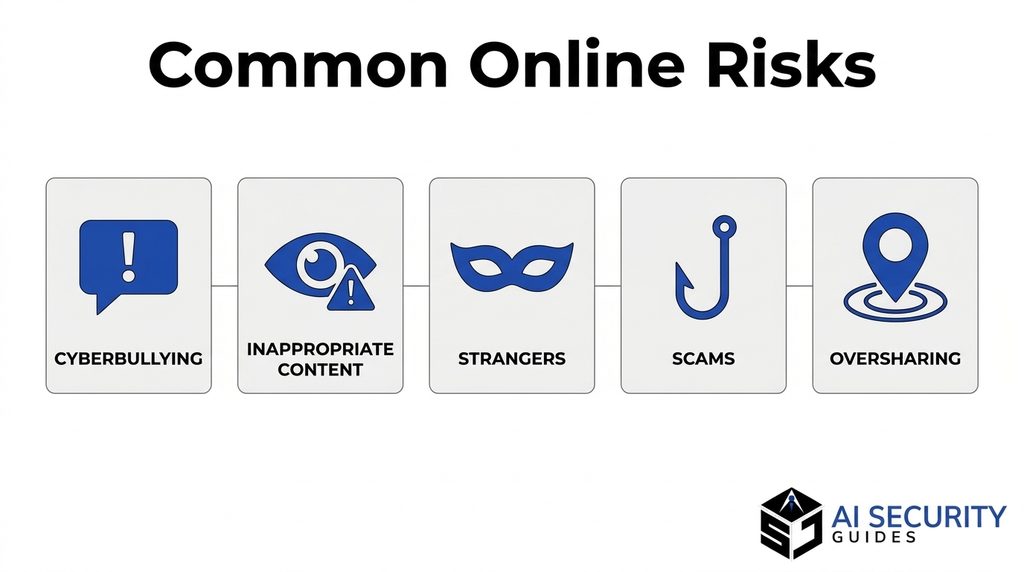
- Cyberbullying: hurtful messages, rumors, or embarrassing photos shared through chats, comments, or games.
- Inappropriate content: violent or sexual material that appears through search results, video recommendations, or pop-ups.
- Grooming: adults who pose as peers, build trust, and then ask for photos, secrets, or private meetings.
- Scams: fake prizes, suspicious links, and urgent messages that try to steal passwords or money.
- Oversharing: posts that reveal a school name, location, or daily routine to strangers.
Start the Conversation About Online Life
Trust is the foundation of online safety for parents. Ask your child once a week what they watched, played, or chatted about. Keep the tone curious rather than suspicious, so your child keeps talking to you.
Next, tell your child that they can come to you if something upsets them. Many children hide problems because they fear losing their devices. Promise to solve the issue together first, and discuss limits later.
Finally, agree on one family rule: if someone online asks for a secret, a photo, or a private meeting, your child tells you right away.
Online Safety Rules for Families
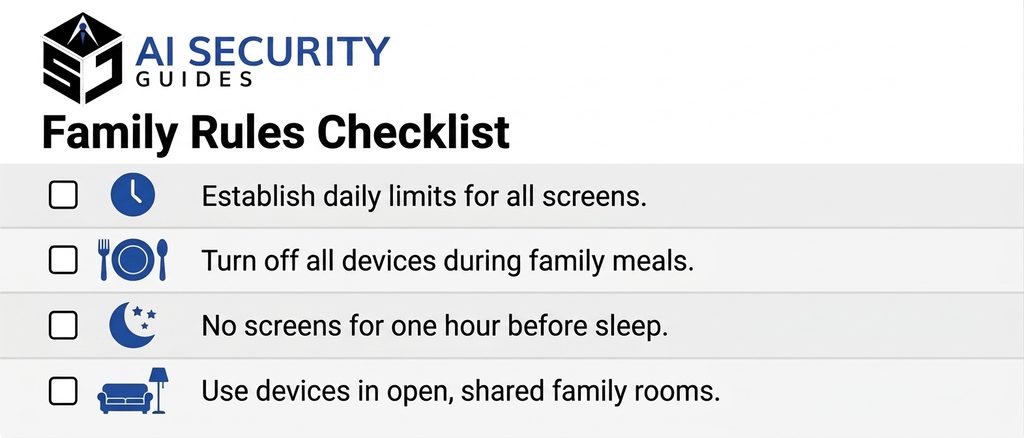
Clear rules remove guesswork and support online safety for parents. First, set daily screen time limits that match your child’s age. Then add device-free times, such as during meals and the hour before bed.
Keep devices for younger children in shared spaces instead of bedrooms. Shared spaces make it easier to notice when something feels wrong. Write the rules down together and review them every few months. Children follow rules more willingly when they help create them.
Also think about what your child types into AI chat tools. Our guide on 10 things you should never share with an AI chatbot explains which details to keep private.
Lock Down Privacy Settings
Privacy settings control who can see, message, and tag your child. Start with the accounts they use most.
Social Media Privacy for Online Safety
Set social media and gaming accounts to private. Limit direct messages, tags, and comments to friends only. Turn off location sharing for apps that do not need it. For step-by-step help, read our social media privacy settings guide. Menus change regularly, so check the options on Instagram, TikTok, YouTube, and Roblox yourself.
Use Parental Controls Wisely
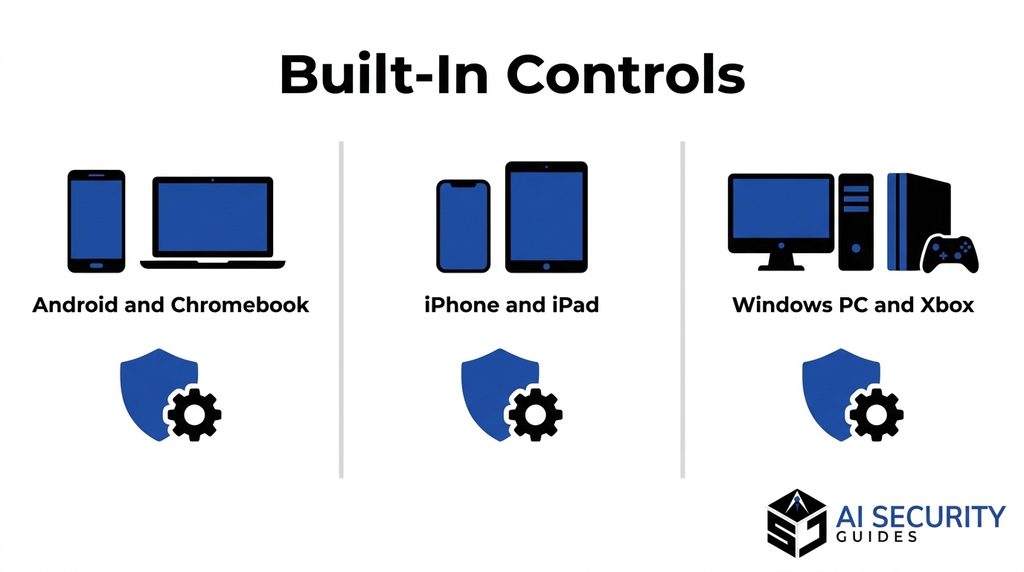
Parental controls help you limit content, time, and downloads. Built-in tools are free and usually the easiest place to start.
| Device or Platform | Built-in Tool | What It Helps With |
|---|---|---|
| Android phones and Chromebooks | Google Family Link | Screen time, app approvals, content filters |
| iPhone and iPad | Apple Screen Time | Downtime, app limits, content and privacy restrictions |
| Windows PCs and Xbox | Microsoft Family Safety | Screen time, web filtering, activity reports |
Parental Controls for Online Safety
Turn on the built-in tools first. Enable safe search in Google and YouTube, and block app downloads and in-app purchases without your approval.
A third-party app can add detailed reports, but compare features and prices, because they change often. Parental controls are useful, but they are only one part of online safety for parents.
Protect Accounts and Passwords
Strong accounts stop many problems before they start. Use a different password for every account, and make each one long and unique. A password manager stores them, so your child does not need to memorize them all.
Turn on two-factor authentication for email and social media accounts. This extra code step blocks most login attempts from strangers. Keep your child’s email under your control until they can manage it safely. Install updates promptly, because they fix security holes. Account security is another pillar of online safety for parents. For a broader starting point, try our cybersecurity checklist for beginners.
Teach Your Child to Spot Scams
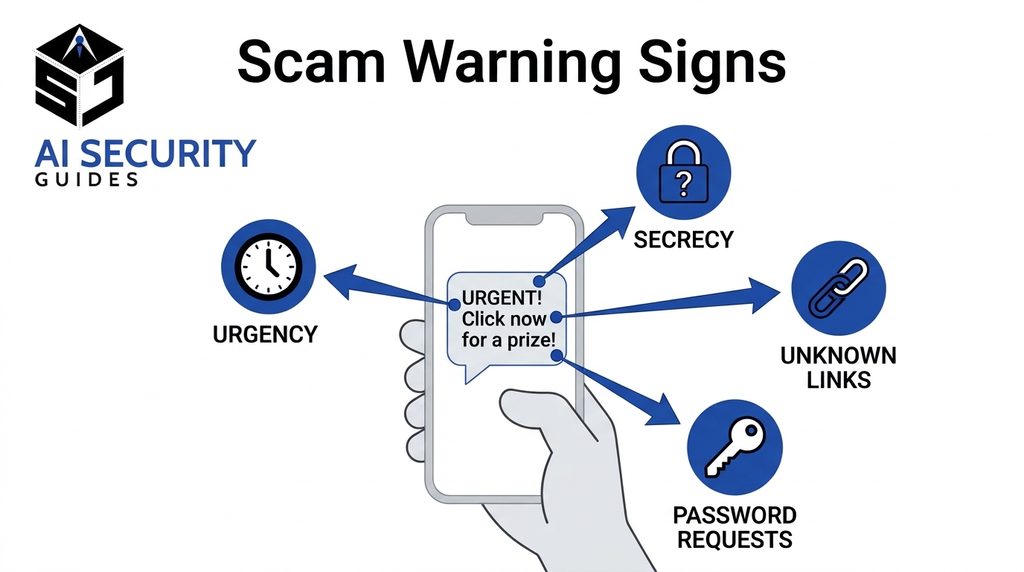
Scammers use the same tricks on children that they use on adults. Teach your child to recognize them. Explain that free prizes, urgent account warnings, and offers that seem too good are often traps. Tell them never to click a link or download a file from someone they do not know.
Recognizing scams is another key part of online safety for parents. For example, a message that pushes your child to act within minutes is a warning sign. Practice with real examples by asking, “What would you do if this message asked for your password?” Our guide on what phishing is and how to spot it explains common warning signs in detail.
Warn your child that AI can copy voices, too. If a familiar voice asks for money, hang up and call the person back on a number you already know. Read more in our AI voice cloning scams guide.
Online Safety Tips for Parents When Bullying Happens
Your reaction shapes whether your child tells you next time. Stay calm, listen fully, and avoid blaming them. Ask your child not to reply to the bully and not to delete the messages. Take screenshots that show usernames and dates, then use the platform’s report and block tools.
Handling bullying well also supports online safety for parents. If classmates are involved, contact the school. Watch for anxiety, withdrawal, or changes in sleep and eating, and seek professional help when they appear. For guidance, visit StopBullying.gov, a U.S. government resource.
What to Do If Someone Targets Your Child
Act quickly if an adult pressures your child for photos, secrets, or a meeting. Hypothetical example: a 13-year-old gets messages from an adult gamer who asks her to move the chat to a private app. Her parent saves the messages, blocks the account, and reports it, without shaming her.
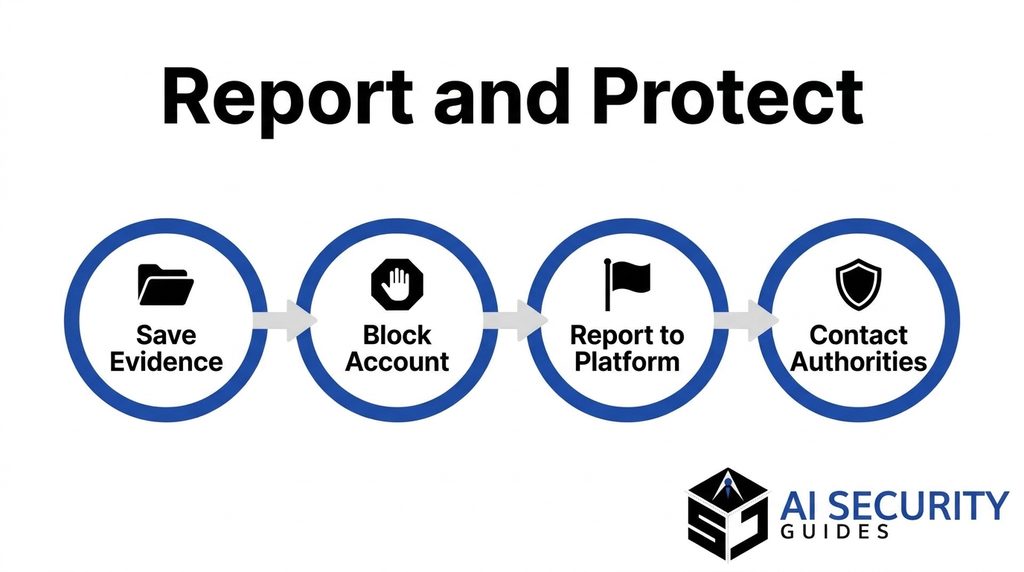
Do not punish your child for what happened, because blame makes children hide problems. Save messages, usernames, and profile links, but do not forward explicit images. Next, block the account, report it to the platform, and contact local police. Knowing these steps is a vital piece of online safety for parents. In the United States, report online child sexual exploitation to the NCMEC CyberTipline.
Online Safety Questions Parents Ask
Here are answers to common questions about online safety for parents.
Is Online Safety Different for Teens?
Yes. Teens need more privacy, so shift from strict controls to coaching. Review privacy settings together, and let them help set boundaries.
How Often Should I Review Privacy Settings?
Review them every three to six months, and after major app updates. Apps sometimes change default settings without much notice.
Are Parental Control Apps Enough on Their Own?
No. Controls reduce exposure, but they cannot replace conversation. Combine tools with open talks, so your child knows what to do when something slips through.
Where Can I Get Help If My Child Is in Danger?
Call local emergency services if your child faces immediate danger. For online exploitation, use the NCMEC CyberTipline. For broader guidance, visit CISA’s Secure Our World program.
Final Thoughts on Online Safety for Parents
Online safety for parents works best as an ongoing habit, not a one-time setup. Trust and communication matter more than any single setting. Start small this week, then build from there. Use this quick checklist:
- Hold a weekly conversation about online life.
- Set screen time and device-free rules together.
- Make accounts private and limit location sharing.
- Turn on parental controls and safe search.
- Use strong, unique passwords with two-factor authentication.
- Watch for scam and phishing warning signs.
- Keep a clear plan for bullying and predator situations.
- Review privacy settings every few months.