
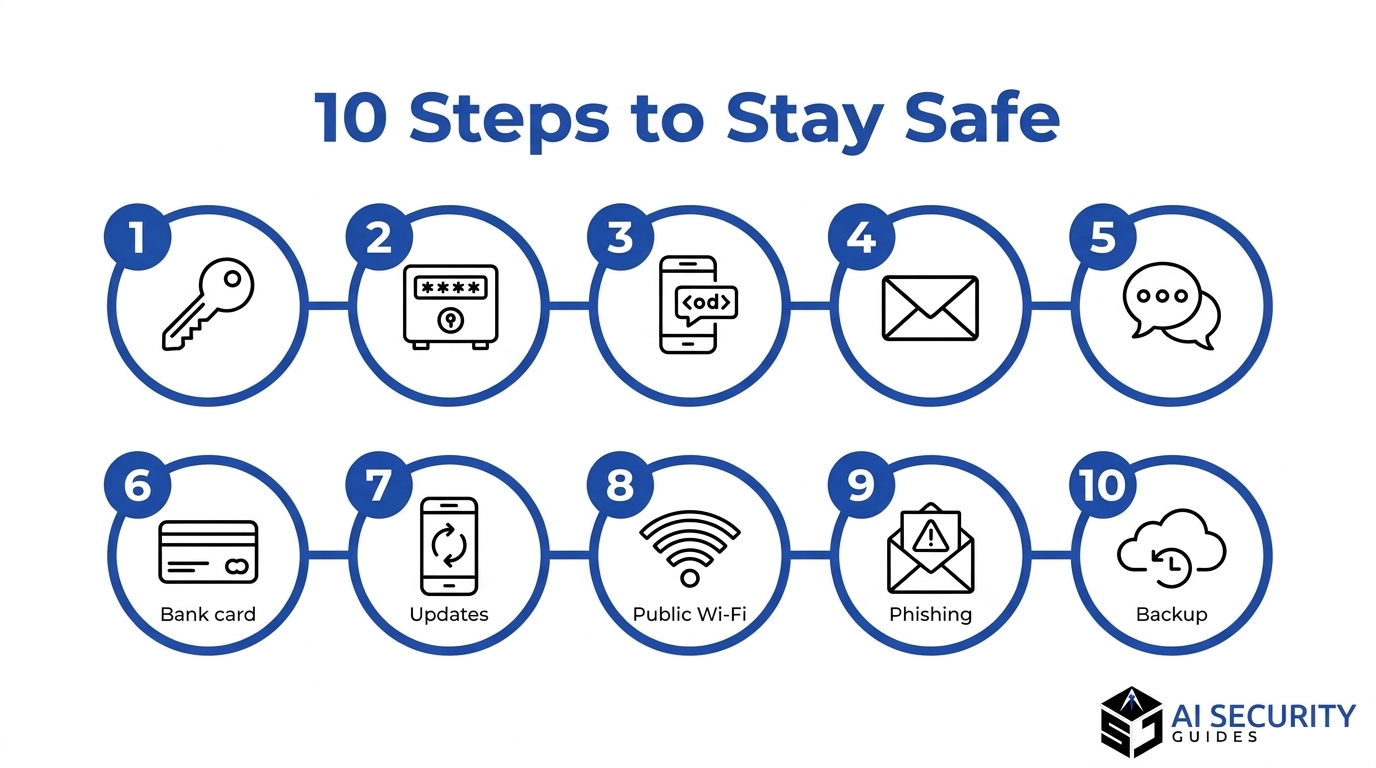
A cybersecurity checklist for beginners is the simplest way to protect the accounts that hold your life: email, social media, and banking apps. These accounts store your messages, your photos, your contacts, and in many cases the money you work hard to earn. Yet most people still protect them with a single password they have used for years.
A good cybersecurity checklist for beginners does not need to be complicated. You do not need to be a tech expert to stay safe. You only need to take a few clear steps, and most of them take less than ten minutes each.
This guide walks you through ten practical steps, from creating stronger passwords to spotting scam messages. At the end, you will also find a quick summary checklist you can save or print, and a section on what to do if you think an account has already been hacked.
If you want a broader view of how criminals use new technology, our guide on AI scams: how to spot, verify and avoid online fraud is a good companion to this checklist.
Step 1: Use Strong, Unique Passwords
Strong passwords are the first item on any cybersecurity checklist for beginners. A strong password is long, hard to guess, and different for every account. Length matters more than complexity. A password of 14 or more characters is much harder to crack than a short password with symbols.
How to build a strong password
- Use a passphrase: three or four random words strung together, such as maple-river-candle-stone.
- Avoid personal details like your birthday, pet’s name, or favorite team.
- Do not use common phrases or simple patterns like Password123 or qwerty.
Why every account needs its own password
If you use the same password everywhere, a leak from one website can give criminals access to all your accounts. When one site is breached, attackers try the same email and password combination on banking, email, and social media sites. This is called credential stuffing, and it works more often than most people expect.
To see whether your email has already appeared in a leak, follow our guide on how to check whether your email appeared in a data breach. You can also run your address through Have I Been Pwned, a free service run by a security researcher. If your email appears there, change every password linked to that email.
Step 2: Use a Password Manager
A password manager is the best tool for following this cybersecurity checklist for beginners. Remembering dozens of unique passwords is nearly impossible. A password manager solves this problem by storing all your passwords in one encrypted place and filling them in for you.
What a password manager does
- Creates strong, random passwords for each account
- Saves them securely so you do not need to remember them
- Fills in login details only on the correct websites, which helps protect you from fake sites
- Some tools warn you when a saved password appears in a known data breach
Best password manager for beginners: common options
Popular choices include Bitwarden, 1Password, and LastPass. Your phone or browser may also include a built-in password manager, such as the one in iPhone Settings, Google Password Manager, or your browser’s saved passwords feature. Any of these is far better than reusing passwords.
Protect your master password
Your password manager needs one master password. Make it a long passphrase that you have never used anywhere else, and write it down in a safe place at home until you memorize it. Do not store it in a note on your phone or in an email.
Step 3: Turn On Two-Factor Authentication (2FA)
Two-factor authentication, also called 2FA or multifactor authentication, is one of the most important items on any cybersecurity checklist for beginners. It adds a second step when you log in. Even if someone learns your password, they cannot get in without the second factor, which is usually a code or an approval on your phone.
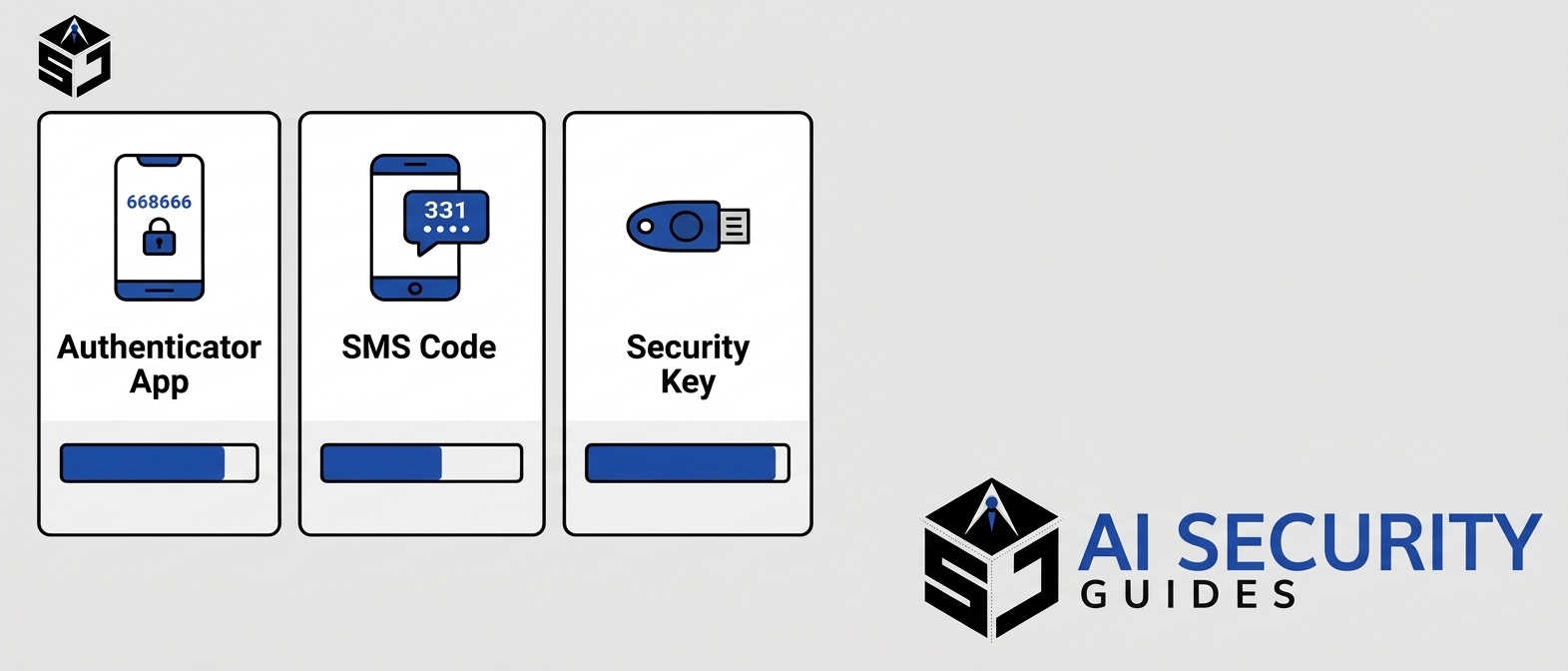
The three most common types
- Authenticator app (such as Google Authenticator, Microsoft Authenticator, or Authy): generates a new code every 30 seconds. This is the strongest common option.
- SMS text code: sends a code to your phone. It is better than nothing, but it can be targeted through SIM-swapping attacks.
- Security key or passkey: a physical key or a device-based login method. It is very strong, and many major services now support it.
How to enable two-factor authentication
Most services have this option under Settings, then Security, then Two-step verification or Two-factor authentication. Start with your email account, because it is used to reset the passwords for your other accounts. Then move on to banking, social media, and shopping sites. For a full walkthrough of the official setup pages, see the Google account security help page.
Save your backup codes
When you turn on 2FA, the service usually gives you a set of backup codes. Save them somewhere safe, such as your password manager. If you lose your phone, these codes let you get back into your account.
Step 4: Secure Your Email Account
Your email is the key to your digital life. When you forget a password, the reset link goes to your email. If a criminal controls your inbox, they can reset your banking, shopping, and social media passwords one by one. That is why securing your email comes early in this cybersecurity checklist for beginners.
Quick email security steps
- Turn on 2FA for your email account first.
- Check your recovery email address and phone number. Make sure they are current and that you can still access them.
- Review your account’s list of connected devices and sessions. Sign out of any you do not recognize.
- Look for email forwarding rules you did not create. Attackers sometimes set these up to copy your messages secretly.
- Be cautious with third-party apps that ask for full access to your inbox.
If you suspect someone already has access, our step-by-step guide on what to do if your email account is hacked explains how to recover it.
Step 5: Lock Down Your Social Media
Social media accounts are a common target, and not only for the content they hold. Criminals often collect personal details from public posts, such as your birthday, school, first pet, or hometown. They use these details to guess passwords or answer security questions. Protecting your social media account from hacking is a key part of any beginner checklist.
Steps to protect your social media
- Open the privacy settings and set your profile, posts, and friends list to Friends or Private.
- Turn off location tagging and check what your public profile reveals.
- Avoid posting your full date of birth, home address, phone number, or travel plans while you are away.
- Review which apps have access to your account and remove any you no longer use.
- Be careful about accepting friend requests from people you do not know, and watch for fake accounts that copy your friends.
For platform-by-platform instructions, read our guide on social media privacy settings to lock down your accounts. You can also remove personal details that appear in search results using this step-by-step guide to removing personal information from Google.
Step 6: Protect Your Banking and Payment Apps
Banking and payment apps are the most valuable accounts for most people, so they deserve extra care. A secure banking app is a must in any cybersecurity checklist for beginners.
Bank safely
- Use your bank’s official app or type the address yourself instead of clicking a link in a message.
- Save the bank’s website as a bookmark so you do not mistype the address.
- Turn on alerts for transactions, withdrawals, and password changes.
- Check your statements and transaction history at least once a week.
Protect your payment apps
- Use a PIN, fingerprint, or face unlock on your banking app.
- Do not share your one-time codes with anyone, even someone claiming to be from your bank. Real banks will not ask you for these codes.
- Only send money to people you know and trust.
If you want official guidance on banking scams, the FDIC’s consumer resources explain common fraud tactics in plain language.
Scammers sometimes imitate family members on the phone. If someone asks you for money urgently, read our guide on AI voice cloning scams and how to verify a caller before you act.
Step 7: Keep Your Devices and Apps Updated
Software updates often include fixes for security holes that criminals actively use. Delaying updates leaves you exposed. Keeping devices updated is one of the easiest tasks on this cybersecurity checklist for beginners.
What to do
- Turn on automatic updates for your phone, computer, browser, and apps.
- Set your phone to lock automatically after a short time.
- Use a passcode of at least six digits on your phone, and avoid simple codes like 123456 or 111111.
- Install apps only from the official Apple App Store or Google Play Store.
- Remove apps you no longer use, and check which apps have access to your contacts, location, camera, and microphone.
If your computer or phone starts behaving strangely, our guide on signs of malware and how to check for it explains the common symptoms.
Step 8: Be Careful on Public Wi-Fi
Public Wi-Fi in cafés, airports, hotels, and libraries is convenient, but it is not always safe. Attackers can set up fake networks with names like “Free Airport WiFi” to capture your data. Public wifi safety tips are a must-read for anyone following a cybersecurity checklist for beginners.
Safer habits
- Avoid logging into banking, email, or shopping sites on public Wi-Fi.
- Use your phone’s mobile data or a personal hotspot for sensitive tasks.
- Turn off automatic connection to open networks in your phone’s Wi-Fi settings.
- At home, change your router’s default admin password and use WPA2 or WPA3 encryption.
Want to go deeper? Read is public WiFi safe? practical checks before you connect for a quick checklist you can use in any café or airport. For your home network, our guide on how to secure your home Wi-Fi router in 10 easy steps covers the rest. The CISA guidance on securing your network is another useful official resource.
Step 9: Spot Phishing Emails and Scam Texts
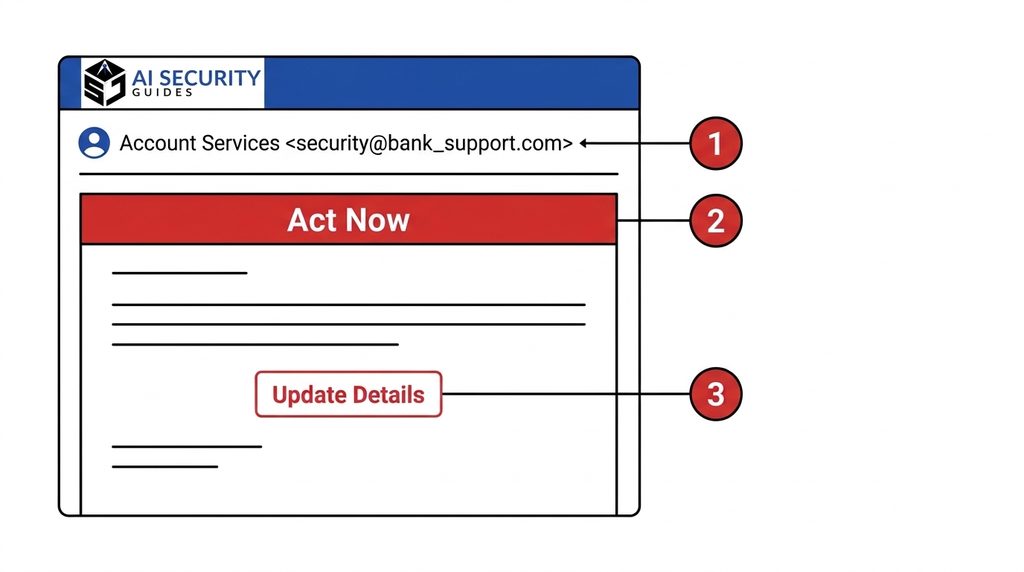
Phishing is a message designed to trick you into giving up a password, a code, or your money. Phishing messages can look very convincing, with official logos and urgent language. With AI tools, scam messages are now more polished than ever, which makes spotting them a critical part of this cybersecurity checklist for beginners.
Warning signs
- A sender address that looks almost right but has a small misspelling
- A message that creates urgency, such as “your account will be closed in 24 hours”
- Requests for your password, PIN, or one-time code
- Links or attachments you were not expecting
- Spelling or grammar mistakes, or a greeting that does not use your name
If you are new to the topic, start with what is phishing and how to spot common scams. For messages that look perfectly written, see how to verify a convincing AI-written phishing email.
What to do instead
Do not click the link. Instead, go to the company’s website or app yourself, or call the phone number printed on your card or statement. If you are unsure, ask someone you trust before acting. Report phishing emails to your email provider, and report scam texts to your mobile carrier. In the US, you can also report online fraud to the FBI’s Internet Crime Complaint Center (IC3).
Step 10: Back Up Your Important Data
Even with strong security, accidents and ransomware can make you lose your files. A backup means you can recover your photos and documents without paying anyone. Backups are the final item on this cybersecurity checklist for beginners.
Simple backup plan
- Use the 3-2-1 rule: three copies of your data, on two different types of storage, with one copy kept off-site or in the cloud.
- Turn on automatic backup for your phone, such as iCloud Backup or Google One.
- Back up important documents to a cloud service or an external hard drive.
- Test your backup once in a while by checking that you can open the files.
Backups also protect you from ransomware, which locks your files and demands payment. Our complete guide to ransomware prevention and recovery explains how to prepare. To make sure your backups actually work, read how to test backup restore.
How to Know If Your Account Is Hacked
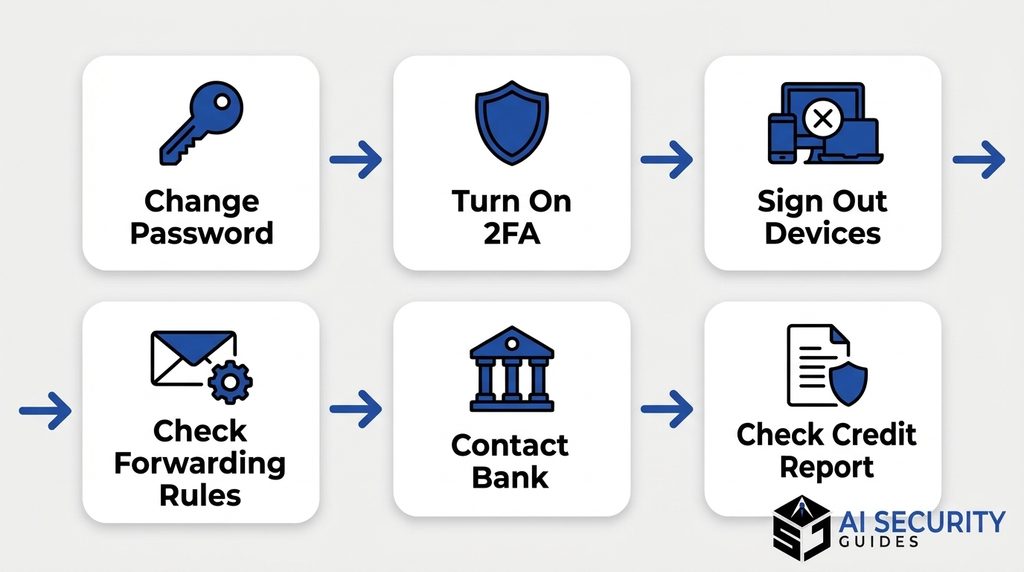
Some warning signs are easy to spot, and acting quickly can limit the damage. Knowing how to know if your account is hacked is just as important as the prevention steps above.
Signs your account may be compromised
- You cannot log in with your usual password
- You receive password change or new login alerts you did not trigger
- Messages, posts, or emails were sent that you did not write
- Unknown devices or locations appear in your account’s login history
- Charges or transfers appear in your bank account that you did not make
What to do right away
- Change the password for that account. If you use the same password elsewhere, change those too, starting with your email and banking.
- Turn on 2FA if you have not already.
- Sign out of all other sessions and devices from the account’s security settings.
- Check your email for forwarding rules and remove any you did not create.
- Contact your bank if money is involved, and ask for a fraud review.
- Check your credit report and consider a credit freeze if personal information like your Social Security or national ID number was exposed. In the US, report identity theft at IdentityTheft.gov, run by the Federal Trade Commission.
For a fuller recovery process, especially for email, read email account hacked? 9 steps to recover and secure it.
Quick Summary
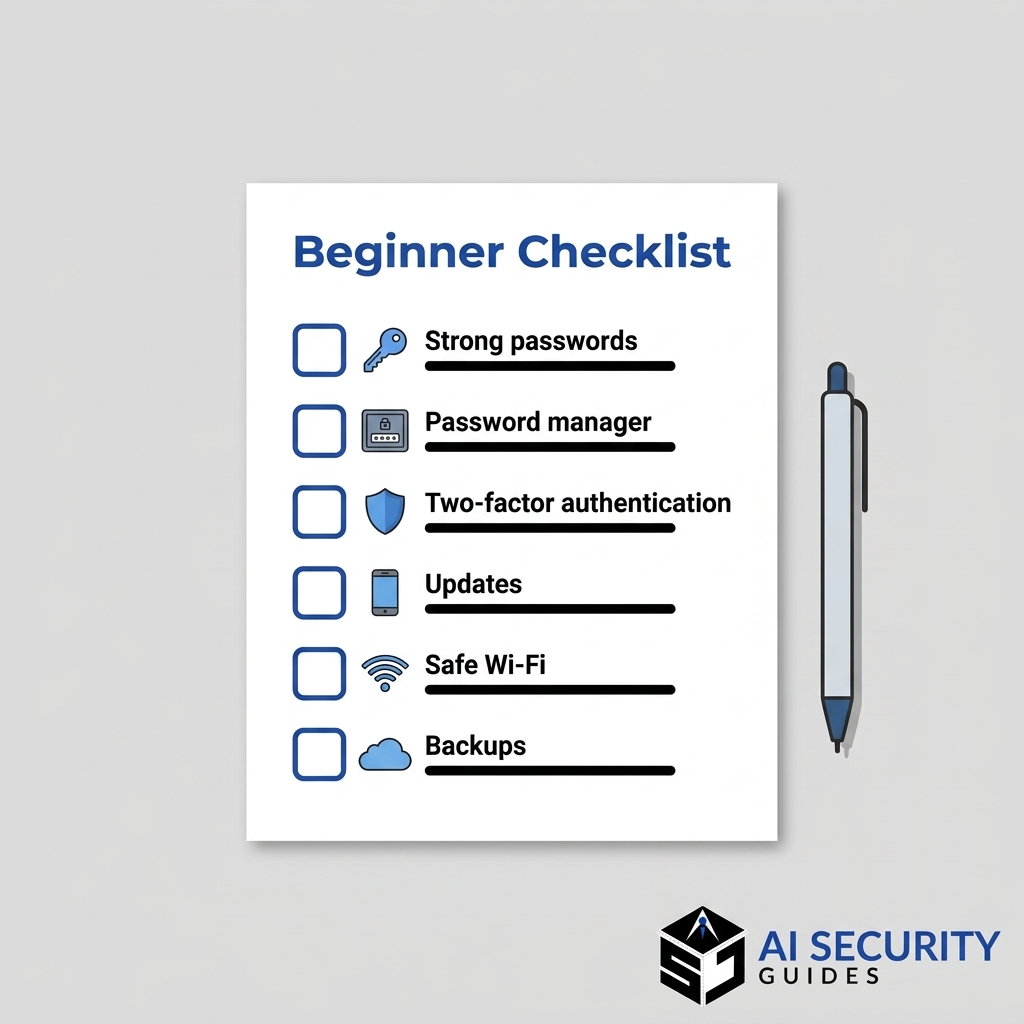
Check off each item as you complete it.
- I use a unique, strong password for every important account
- I use a password manager to store my passwords
- I have turned on two-factor authentication for my email
- I have turned on two-factor authentication for my banking apps
- I have turned on two-factor authentication for my social media
- My recovery email and phone number are up to date
- My social media privacy settings are set to private or friends only
- My phone and computer update automatically
- My phone has a passcode or biometric lock
- I avoid banking on public Wi-Fi
- I do not click links in unexpected messages without verifying them
- I have turned on transaction alerts from my bank
- My important files are backed up
Frequently Asked Questions
How to stay safe online for beginners? Start with three habits: use a unique password for each account, turn on two-factor authentication, and think before you click any link in a message. These three steps protect you from most common attacks.
How to create a strong password? Use a passphrase of three or four random words, at least 14 characters long. Avoid personal details and common phrases, and generate a new password for each account with a password manager.
Is a password manager safe to use? Yes. Reputable password managers encrypt your data, and they are generally much safer than reusing passwords or writing them on paper. Protect the manager itself with a strong master password and 2FA.
Is SMS two-factor authentication enough? It is better than having no 2FA at all. However, an authenticator app or a security key is stronger, because SMS codes can be intercepted through SIM-swap scams.
Conclusion
Cybersecurity does not have to feel overwhelming. You do not need to finish every item on this cybersecurity checklist for beginners today. Start with your email account, turn on two-factor authentication, and set up a password manager. Each step you complete makes it harder for criminals to reach your information.
Review your checklist every three months, and update your passwords and privacy settings whenever you sign up for something new. Small habits, repeated consistently, are what keep you safe online.
Once your basics are in place, you can also look at how to use AI tools safely. Our AI safety checklist: 12 practical checks for everyday users is a good next step.